

A Home Assistant custom integration for the Yeelight Cube Smart Lamp Lite, a lamp with a 20×5 RGB LED matrix (100 individually addressable pixels). Get full pixel-level control from your HA dashboard: draw pixel art, display scrolling text, apply gradients, color effects, and more.



Clock / Native effects / Pixel art

These overviews use generated screenshots of the actual cards with example data. Install with HACS, then add your lamp.
Cards at a glance · Features · Installation · Setup · Matter & buttons (optional) · Lovelace Cards · Entities · Automations · Display Modes · Requirements · Devices · Limitations · Power Supply · Troubleshooting · License
| What you can do | Where to start |
|---|---|
| Display a clock with time/date styles, colours and favourites | Clock Card |
| Play native animations | Native Effects Card |
| React to room sound with the lamp's microphone | Music Flow: use the device's select controls |
| Draw pixel art or choose from 68 bundled official drawings | Draw Card |
| Show scrolling text, palettes and gradients | Colors / Palettes / Gradient |
| Preview the lamp live and adjust its brightness and colors | Preview Card |
| Use the lamp's buttons in automations and restore the display after a press | Matter and buttons (optional) |
| Keep control local, with automatic network discovery and no cloud dependency | Setup |
All seven cards have visual editors, light/dark themes and configurable layouts. Normal display controls use LAN Control; Matter is an optional extra.

Or manually add the custom repository:
Step-by-step HACS installation
- Open HACS in your Home Assistant dashboard
- Click the ⋮ menu (top right) → Custom repositories
- Add this URL and set the category to Integration, then click Add:
https://github.com/Max-src/yeelight-cube-lite - The repository now appears in the custom repositories list. Close the dialog.
- Back in HACS, search for Yeelight Cube Lite and open the result
- Click Download (or Install) and confirm
- Restart Home Assistant
Manual installation, updates and removal
- Download the latest release
- Copy the contents into
custom_components/yeelight_cube/inside your HA config directory - Restart Home Assistant
After updating through HACS or replacing the integration files manually, restart
Home Assistant so the updated Python code and new entities are loaded. Existing
device entries, settings, palettes, and personal pixel art are preserved. If a
dashboard card does not update after the restart, perform a hard browser refresh
(Ctrl+F5).
If you enabled Buttons: Right as Remote, switch it off and wait for
remote_status: disabled before removal, so your button playlist is restored.
See remote-mode recovery.
- Remove the cards from your dashboards (they show an error once the integration is gone).
- In Settings → Devices & services → Yeelight Cube Lite, open each lamp's ⋮ menu and choose Delete. Its devices and entities are removed with it; the lamp itself keeps working with the Yeelight app.
- In HACS, open Yeelight Cube Lite and choose Remove (for a manual
installation, delete
custom_components/yeelight_cube/), then restart Home Assistant. - The cards were added as dashboard resources: remove the ones starting with
/yeelight_cube/in Settings → Dashboards → ⋮ → Resources (shown with Advanced mode on in your user profile).
Your saved palettes, drawings and clock presets stay in
.storage/yeelight_cube.storage in the configuration folder, so a later
reinstallation finds them (a deleted lamp's favourites and rotation are
removed with it); delete that file to remove them too.
Before adding the lamp to Home Assistant, you must first set it up using the official Yeelight app by Qingdao Yeelink (App Store · Google Play).
Use Yeelight (formerly Yeelight Station), the app for Cube, Beam and Obsid products. Yeelight Classic and Yeelight Pro do not support this lamp.
View setup steps
- Download the Yeelight app from the App Store (iOS) or Google Play (Android). Not Yeelight Classic or Yeelight Pro
- Power on the lamp
- Add the lamp to the app: follow the in-app instructions to connect the lamp to your 2.4 GHz Wi-Fi network
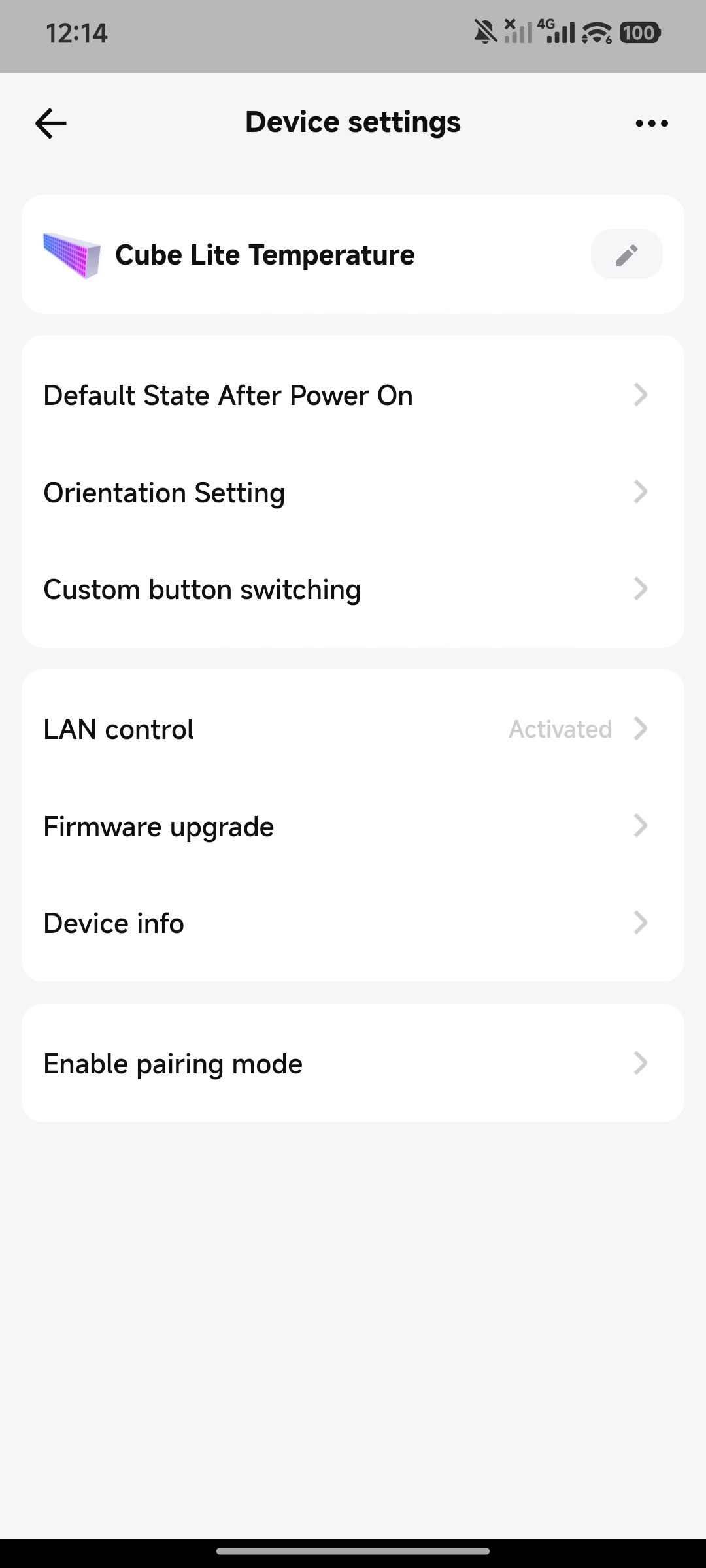
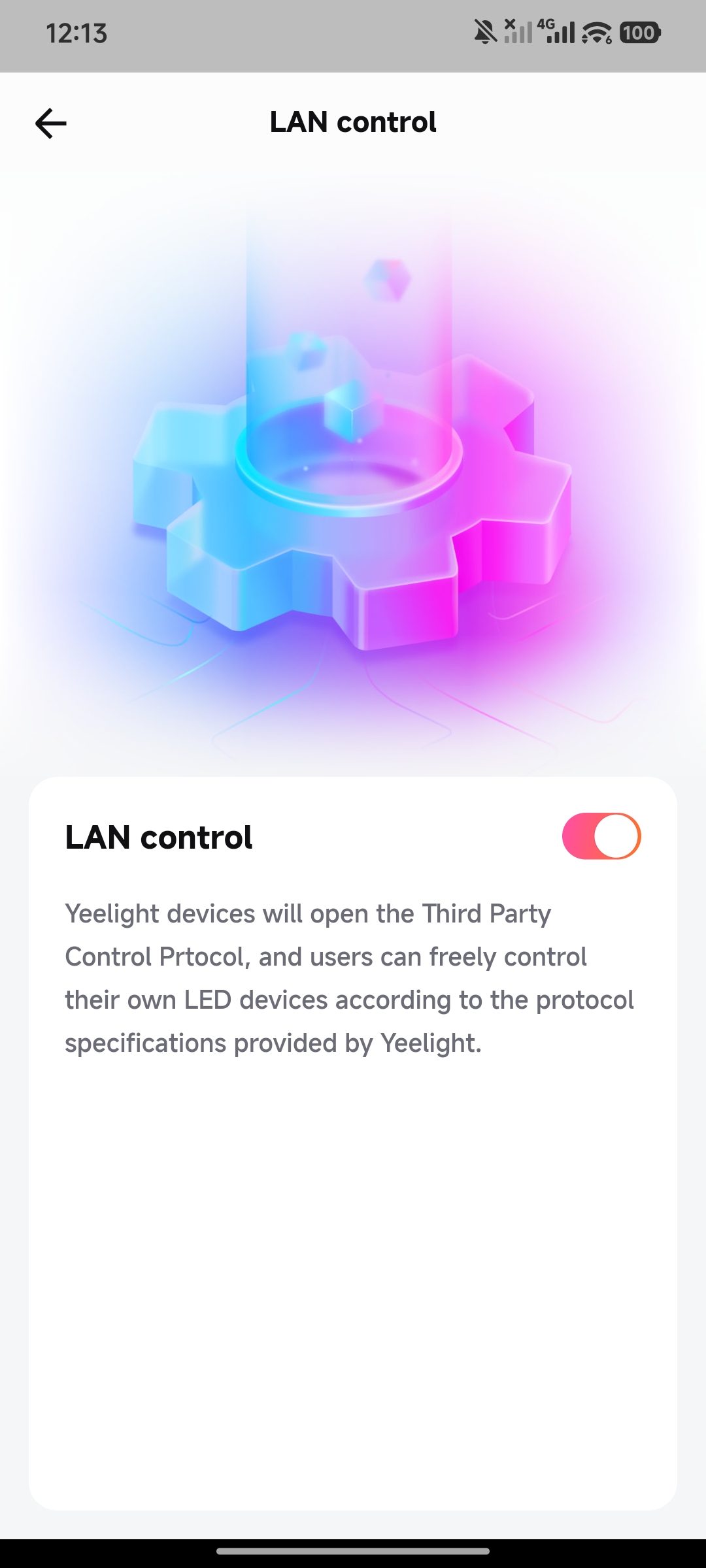
- Enable LAN Control: in the app, go to your lamp's Device Settings and activate LAN Control. This is required for the integration to communicate with the lamp over your local network
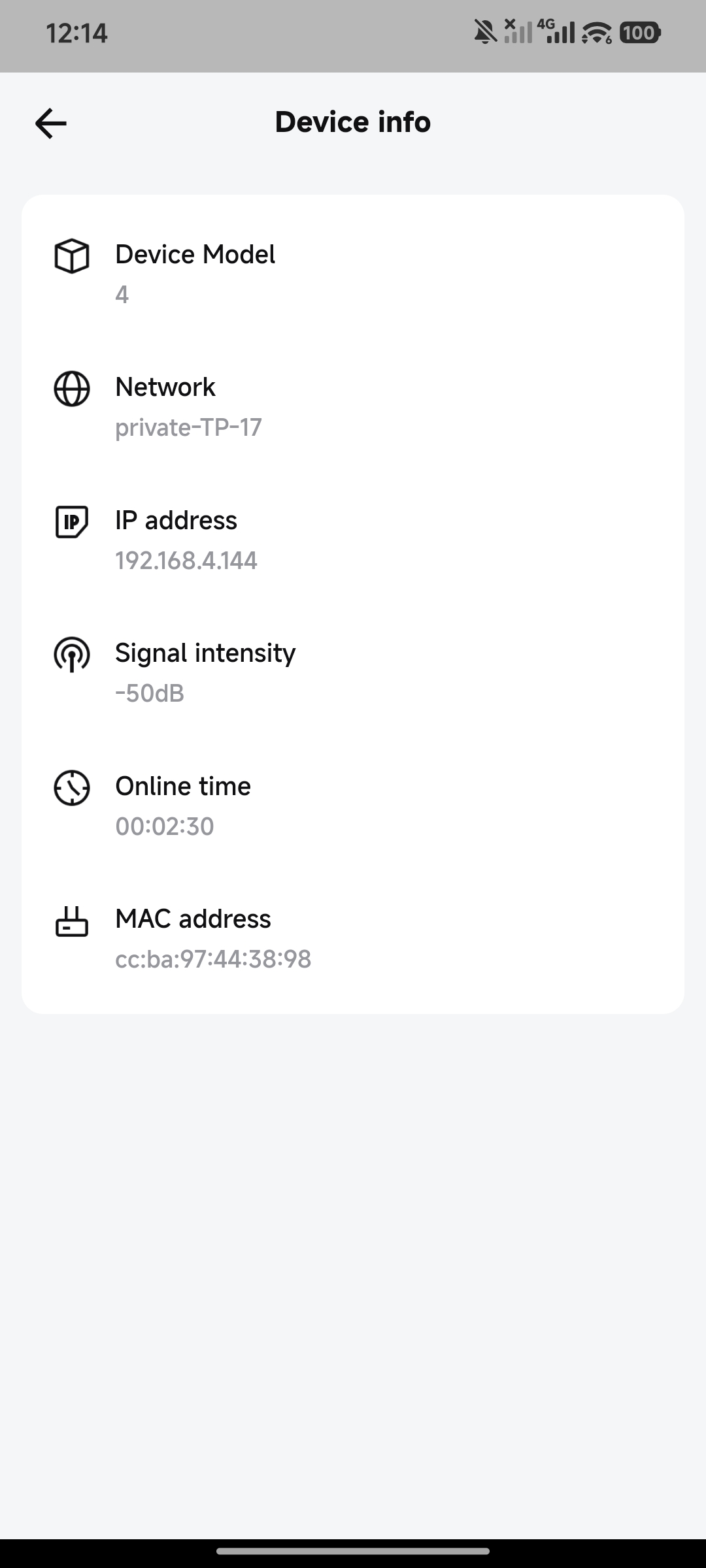
- Find the lamp's IP address: in Device Settings → Device info, find the IP address assigned to the lamp (e.g.
192.168.4.139) - Save the lamp's orientation: open the lamp's orientation (direction) page, pick the arrow for how the lamp is mounted, and tap Save. The lamp turns its built-in effects by this setting: see Set the lamp's orientation
 |
 |
 |
💡 Tip: You can also find the lamp's IP from your router's admin page or DHCP client list. Assigning a static IP / DHCP reservation is recommended.
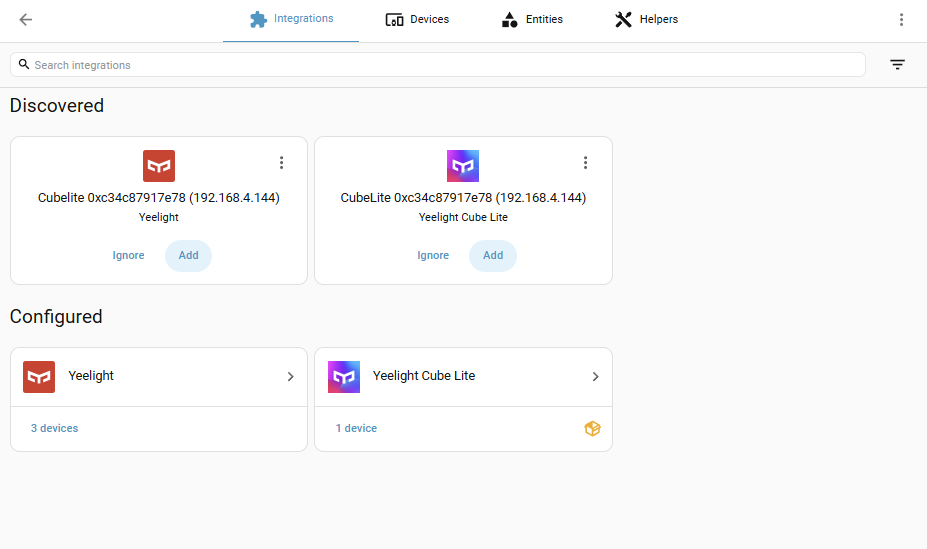
Once the lamp is on your network with LAN Control enabled, Home Assistant will automatically detect it via Zeroconf (mDNS) - no IP address needed.
View discovery steps
-
Look for the Yeelight Cube Lite discovery notification on Settings → Devices & Services
-
Click Add
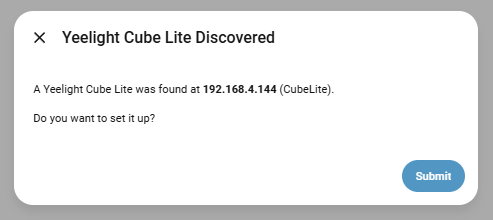
-
Confirm to set up the device
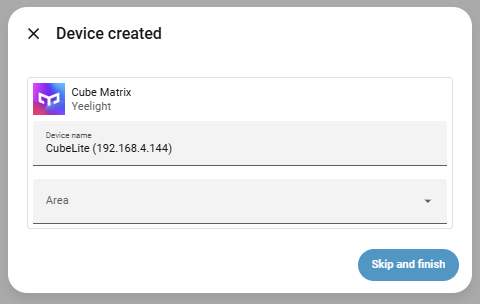
-
Done. The integration creates all entities automatically.
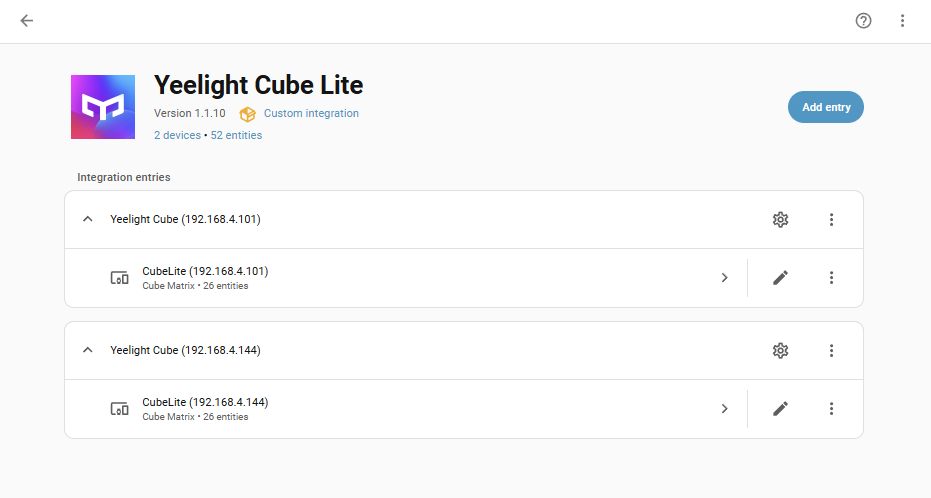
ℹ️ Note: If you also use the official Yeelight integration, it may generate a discovery notification for the same lamp. That notification is automatically suppressed by this integration - you can safely ignore it.
💡 Tip: IP address changes: The integration uses auto-rediscovery. If the lamp gets a new IP (e.g. after a router reboot), the integration finds it again automatically.
If the lamp is not discovered automatically (e.g. different subnet or mDNS is blocked):
View manual setup steps
-
Go to Settings → Devices & Services
-
Click + Add Integration (bottom right)
-
Search for Yeelight Cube Lite and select it
-
On this integration detail page, click Add entry
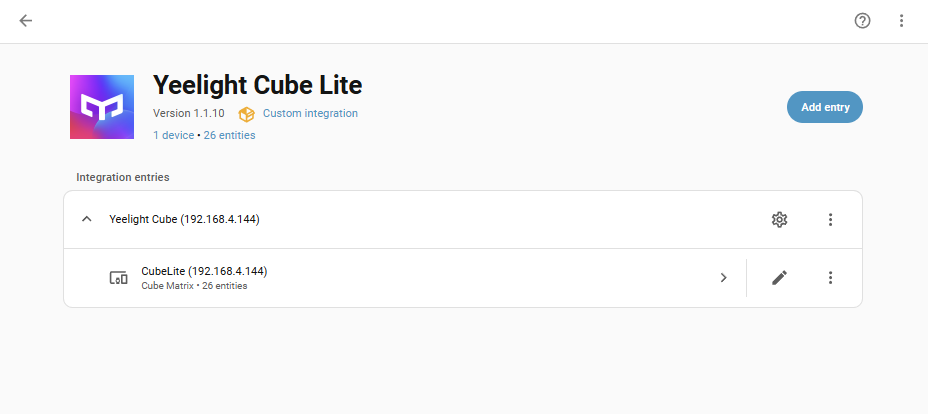
-
Enter the IP address from the Yeelight app (e.g.
192.168.4.139)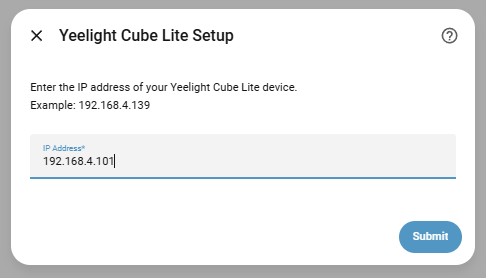
-
Click Submit
ℹ️ Note: Each lamp needs to be added separately. If you have multiple lamps, repeat the process for each one.
The lamp saves an orientation (the Yeelight app's orientation page: the arrow you pick, then Save; 0°, 90°, 180° or 270°) and turns every built-in effect's direction by it. Your drawings, text and pictures are not affected. Home Assistant cannot read this setting over your local network, so it asks when you add the lamp (How is the lamp mounted?):
| Your situation | Choose |
|---|---|
| You saved an arrow in the app | The same arrow (left 0°, up 90°, right 180°, down 270°) |
| Never set in the app, or after a factory reset | Arrow down (270°), or never set: what such a lamp runs. Or, better, set it in the app now (orientation page, the arrow for how the lamp is mounted, Save) and choose that arrow |
| Not sure | Check it on the lamp: it shows shooting stars, you say which way they fly (as you see the lamp, mounted as its Device Orientation says), and it tells you the app's arrow before saving it |
| The lamp is (or will be) in Home Assistant's Matter integration | Read it over Matter: an orientation saved in the app is read from the lamp, and followed when you change it later |
Later changes: without Matter, Home Assistant cannot see a change made later in the app: choose the new arrow in the lamp's Configure (Settings → Devices & services → Yeelight Cube Lite, the lamp's entry). With Matter, it follows on its own. A lamp added with an earlier version, or whose orientation is still unknown after 10 minutes, gets a Repairs message (Set the orientation of …) pointing to Configure.
Until it is known, effects move as for 270°: what the lamp runs when its orientation was never saved in the app, or after a factory reset. (Earlier versions assumed 180°: if you had saved 180° in the app, choose it in Configure.) With the lamp also linked over Matter, an orientation saved in the app is read from the lamp and followed; a lamp never saved gets Device Orientation written once (with a Matter server that delivers Yeelight's settings): see Matter.
Important
A factory reset (both buttons held about 6 seconds) erases the saved orientation: the lamp then behaves as 270° until it is saved again. Save it again in the app, or set it again in Configure. A reset also removes the lamp from Matter: pair it with Home Assistant's Matter integration again.
The light's mount_profile attribute shows the known orientation (profile
0-3 for 0°-270°, or null), where it comes from (source: matter, user
or unknown), and the one in use (in_use: the default 3 when unknown).
You do not need Matter for the cards, clock, text, drawings or effects. The integration controls those over your local network with LAN Control.
Adding the same lamp to Home Assistant's Matter integration also enables button events for automations and follows supported changes made on the lamp or in the Yeelight app. Two switches turn the lamp's buttons into a remote, one per button: Buttons: Right as Remote restores the integration's display after a right-button press, and Buttons: Left as Remote after the left button starts music (it also catches music commands from apps). Buttons: Wake Lamp When Off decides whether a press turns an off lamp on, or only fires its event. Ordinary external changes are accepted. A brief flash can remain.
Note
Buttons: Right as Remote and the lamp's direction from Device Orientation need Yeelight's Matter commands, which Home Assistant's Matter server supports from matterjs-server 1.5.4. With an older server, the button events and the other two switches still work.
Set up Matter, use button events, and understand remote mode
This component includes custom Lovelace cards for your dashboards.
Every card comes with a visual configuration editor - click the pencil icon to customize without YAML. Each section can be configured independently, and most sections offer multiple display styles and layout modes. Every card also accepts title, show_card_background (off: a transparent card) and show_lamp_status (the lamp's state in the header).
Important
After installing or updating, do a hard refresh (Ctrl+F5) in your browser if the cards don't appear.
Full dashboard examples
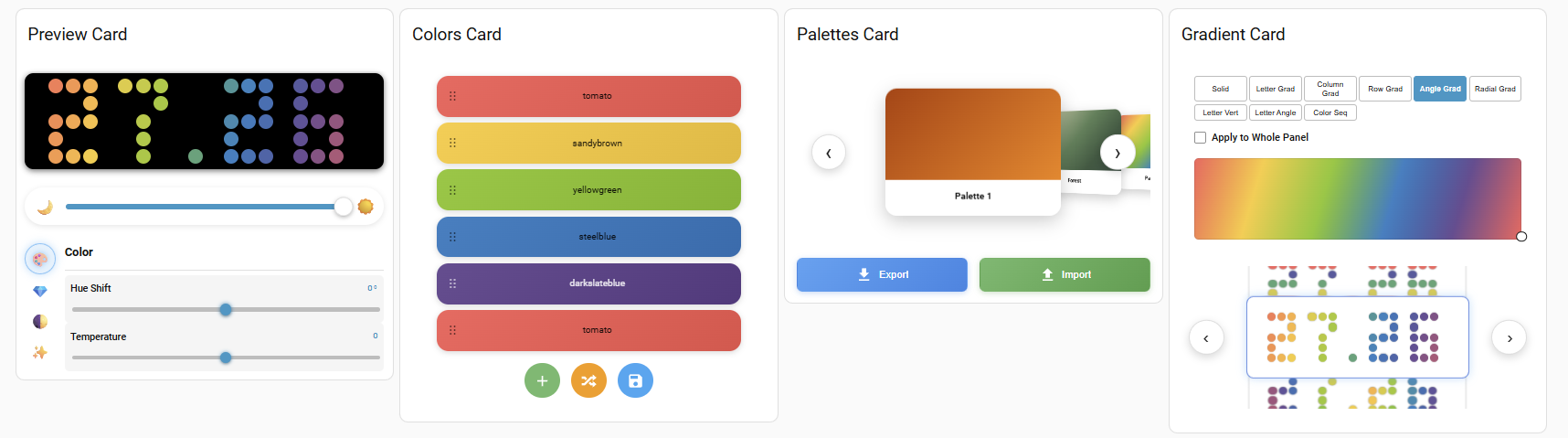 |
 |
Browse built-in clock styles with live time/date previews, choose a color mode or custom RGB, and save your favourite style-and-color combinations. The card also provides content/format controls, brightness, animation speed, and a server-side favourites rotation that continues after you close the dashboard.
Style browsing and filtering
The Clock and Native Effects cards offer Text, Live Preview, and
Original browsers in the visual editor's Previews section. Styles
follow your configured order and filter to those that respond to the selected
colour mode or RGB override, without deleting favourites. The former
show_only_responding_styles toggle is no longer used.
See card configuration and behaviour for layouts, offline editing and multi-lamp rotation.
View card variations
 Square pixels and capsule sliders |
 Dark theme, round pixels and list gallery |
 Rounded pixels and compact text styles |
 Narrow dashboard column |
 Local previews while the lamp is unavailable |
 Card title, lamp status and no card background |
Features:
| Feature | Description |
|---|---|
| Clock preview | Live time/date preview using the lamp's native font, with configurable pixels, spacing, background, shadow and size |
| Style browser | Search clock styles using text styles (Filled, Dropdown, or Chips with a live mini preview), live-preview layouts (List, Grid, Mosaic, Strip, Carousel, Wheel or Album) or the Original grid or list, with pagination and favourite markers. The editor's Styles list picks, orders and renames them for the card (or show them A → Z). Your custom styles can be renamed and deleted (with confirmation) from the gallery. A family filter beside the search field (All, Waves, Glow, Sparkles, Motion, Still) shows one kind of style: solid colors and custom styles are under Still, and the rest follow their effect. It offers the families the card has, this browser remembers the choice, and the editor can hide it |
| Color modes | Choose supported palettes or custom RGB; save reusable color modes and clock presets |
| Sliders | Brightness, speed and intensity with selectable slider styles, labels and values; speed and intensity are shown only when the style's background uses them, or greyed out in place with Grey out unused sliders |
| Content & format | Switch time/date, 12/24-hour format and colon blinking |
| Actions | Previous, next, random, freeze, refresh and power controls |
| Lamp mounted | Right / Down / Left / Up, shown when a Matter server that sends Yeelight commands lets it reach the lamp's clock: the lamp then turns the digits for the mount, the background stays where it is on the panel, and the previews show it so |
| Favourites & rotation | Save style-and-color combinations on the lamp (the same on every dashboard and device); rotate at a configurable interval, even after closing the dashboard |
| Multiple lamps & offline editing | Target several lamps; previews and color choices remain available while lamps are unavailable |
View editor sections
 Global Settings |
 Preview Appearance |
 Lamp Preview |
 Actions |
 Sliders |
 Content & Controls |
 Custom clock styles and colors |
 Previews |
 Favourites |
 Clock Mode Rotation |
YAML example
type: custom:yeelight-cube-clock-card
entity: light.cubelite_a904
title: Clock
show_current_preview: true
show_brightness: true
show_animation_speed: true
slider_style: capsule
show_color_modes: true
show_gallery: true
style_selector_style: original
effect_view: grid
items_per_page: 4
show_favourites: true
show_rotation: true
rotation_interval: 30   # seconds; used until the lamp has its own interval
Use target_entities with a list of light entity IDs to control multiple lamps.
See configuration and storage details.
Browse the lamp's built-in animations with local animated previews. Choose supported palette modes or custom RGB, manage favourites, and rotate through them. Brightness, speed, orientation, Freeze, Refresh, and power controls are available where supported.
View card variations
 Square pixels and capsule sliders |
 Dark theme, round pixels and list gallery |
 Rounded pixels and compact text effects |
 Narrow dashboard column |
 Local previews while the lamp is unavailable |
 Card title, lamp status and no card background |
Features:
| Feature | Description |
|---|---|
| Live previews | Preview built-in animations with configurable pixels, spacing, background, shadow and size |
| Effect browser | Search effects using text styles (Filled, Dropdown, or Chips with a live mini preview), live-preview layouts (List, Grid, Mosaic, Strip, Carousel, Wheel or Album) or the Original grid or list, with pagination and availability badges. The editor's Effects list picks, orders and renames them for the card (or show them A → Z) A family filter beside the search field (All, Waves, Glow, Sparkles, Motion, Music, Still) shows one kind of effect; it offers the families the card has, this browser remembers the choice, and the editor can hide it. Each effect, in the browser and the favourites, shows its family's icon at the bottom right, never over its preview (a flame for Glow, a sparkle for Sparkles, a note for Music, waves, a play arrow for Motion, a picture for Still), colored like the card's buttons; hovering it names the family. Chips show it after the name, the dropdown and text buttons the family's emoji (🌊 🔥 ✨ |
| Color modes | Apply supported palette modes or custom RGB; favourites remember the chosen colors |
| Sliders | Brightness, effect speed and intensity with selectable slider styles; speed and intensity are shown only for effects that use them, or greyed out in place with Grey out unused sliders |
| Orientation & actions | Device orientation, previous, next, random, freeze, refresh and power controls |
| Favourites & rotation | Order saved effect-and-color combinations and rotate them on the lamp at a configurable interval |
| Multiple lamps & offline editing | Control several targets; browse previews even while lamps are unavailable |
View editor sections
 Global Settings |
 Preview Appearance |
 Lamp Preview |
 Actions |
 Sliders |
 Device Orientation |
 Color Modes & Controls |
 Custom colors |
 Previews |
 Favourites |
 Effect Rotation |
YAML example
type: custom:yeelight-cube-native-effects-card
entity: light.cubelite_a904
title: Native Effects
show_preview: true
show_brightness: true
show_animation_speed: true
slider_style: capsule
show_color_modes: true
show_gallery: true
style_selector_style: original
effect_view: grid
items_per_page: 4
show_favourites: true
show_rotation: true
rotation_interval: 30   # seconds; used until the lamp has its own interval
Shared behaviour: favourites store the style/effect together with its color
mode and custom RGB, separately for Clock and Native Effects. They are saved on
the lamp in Home Assistant (a card with several lamps shows the list of its first
available lamp and saves it to all of them), so every dashboard, browser and device shows the
same favourites, rotation interval and rotation status. A running rotation is
resumed after a Home Assistant restart. Add at least two available
favourites to start rotation. For multiple lamps, use target_entities with a
list of light entity IDs on either card.
When a lamp is unavailable: previews and color choices remain usable, and the last known favourites stay shown (they are edited again once the lamp is back), even if the entity temporarily disappears. Hardware controls are gated. Reconnection discards local preview drafts without sending them to the lamps. Unknown rotation status is not treated as an active rotation. With several lamps this only happens once none of them is available: while one is, every card keeps controlling the lamps (each change also reaches the offline lamp once it is back), shows the first available lamp and names the offline ones (Lamp unavailable: Bedroom. The other lamps are controlled.).
See configuration and storage details, service calls.
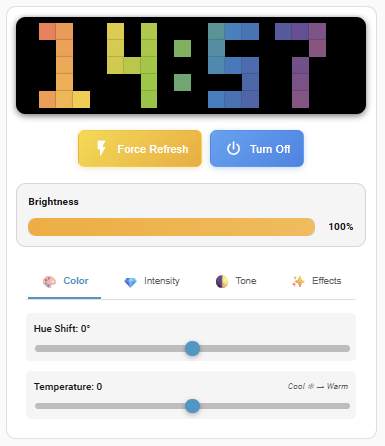
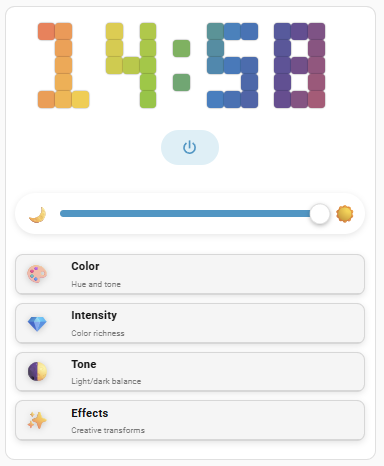
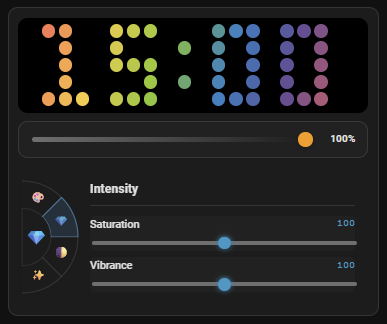
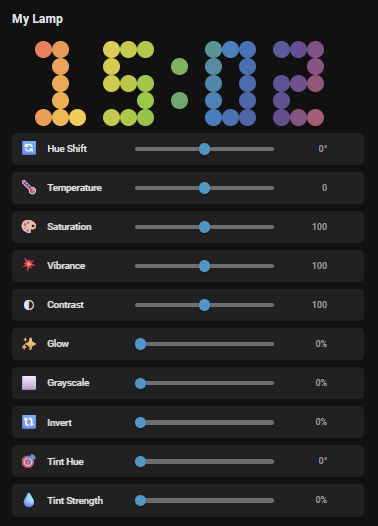
A live dashboard card that mirrors the lamp's current state with real-time matrix preview, brightness slider, power & refresh actions, and color adjustments panel.
View card variations
 Light theme with brightness and color adjustments |
 Dark theme with round pixels |
 Card title, lamp status and no card background |
More layout examples
 |
 |
 |
 |
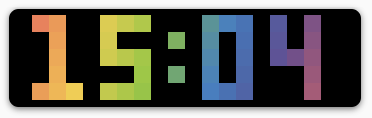 |
Features:
| Feature | Description |
|---|---|
| Lamp preview | Reflects what's displayed on the lamp. Configurable pixel style, spacing, background, shadow, and size |
| Refresh & power | Quick buttons to force-refresh or toggle power |
| Device orientation | Right / Down / Left / Up control with configurable button layout; the preview rotates to match the physical mount |
| Brightness slider | Configurable slider styles |
| Color adjustments | Adjustment sliders with multiple layout modes, change indicators, and reset buttons |
View editor sections
 Global Settings |
 Preview Appearance |
 Lamp Preview |
 Actions |
 Device Orientation |
 Brightness Settings |
 Color Adjustments |
Edit the ordered list of colors used by text display on the lamp. Add, delete, drag to reorder, shuffle, and save as a reusable palette.
View card variations
 Cards with hex codes, drag to reorder |
 Tiles with the add / shuffle / save actions |
 Dark theme: compact chips |
Features:
| Feature | Description |
|---|---|
| Multi-entity support | Control multiple lamps at the same time |
| Color list | Add, remove, and reorder by dragging (mouse or touch, the same drag as the Draw and Palettes editors) in six layouts: Cards, Tiles, Rows, Grid, Compact, Chips. Optional hex/name display |
| Shared look | Size and Item Radius like the other cards' galleries (older card_size / rounded_cards options migrate automatically) |
| Color edit | Color picker or hex input |
| Actions | Add, shuffle, and save as reusable palette |
View editor sections
 Global Settings |
 Color List Settings |
 Add/Shuffle/Save Actions |
Manage color palettes. Apply a palette to lamps with one click. Multiple display modes supported.
View card variations
 Album of palettes with gradient backgrounds |
 List with color swatches and their count |
 Dark theme: grid with color stripes |
Features:
| Feature | Description |
|---|---|
| Multi-entity support | Control multiple lamps at the same time |
| Browse & apply | The shared gallery: List, Grid, Mosaic, Strip, Carousel, Wheel or Album previews, or Filled, Dropdown or Chips buttons, with optional search; the shared swatches: Swatches (row, grid, expandable, scroll, fan, wave or spiral; square, rounded or circle), Gradient, Stripes, Fill, Honeycomb, Blinds or Treemap (older swatch_style options migrate automatically), and the color count; one-click (or keyboard) apply; in the carousel and wheel the arrows only browse, a click applies. The palette the lamps show is highlighted; your order or A → Z |
| Manage | Rename (Allow Rename) and delete palettes from the gallery; a delete always asks for confirmation |
| Arrange | Reorder your palettes in the card editor (drag or ▲ ▼); the order is saved for every card, lamp and the Matrix: Palette select |
| Import/Export | Load and save full palette collections |
View editor sections
 Global Settings |
 Palettes |
 Import/Export Actions |
Select and configure gradient/color modes. Adjust gradient direction with an angle control. Preview all gradient modes live.
View card variations
 Mode buttons, active mode and a rectangle angle control |
 Chips with live gradient swatches and a compass |
 Dark theme: dropdown, wheel and panel tabs |
Features:
| Feature | Description |
|---|---|
| Multi-entity support | Control multiple lamps at the same time |
| Unified mode selector | The same gallery as the Clock and Native Effects cards: 3 lightweight text styles (Filled, Dropdown, Chips with live gradient swatches) or 7 live preview styles (List, Grid, Mosaic, Strip, Carousel, Wheel, Album) that render a mini matrix of every mode with your current text, colors, and angle — click to apply. Optional text search; the editor's Modes list picks, orders and renames them for the card (or show them A → Z) |
| Shared appearance axes | Shape (Square / Rounded / Round) and Size apply consistently to every selector style — same design language as the other cards |
| Selection feedback | The chosen item pulses while the command is in flight and settles once the lamp confirms |
| Active mode label | Optional chip showing the currently active mode by name (handy when titles are hidden) |
| Apply to whole panel | Independent toggle to apply gradients to the full panel instead of just the text |
| Angle selector | Rectangle or square bar, wheel (optional arrow mask), compass (needle, beam, arrow, star or rectangle overlay), mini-matrix (optionally showing the lamp's text) or capsule slider; optional snapping to N/NE/E… (all but the mini-matrix) and the angle shown as text or an editable number. A lamp update never moves the angle you are dragging |
Upgrading from an older version? The former "Color Mode Selector" and "Gradient Preview" sections were merged into a single Mode Selector — they served the same purpose. Existing configs (including the former angle styles and selector layouts) migrate automatically, in the card and in its editor; pick a text style in the editor if you prefer the old compact buttons. Text styles skip the preview computation entirely, making them noticeably lighter.
View editor sections
 Global Settings |
 Preview Appearance |
 Active Mode Label |
 Mode Selector |
 Apply to Whole Panel |
 Angle Selector |
Preview Appearance is the shared matrix look, see Shared Preview Appearance.
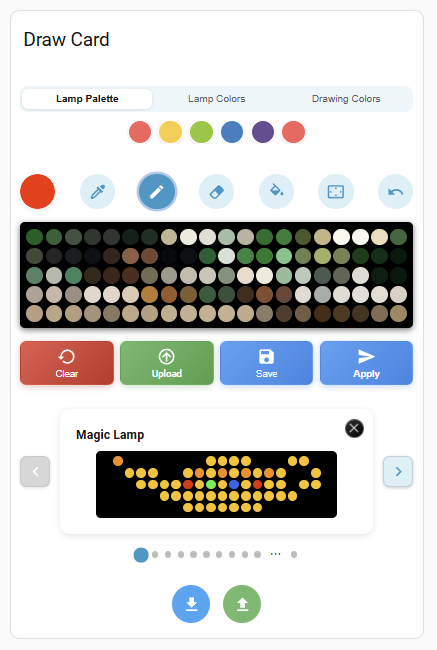
The pixel art editor. Paint on a 20×5 interactive matrix, save designs to a personal gallery, and push artwork to one or more lamps with a single tap.
View card variations
 Colors, tools, a drawing and the pixel-art carousel |
 Pixel-art grid: the art being drawn is highlighted |
 Dark theme: round pixels and pixel-art chips |
Features:
| Feature | Description |
|---|---|
| Multi-entity support | Control multiple lamps at the same time |
| Colors section | Quick access to recent, palette, current, and drawing colors |
| Drawing tools | Individually toggleable with multiple styles |
| Drawing matrix | Interactive 20×5 matrix, landscape or vertical (Rotate tool; a vertical pixel art opens vertical and is saved so) |
| Action buttons | Apply to lamp, upload from image, save, or clear |
| Pixel art gallery | The shared gallery: Grid, List, Mosaic, Strip, Carousel, Wheel or Album previews, or Filled, Dropdown or Chips buttons, with optional search. A pick (a click; carousel and wheel arrows only browse) loads the pixel art into the drawing (and sends it to the lamp with "Apply to lamp automatically"); vertical pixel arts show standing up; the pixel art on the canvas is highlighted; your order or A → Z. Rename (Allow Rename) and delete them from the gallery (a delete always asks for confirmation); reorder them in the card editor's Arrange list (saved for every card and the Matrix: Pixel Art select) |
| Official pixel arts | The 68 official drawings appear in the gallery beside yours, grouped (All, My drawings, each official collection) as tabs or another section layout; choose which ones the card shows, and filter by orientation (All / Horizontal / Vertical, or follow the lamp's) |
| Import/Export | Import and export collections as JSON |
View editor sections
 Global Settings |
 Layout |
 Colors Section |
 Drawing Tools |
 Preview Appearance |
 Drawing Matrix Section |
 Action Buttons |
 Pixel Art Section |
 Import/Export Actions |
A Preview Appearance section (the shared matrix look, see Shared Preview Appearance) sits between Drawing Tools and Drawing Matrix Section.
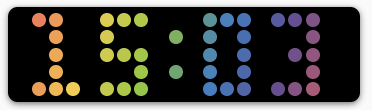
Each lamp has two camera entities, Matrix Preview (Round) and Matrix Preview (Square): a picture of what the lamp shows, for a quick preview with Home Assistant's own Picture Entity card (or a picture-glance card, a notification, another app). For an interactive preview with controls and the same look as the other cards, use the Preview Card.
- What it shows: what you see on the lamp. A lamp mounted Left or Up (upside down) is shown the right way up, and the clock, native effects and Music Flow are simulated, as on the cards.
- How it looks: a sharp image (1227 × 372 px, 3× the design size) of the lamp in a black frame with rounded corners and a soft shadow, on a transparent background: the card's own background shows around it.
- When it renders: only when an image is requested, from the lamp's latest frame: a camera nobody is watching costs nothing.
- How fast it moves: set by the card's
camera_view. Withlive, a stream shows Fireworks at up to the lamp's 25 frames a second, as a smaller 409 × 124 px image (fewer frames on a slow Home Assistant host, which it never loads with more than about half a core per camera), and the other effects at about 3. Withauto, Home Assistant's dashboard fetches one full-size picture every 10 seconds, whatever the camera does. The stream runs while the card is on the page, so preferautofor a card that only needs to show what is on the lamp. For sharp, smooth animation, use the Preview Card.
type: picture-entity
entity: camera.living_room_cube_matrix_preview_round
camera_view: live
show_name: false
show_state: false
Camera orientation, sizing and layout examples
Turn on the lamp's Camera Follows Orientation switch (Configuration, off by default): while its Device Orientation is Down or Up, both cameras draw the lamp standing up (372 × 1227 px). Off, they stay landscape.
A picture card is as wide as its place in the dashboard, and either follows
the image's shape or gets a fixed height. With a fixed height, fit_mode
decides how the image fits in:
| Card settings | Lamp lying flat | Lamp standing up |
|---|---|---|
Natural size: grid_options: rows: auto (no aspect_ratio) |
Fits the width ✓ | Very tall in a wide card: give it a narrow one (columns: 3) ✓ |
Fixed height (grid_options: rows: 3, or aspect_ratio: "2:1" outside sections) and fit_mode: contain |
Fits the width, room above and below ✓ | Fits the height, room on the sides ✓ |
Fixed height and fit_mode: cover |
Sides cropped ✗ | Only the middle rows, zoomed ✗ |
Fixed height and fit_mode: fill |
Stretched ✗ | Stretched ✗ |
For a lamp you turn between orientations, one card works for both: a
fixed height with fit_mode: contain. Three rows is a good balance (about
190 px: a full-width flat lamp, a standing one about 190 px tall); more rows
make the standing lamp larger and leave more room around the flat one.
type: picture-entity
entity: camera.living_room_cube_matrix_preview_round
camera_view: auto
fit_mode: contain
show_name: false
show_state: false
grid_options:
  columns: 12
  rows: 3
For the best size in each orientation, use two cards that show by the lamp's orientation, each at the image's natural size:
# Lying flat (Right / Left): full width
type: conditional
conditions:
  - condition: state
    entity: select.living_room_cube_device_orientation
    state_not: [Up, Down]
card:
  type: picture-entity
  entity: camera.living_room_cube_matrix_preview_round
  camera_view: auto
  show_name: false
  show_state: false
grid_options:
  columns: 12
  rows: auto
---
# Standing up (Up / Down): a narrow card
type: conditional
conditions:
  - condition: state
    entity: select.living_room_cube_device_orientation
    state: [Up, Down]
card:
  type: picture-entity
  entity: camera.living_room_cube_matrix_preview_round
  camera_view: auto
  show_name: false
  show_state: false
grid_options:
  columns: 3
  rows: auto
View the camera's fits
 Lying flat: natural size (rows: auto) |
 Lying flat: fixed height, fit_mode: contain |
 Standing up: fixed height, fit_mode: contain |
 Standing up: natural size in a narrow card (columns: 3) |
 Lying flat: fit_mode: cover (crops the sides) |
 Standing up: fit_mode: cover (crops to the middle) |
 Lying flat: fit_mode: fill (stretches) |
 Standing up: fit_mode: fill (stretches) |
 The Square camera (square pixels) |
Each lamp creates its own set of per-device entities, plus the integration creates global entities (palettes, drawings, fonts, clock color presets) shared across all lamps.
Note
The names below are the entity names shown on the device page. Matrix-only
controls carry a Matrix: prefix and clock options a Clock: prefix so they
group together. Entity IDs are derived from the lamp name, e.g.
select.cubelite_a904_matrix_display_mode.
View entity screenshots
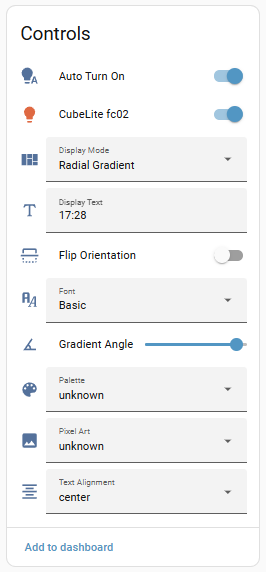 |
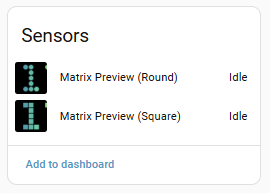 |
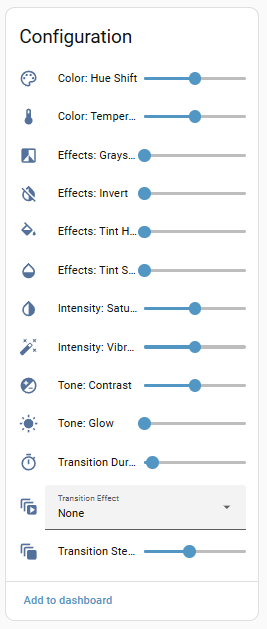 |
 |
All per-device controls, settings and diagnostics
| Entity | Type | Description |
|---|---|---|
| Auto Turn On | Switch | Automatically turn on the lamp when a mode, drawing, text or color change is applied while it is off. When disabled, the change is kept and shown when the lamp is turned on |
| (the lamp's name) | Light | Main light entity, named after the lamp (on/off and brightness; RGB color in Matrix mode) |
| Content mode | Select | Switch between Matrix, built-in Clock, Native Effect, and Music Flow |
| Matrix: Display Mode | Select | Choose the Matrix render mode (see Display Modes) |
| Matrix: Display Text | Text | Text shown by the Matrix text modes |
| Matrix: Font | Select | Basic, Fat, Italic, or Native (Basic with the built-in clock's digit shapes) |
| Matrix: Text Alignment | Select | Text alignment: left, center, right |
| Matrix: Gradient Angle | Number | Angle for angle-based gradient modes (0°–360°) |
| Matrix: Palette | Select | Apply one of the saved color palettes |
| Matrix: Pixel Art | Select | Personal drawings followed by the 68 locally bundled, read-only official presets |
| Clock: Style | Select | One of the 73 native clock styles: the lamp's 10 and the experimental ones |
| Native effect | Select | One of the 71 built-in animations, the experimental ones included (and the four animations to upload, with a Matter server that delivers the Yeelight commands) |
| Effect speed | Number | Speed for the native clock and for effects that support it (0–255 device units; unavailable when the effect or clock style shown has no speed control) |
| Effect intensity | Number | Intensity for the effects and clock backgrounds that use it (0–255, default 128; never below 13 on Aurora and 1 on Palette stripes, where lower values hang or restart the lamp): the number of glows or meteors, how often stars or drops appear, a wave's size, how strongly music bars react. One setting shared by all effects, like the speed; unavailable when the effect or clock style shown has no intensity |
| Music Flow effect | Select | Gather, Breathing, Blossom, Spectrum, Music Note, or Impact |
| Clock: Content | Select | What the clock shows: Time, Time & Date (alternating), or Date |
| Device Orientation | Select | How the lamp is mounted: Right / Down / Left / Up (applies to all modes). It never changes an effect's direction |
| Entity | Type | Description |
|---|---|---|
| Matrix Preview (Round) | Camera | Local matrix preview with round pixels; Music Flow uses a static effect illustration |
| Matrix Preview (Square) | Camera | Local matrix preview with square pixels; Music Flow uses a static effect illustration |
| Estimated power | Sensor | Estimated power draw of the lamp in W. See Power Supply |
| Estimated energy | Sensor | Estimated energy used by the lamp in kWh, for the Energy dashboard. See Power Supply |
| Lamp buttons | Event | What the lamp's buttons (or the Yeelight app) changed, as events for automations: right_button, effect_changed, music_mode_changed, music_off, turned_on, turned_off. Unavailable until the lamp is linked to Matter: see Matter (optional) |
[!TIP] Use these camera entities with a "Picture Entity" card for quick previews: see Matrix Preview Cameras for the card settings that fit a lamp lying flat or standing up. For more responsive previews, use the custom Preview Card.
| Entity | Type | Description |
|---|---|---|
| Camera Follows Orientation | Switch | Draw the Matrix Preview cameras vertical while the lamp stands on one end (Down / Up), like the cards. Off by default: always landscape. See Matrix Preview Cameras |
| Clock: Show date | Switch | Shortcut for Time & Date (alternate time with the date); stays in sync with Clock: Content |
| Clock: 12-hour format | Switch | Use 12-hour time instead of 24-hour time |
| Clock: Blink colon | Switch | Blink the time separator in Clock mode |
| Native effect: Direction | Select | Direction for effects that support movement (Up / Down / Left / Right; Hacking offers Up / Down only) |
| Native effect: Animation layout | Select | How the four animations are sent: Upright (as drawn, turned for the mount) or As the Yeelight app (the way the app sends its own, which the lamp shows rearranged, like the app's) |
| Power-on behavior | Select | What the lamp does when mains power comes back: Restore (its previous state), Always on or Always off |
| Text scroll | Switch | Enable scrolling for text wider than the matrix |
| Text scroll: Interval | Number | Delay between scroll steps (0.05–2 seconds) |
| Color: Hue Shift | Number | Shift colors around the wheel (−180° to +180°) |
| Color: Temperature | Number | Warm/cool adjustment (−100 to +100) |
| Effects: Grayscale | Number | Grayscale intensity (0–100%) |
| Effects: Invert | Number | Color inversion intensity (0–100%) |
| Effects: Tint Hue | Number | Tint color hue (0°–360°) |
| Effects: Tint Strength | Number | Tint overlay intensity (0–100%) |
| Intensity: Saturation | Number | Saturation level (0–200%) |
| Intensity: Vibrance | Number | Adaptive saturation (0–200%) |
| Tone: Contrast | Number | Contrast level (0–200%) |
| Tone: Glow | Number | Bloom / glow effect (0–100%) |
| Power limit | Number | Dim bright pictures to keep the lamp under this many watts (7 W = off). See Power Supply |
| Buttons: Right as Remote | Switch | Off by default. Replaces the lamp's right-button playlist with tagged black entries (the original is written back when turned off): a press fires right_button and the integration's content comes back. Needs Matter settings; its remote_status attribute shows the actual state. See Matter and buttons |
| Buttons: Left as Remote | Switch | Off by default. Undoes microphone music started or changed by the left button (or an app): the integration's content comes back. Needs the Matter link. See Matter and buttons |
| Buttons: Wake Lamp When Off | Switch | On by default. With Right or Left as Remote, a press on a lamp that is off turns it on with its content. Off: presses only fire their events and the lamp stays dark ("off" then keeps it powered, black). See Matter and buttons |
| Entity | Type | Description |
|---|---|---|
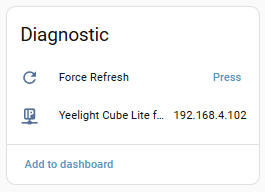
| Force Refresh | Button | Re-activate connection for a stuck lamp |
| IP Address | Sensor | Current IP address (updated after rediscovery) |
| Matter link | Sensor | Whether the lamp is linked to Home Assistant's Matter integration: Not linked, Linked (read only), or Linked, settings available. See Matter (optional) |
These sensor entities are created once per integration install and shared across all lamps.
Note
Entity IDs are generated from the entity name the first time it is created,
so they differ between installations: a fresh install gets
sensor.saved_drawings, sensor.color_palettes, sensor.font_characters
and sensor.clock_color_presets, while older installations may still use
sensor.yeelight_cube_saved_pixel_arts, sensor.yeelight_cube_color_palettes
and sensor.yeelight_cube_font_letter_map. Check Settings → Devices &
services → Entities and adjust the examples below. The cards find these
sensors by their attributes, not by ID, so you can rename them: a card
configured with the old ID finds the renamed sensor on its own.
View global entities details
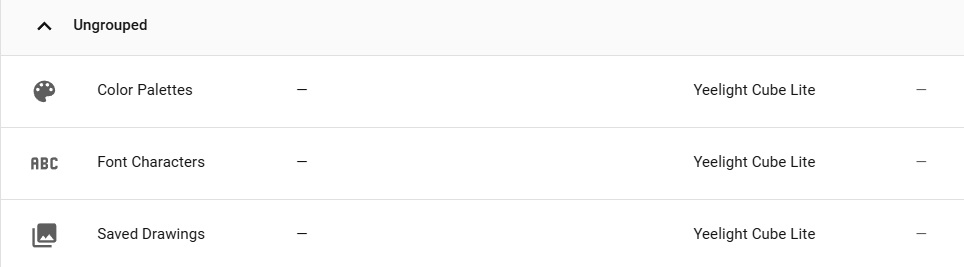 |
Stores all pixel art designs created with the Draw Card.
| Attribute | Type | Description |
|---|---|---|
pixel_arts |
list | Ordered list of saved pixel arts (each has name + pixels) |
count |
integer | Number of saved pixel arts |
content_hash |
string | MD5 hash; changes on every modification |
State: "N drawings" (e.g. "3 drawings")
How to use: The index in pixel_arts corresponds to the index passed to apply_pixel_art, remove_pixel_art, etc. (0-based):
# In Developer Tools → Template
{{ state_attr('sensor.saved_drawings', 'pixel_arts')
   | map(attribute='name') | list }}
# → ['Magic Lamp', 'Bat', 'Whale']
# 'Magic Lamp' = index 0, 'Bat' = index 1, 'Whale' = index 2Stores all saved color palettes.
| Attribute | Type | Description |
|---|---|---|
palettes_v2 |
list | Ordered list of palettes (each has name + colors) |
count |
integer | Number of saved palettes |
content_hash |
string | MD5 hash; changes on every modification |
State: "N palettes" (e.g. "3 palettes")
Read-only bitmap font maps used for text rendering.
| Attribute | Type | Description |
|---|---|---|
font_maps |
object | Dictionary with keys "basic", "fat", "italic" and "native" mapping characters to pixel bitmaps |
font_metrics |
object | Per-font spacing metrics (currently "native": monospace advance and narrow-glyph overrides) used by the clock previews |
State: always "ready" - content is static and never changes at runtime.
Stores the shared library of saved clock styles and reusable color modes
managed by the Clock and Native Effects cards (see
save_clock_preset).
| Attribute | Type | Description |
|---|---|---|
clock_presets |
list | Saved presets (each has id, name, color and kind = style or color_mode); at most 100 |
State: numeric count (e.g. 2)
All entities (light, selectors, sliders, text, switches) can be used in standard automations, scripts, and Node-RED flows. The integration also registers custom actions (services) under the yeelight_cube domain.
Note
For a complete reference of all available actions with full field descriptions and examples, see SERVICES.md.
| Action | Description | Key Fields |
|---|---|---|
yeelight_cube.set_custom_text |
Display text on the matrix | text, entity_id |
yeelight_cube.set_mode |
Switch display mode | mode, entity_id |
yeelight_cube.set_solid_color |
Set a single solid color | rgb_color, entity_id |
yeelight_cube.set_angle |
Set gradient angle | angle (0–360), entity_id |
yeelight_cube.set_brightness |
Set brightness | brightness (1–100), entity_id |
yeelight_cube.set_button_effects |
Update the physical-button preset slots | effects (1–8 names), entity_id |
| Action | Description | Key Fields |
|---|---|---|
yeelight_cube.apply_custom_pixels |
Push pixel array to lamp | pixels, entity_id |
yeelight_cube.apply_pixel_art |
Apply a saved art by index, or a saved or built-in one by name | idx or name, entity_id |
yeelight_cube.save_pixel_art |
Save a pixel array as named art | pixels, name |
| Action | Description | Key Fields |
|---|---|---|
yeelight_cube.load_palette |
Apply saved palette by index | idx, entity_id |
yeelight_cube.save_palette |
Save a new color palette | palette, name, entity_id |
yeelight_cube.set_text_colors |
Set gradient/sequence colors | text_colors, entity_id |
🔔 Doorbell: flash text on lamp
automation:
  alias: "Doorbell: flash text on lamp"
  trigger:
    - platform: state
      entity_id: binary_sensor.doorbell
      to: "on"
  action:
    - action: yeelight_cube.set_custom_text
      data:
        entity_id: light.yeelight_cube_192_168_4_139
        text: "DOOR"
    - action: yeelight_cube.set_mode
      data:
        entity_id: light.yeelight_cube_192_168_4_139
        mode: "Text Color Sequence"
🔘 Lamp button: toggle the room's light (Matter)
The Lamp buttons event entity's state is the time of its last event: the automation triggers on any new state and checks the event type. Details and the other events: Button events for automations.
automation:
  alias: "Lamp button: toggle the room's light"
  triggers:
    - trigger: state
      entity_id: event.cubelite_lamp_buttons
      not_from: [unavailable, unknown]
  conditions:
    - condition: template
      value_template: "{{ trigger.to_state.attributes.event_type == 'right_button' }}"
  actions:
    - action: light.toggle
      target:
        entity_id: light.living_room
🔄 Node-RED: cycle through pixel art designs
Use an Inject node → Change node (set msg.payload.idx) → Call Service node:
- Domain:
yeelight_cube - Service:
apply_pixel_art - Data:
{"idx": {{payload.idx}}, "entity_id": "light.yeelight_cube_192_168_4_139"}
View HA and Node-RED examples
Home Assistant automations / scripts:
action: yeelight_cube.set_custom_text
data:
  entity_id: light.cubelite_192_168_4_102
text: "HELLO"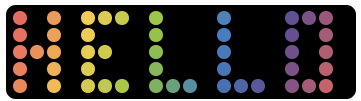 |
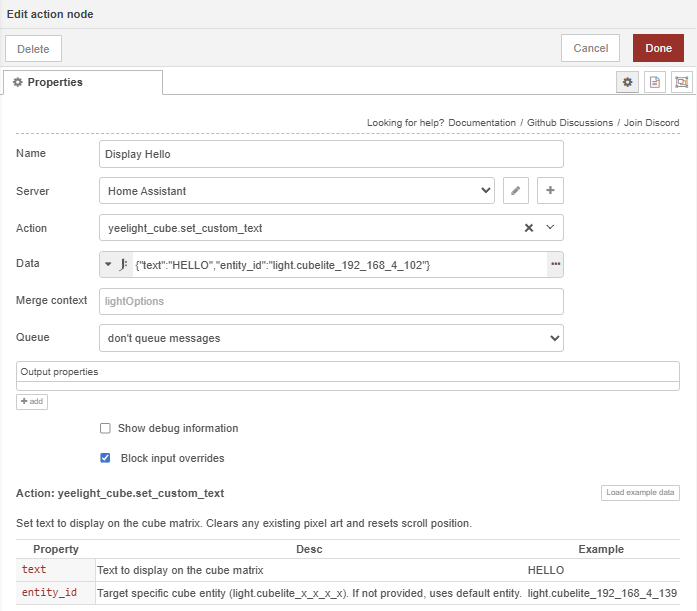
Node-RED - use an Action node:
- Action:
yeelight_cube.set_custom_text - Data:
{"text": msg.payload, "entity_id": "light.cubelite_192_168_4_102"}
 |
The Content mode entity selects the active content source:
| Content mode | Description |
|---|---|
| Matrix | Render text, gradients, palettes, or drawings through the integration |
| Clock | Run the Cube Lite's built-in clock |
| Native Effect | Run one of 18 LAN-compatible built-in animations |
| Music Flow | Run the lamp's microphone-reactive renderer (see Music Flow) |
When Matrix content is active, the Matrix: Display Mode entity or Gradient Card selects the renderer:
| Mode | Description |
|---|---|
| Solid Color | Fill the entire matrix with a single color |
| Letter Gradient | Horizontal gradient per character |
| Column Gradient | Vertical gradient across 20 columns |
| Row Gradient | Horizontal gradient across 5 rows |
| Angle Gradient | Gradient at a configurable angle |
| Radial Gradient | Gradient radiating from center |
| Letter Vertical Gradient | Vertical gradient per character |
| Letter Angle Gradient | Angled gradient per character |
| Text Color Sequence | Each character gets a different color |
| Panel Color Sequence | Color sequence across all pixels |
| Custom Draw | Pixel art mode (use the Draw Card) |
Display reference: pixel art, clock styles and native effects
The integration includes 68 official drawings from the Yeelight app as local, read-only presets, in two collections: Nature and Geometry (35 drawn for a lamp lying flat, 33 for a lamp stood on its end). They are never imported into, written to, or allowed to overwrite your own drawings.
- Pixel Art entity: your drawings first, then the official ones.
- Draw card: the drawings in groups, All · My drawings · Nature · Geometry, shown as tabs by default; the editor offers the same layouts as the color sections (dropdown, carousel, side by side, categories…). Picking an official drawing loads it into the canvas like one of yours (and sends it to the lamp with Apply to lamp automatically); save it to make your own editable copy.
- On each card, the editor's Official pixel arts settings choose which official drawings show: all of them by default, or exactly the ones listed (with their order and names on that card). Your own drawings are still renamed and deleted in the gallery.
- Orientation filter: a toggle beside the search field (All · Horizontal · Vertical) shows your drawings and the official ones by orientation, the same in every group; the browser remembers the choice. The editor's Orientation settings pick what shows first (or Follow the lamp: the vertical ones while it stands on its end) and can hide the toggle.
apply_pixel_artshows one by name (e.g.Built-in: Horizontal 01).
Clock mode provides 73 styles (the lamp's 10 built-in ones and experimental styles over the other effects) and separate options for date display, 12/24-hour time, and colon blinking. Brightness and orientation previews remain available while Clock mode is active.
The clock command uses the Cube Lite's private LAN protocol. The lamp does not report the active clock configuration back to Home Assistant, so entity states represent the last settings requested by this integration. Changes made from the Yeelight app or physical button may therefore not appear immediately in Home Assistant (without Matter; with it, a switch to another effect or a music mode is followed). An animated clock's preview runs the lamp's own background at the speed the lamp gets; a solid style's color is an approximation.
Native Effect mode exposes the 18 presets that the Cube Lite accepts directly
through its private LAN protocol. Speed and direction entities are available
only when the selected effect supports them. Hacking supports only Up
and Down; other directional effects may also offer Left and Right.
A direction is what you see, however the lamp is mounted: choose it with the
arrows on the Native Effects card, the direction entity or set_native_effect.
One direction is shared by all effects, like the speed; Device Orientation
only says how the lamp is mounted, and effects are turned to match.
Winter, Dream, Halloween, and Moonlight are not exposed because the Yeelight app
uploads a GIF through a Matter-only vendor command before activation; the
private LAN protocol cannot reproduce that transaction.
The lamp does not provide live frame readback, so the Matrix Preview cameras and the cards compute the picture themselves, with the lamp's own renderers: every effect is drawn as the lamp draws it, frame by frame, for the speed, direction, color and palette it was given, and shown as those LEDs look on a screen. Random effects (Fireworks, Starry Sky, ...) use stand-in random numbers, so a preview shows the same kind of picture, not the same sparks at the same moment. Effects that react to sound run on a fixed demo beat, because nothing can hear the lamp's microphone: the preview shows how the effect moves, not what the lamp shows now.
Stored GIF and animations. A lamp keeps one GIF and plays it as the
Stored GIF effect, over LAN, without Matter. The cards and the effect
dropdown do not list it (the four animations below are chosen instead), but
set_native_effect and the dropdown's select_option still take it by name,
and it shows while it plays. Its picture cannot be read back,
so its preview is a placeholder unless the GIF is one of the integration's
animations. Snowfall is in the Sparkles family, Daydream in Waves, Halloween
glow and Moonlit clouds in Glow. Four animations come with the integration, drawn for it: Snowfall,
Daydream, Halloween glow and Moonlit clouds. Starting one uploads
it to the lamp as its stored GIF, then plays it. The upload needs a Matter
server that delivers the Yeelight commands
(docs/MATTER_COMMANDS.md): without one, the
animations are not listed. The lamp writes the GIF to its memory, so the
integration uploads only when the lamp does not hold that animation yet (it
remembers which one it stored, for which mount, speed and colors). The lamp
plays a GIF at its own pace and in its own colors, so the effect speed
(about a quarter to four times as fast) and the Lamp Preview card's color
adjustments are put in the GIF itself: changing one while an animation
plays uploads it again, which takes a few seconds; the previews show them at
once. Each animation stands for one
of the Yeelight app's four: Snowfall for Winter, Daydream for Dream, Halloween
glow for Halloween and Moonlit clouds for Moonlight. It is played under that
animation's id, so the app shows it as the one playing (Stored GIF too, while
the lamp holds one of them). The lamp shows the Yeelight app's own GIFs
rearranged: the app sends a 20 × 5 picture, which the lamp lays out five
pixels to a column. The integration sends its animations upright by default;
the Native effect: Animation layout select sends them the app's way
instead, so they look like the app's on the lamp. The previews follow it, and
changing it uploads a playing animation again. The Yeelight app
replaces the stored GIF when it plays one of its own. Effect rotations skip the
animations, which would upload a GIF at every step.
Effect names are the lamp's own. An effect's or clock style's name from
1.4.0 or earlier (Streamer, Ocean Waves, Bonfire, Sunset, Blue White, a slot
number, ...) still works in actions, automations, saved favourites, rotations,
button lists and card configurations; see
set_native_effect for the full list. The
lamp reports today's names: a trigger or condition comparing the effect or clock
style dropdown's state with an old name needs the new one.
The Native Effects Card shares its capsule sliders and Text / Live Preview selectors with the Clock Card. Text offers filled buttons or dropdowns; Live Preview offers lists, grids, strips, carousels, wheels and a 3D album. Original offers grid and list layouts with capability badges. Browsing offers text search and your order or A → Z (no filters); the experimental effects that had only a number are hidden.
Set target_entities to control several lamps together (entity remains
supported for a single lamp). The first target supplies the main preview and
control values. Optional show_favourites and show_rotation sections provide
animated, reorderable favourites and timed effect rotation. Favourites are stored
on the lamp in Home Assistant (set_favourites) and published in its
favourites attribute, so every dashboard shows the same list and updates when
another one edits it. Favourites an older version kept in a browser move to the
lamp automatically the first time that browser opens the card.
Rotation always follows the favourites list, advanced in order at the lamp's
rotation interval (the Shuffle button in the Favourites toolbar randomly
reorders the list itself). The interval (1 second up to 7 days) is set in the
card editor's Rotation Settings (Rotate every): add rows that add up,
e.g. 1 minute + 10 seconds = 70 seconds (+ Add interval, one row per unit;
each row can be removed). It is stored on the lamp per kind, so every dashboard uses the same
interval, and a running rotation switches to it at once, keeping its current
item. Until a lamp has its own interval, the card's rotation_interval is
used; a Start also stores the interval it uses on the lamp. Very short
intervals are limited by how fast the lamp applies a change (around a second):
a step that takes longer lands on the next boundary of the schedule.
While a rotation runs, the card's effect / clock style list follows it: each
step is highlighted, its color mode is shown in the color row, and the list
turns to the page holding it. Turn off Follow in effect list / Follow in style
list (rotation_follow_active: false, in Rotation Settings) to browse and pick
freely while the rotation runs: the list keeps your selection, page and color
mode until it stops. The playing favourite stays highlighted either way; turn
off Highlight in favourites (rotation_highlight_favourite: false) to keep
the favourites highlight on your own selection too. Rotation is driven server-side by the light entity via the
start_effect_rotation / stop_effect_rotation / skip_effect_rotation
services, so it keeps rotating after the dashboard tab is closed or refreshed —
the lamp(s) hold the loop, not the browser. It only uses effects available on
every available target and starts only on explicit Play. Start is fire-and-forget: every
lamp's loop is scheduled concurrently, so several lamps advance in parallel.
Stop and manual card commands stop rotation. Retryable failures use bounded
per-lamp recovery; an unreachable lamp can retain rotation intent and rejoin
the group's current scheduled item after reconnecting. Turning a lamp off
or enabling Music Flow cancels pending rotation intent. A running rotation is
saved with the lamp: after a Home Assistant restart or an integration reload it
resumes automatically (same list, interval and kind) if the lamp is still on
and in that mode; an unreachable lamp resumes when it reconnects. A rotation
that was stopped (Stop, a manual pick, lamp off, a mode change) is not resumed,
and a rotation never wakes a lamp. Per-lamp failures are reported
in effect_rotation.error. Unknown or gated items are skipped, so a successful
Start is not proof of a display command or physical output. See
rotation diagnostics.
While a rotation runs, every card shows the list and interval the lamp is
actually playing, wherever it was started from, and the freeze indicator follows
the lamp's display_frozen state.
Favourites are indicated by a gold star badge next to every item in the style
browser (text, preview and original selectors, including the wheel). Set
favourites_show_stars: false (the Favourites editor's "Show favourite stars"
toggle) to hide the badges.
The Clock Card uses the same Actions, Favourites and Rotation components and
editor settings. Actions are enabled by default; show_actions can hide them.
Device Orientation is native-effect-only; the lamp's clock cannot rotate. Enable
show_favourites and show_rotation for either card. Clock rotation is labelled
Clock Mode Rotation. Clock
favourites retain saved style IDs across renames and are stored separately from
native-effect favourites. Both rotations share the same server-side lifecycle.
Enable show_color_modes on the Native Effects Card for Color Modes &
Controls. Its button/dropdown presentation and settings are shared with the
Clock Card. Only hardware-confirmed palettes for the selected effect are offered:
Default, Black & White, Vivid, Retro Orange, Tropical, and Violet & Gold where
supported.
Palette shows effects and clock styles in the colors of the lamp's
palette, the one loaded from the Palette card (load_palette) or set with
set_text_colors, and follows it: load another palette and they change with
it. It is the one color mode for the palette, on the Native Effects card
(color_mode: palette in set_native_effect) and the Clock card (in
set_clock_style). Each effect gets the whole palette in the best way it
can:
| The effect | How Palette shows it | Needs |
|---|---|---|
| Takes all the palette's colors itself: the six music modes (Music Gather, Breathing, Blossom, Spectrum, Note, Impact: up to 16 colors), an effect drawing as many colors as the palette has (Rotating colour bands: 4, Two-colour alternation: 2...), any effect taking a color when the palette has one | On the lamp: the colors are sent with the effect, as always | LAN |
| Listens to the microphone (the music effects) | On the lamp, whatever it takes: the palette's colors it takes (the music modes all of them, the others the first), as the room is heard only there | LAN |
| Any other effect: more palette colors than it takes, or none at all (Rainbow, Fire, Starry Sky, Hacking...) | Streamed: Home Assistant draws the effect as the lamp would, in the whole palette, and sends it 25 times a second (the lamp's own pace), like a drawing | LAN over UDP |
| An animation (Snowfall, Daydream, Halloween glow, Moonlit clouds) | Its GIF recolored, stored and played by the lamp, in the layout chosen (upright or as the Yeelight app), uploaded again when the palette changes | Matter, as every animation |
| A clock style over an effect the lamp cannot show in the whole palette | Streamed: the background recolored, shown through the digits for the current time, as the lamp's clock does | LAN over UDP |
| A plain clock style | On the lamp, in the palette's first color | LAN |
Streaming needs no Matter: only the animations do (their GIF is uploaded over Matter, see Matter commands). Without Matter, every effect but the animations still takes the whole palette. A streamed effect needs the lamp reachable over UDP (it holds its last frame while the connection falls back to TCP; a network blocking UDP is reported in Repairs), keeps Home Assistant a little busy while it runs, and starts from its beginning (Building Blocks on an empty panel). Speed, direction, intensity, Lamp mounted, favourites, rotation and Freeze work as for any effect.
In a streamed effect the colors move with it: an effect whose picture is in its colors (Rainbow, Magic, Wonderland...) maps them onto the palette; a field of light (Waves, Aurora, Fire, Sunrise and sunset...) takes them by the brightness around each pixel, followed smoothly (no pixel flickers between colors), the brightest the palette's first color; separate dots and shapes (Starry Sky, Building Blocks, Hacking's digits...) each keep one color for as long as they are lit; White fill-in and wipe-out take the first color. The music modes run in the direction chosen when a Matter server sends Yeelight commands to the lamp, otherwise in the lamp's own.
The set_native_effect service accepts color_mode; this setting is
independent of clock colors and persists with the lamp state. An incompatible
effect uses its original colors. Restart Home Assistant after updating before using
this feature; an older backend does not expose the palette controls.
Time/date content, clock format and the saved clock-style library remain clock-only. No custom native-effect preset library is introduced. Both cards support custom RGB where the selected style or effect permits it. Native previews and camera previews use the existing shared palette renderers.
The brightness, speed and intensity sliders on the Native Effects, Clock and Lamp Preview cards are one shared slider with the same settings on every card, and share one conversion, so a given device value reads the same percentage on every card:
| Setting | Option | Choices |
|---|---|---|
| Grey out unused sliders | slider_grey_out_unused |
Speed and intensity are hidden while the effect or clock style shown doesn't use them; on, they stay in place, greyed out and inactive (not on the Lamp Preview, whose brightness is always used) |
| Slider Style | slider_style |
slider, bar, wheel, matrix, rotary (dials side by side, on the card's background), capsule; each with its own options below it |
| Value | slider_value |
none, percent (default), raw: the device value (speed, intensity and brightness 0–255), shown exactly. Brightness 0 turns the lamp off |
| Ends | slider_ends |
Slider, Bar and Capsule: icons (the Capsule's default: 🌙 → ☀️ brightness, 🐢 → ⚡ speed, 💧 → 🌊 intensity, 🔈 → 🔊 for a music effect's intensity), plus_minus (➖ → ➕) or none (the Slider's and Bar's default). Tapping an end steps the value |
| Step Size | slider_step_size |
1–25 % (default 5): an end tap, a mouse-wheel notch and the Wheel's stops |
| Snap to Positions | slider_snap |
Snaps to 20, 40, 60 and 80 % |
| Control Width | slider_width |
30–100 % (not for Rotary) |
| Thickness | slider_thickness |
thin, medium (default), thick (the Slider's and Capsule's thick track) |
| Card background | slider_theme |
subtle (default) or flat (not for Rotary) |
Older slider options (slider_show_value, slider_show_raw_value,
slider_value_display, slider_value_side, slider_step_buttons,
slider_step_position, slider_show_icon_left / _right, slider_icons,
slider_variant, slider_capsule_variant, slider_wheel_step and a
thickness in pixels) are read as these and replaced when the card is next
saved.
The lamp's state is never read back (see How the State Updates), so while Clock or Native Effect mode is active, Home Assistant keeps the last settings requested by the integration until another command is sent. Brightness remains available and is applied after activating the native renderer so it does not cancel the selected clock or animation.
The set_button_effects action writes one to eight ordered presets to the
physical-button slots, over Matter (it needs
Matter settings, and Buttons:
Right as Remote off). Updating a shorter list only overwrites those leading
slots: the lamp has no command that shortens the list.
action: yeelight_cube.set_button_effects
data:
  entity_id: light.yeelight_cube_lite
  effects:
    - Ribbon
    - Rainbow
    - "Clock: Yellow"
Music Flow is controlled through the lamp's entities, not a dedicated card or the Native Effects Card. It uses the microphone inside the lamp and does not require Matter.
- Open Settings → Devices & services → Yeelight Cube Lite and select your lamp.
- Set Music Flow effect to a mode such as Spectrum.
- Set Content mode to Music Flow, then play sound near the lamp.
- To stop it, select Matrix, Clock, or Native Effect in Content mode.
For dashboard access, add these two select entities to a standard Home Assistant Entities card.
Music Flow modes, restoration, previews and automation example
Selecting Music Flow in the Content mode selector starts the Cube Lite the lamp's microphone-reactive renderer locally on the device. Music Flow Effect selects one of the six official modes: Gather, Breathing, Blossom, Spectrum, Music Note, or Impact.
Music Flow behaves as an overlay on top of the underlying content. The integration remembers the previous Matrix, Clock, or Native Effect content and returns to it when Music Flow stops. The selected effect can be changed while Music Flow is inactive and will be used the next time it starts.
The integration also preserves the lamp's previous power state:
- If the lamp was on, stopping Music Flow restores the previous display.
- If the lamp was off, stopping Music Flow turns the lamp off again.
- If Home Assistant restarts while Music Flow is active, the Music Flow content mode, effect, and prior power state are restored from per-device integration storage.
- If the Music Flow stop command succeeds but redrawing the previous display fails, Home Assistant still records Music Flow as off. Reselect a content mode or use Force Refresh to retry the display render.
The hourly clock check is skipped while Music Flow is active, because opening another control connection can interrupt the lamp's renderer. Selecting Matrix, Clock, Native Effect, text, or pixel art is treated as an explicit content change and stops Music Flow first.
Both Matrix Preview cameras show a deterministic static illustration for the selected effect. These are locally generated 20x5 identifiers, not live frames from the lamp:
| Music Flow Effect | Static preview cue |
|---|---|
| Gather | Multicolor bands converging on the center |
| Breathing | Purple-pink center glow |
| Blossom | Three flower shapes |
| Spectrum | Rainbow equalizer bars |
| Music Note | Musical-note glyph |
| Impact | Center burst |
Round and Square previews use the same RGB pixels and differ only in pixel shape. Brightness and device orientation are applied locally. Generating or viewing a preview sends no command to the lamp.
[!NOTE] The lamp does not expose live microphone-animation frames. Changes made from another app while Music Flow is active may not be reflected in Home Assistant until Music Flow stops or another HA command runs. With the Matter link, a music mode started or stopped on the lamp or in the app is followed.
sequence:
  - action: select.select_option
    target:
      entity_id: select.my_cube_music_flow_effect
    data:
      option: Spectrum
  - action: select.select_option
    target:
      entity_id: select.my_cube_content_mode
    data:
      option: Music Flow
  - delay: "00:00:30"
  # Selecting another content mode stops Music Flow
  - action: select.select_option
    target:
      entity_id: select.my_cube_content_mode
    data:
      option: Clock
Replace the example entity IDs with the Music Flow effect and Content mode entities created for your Cube Lite. There is no separate Music Flow switch: Music Flow starts and stops through Content mode.
| Requirement | Details |
|---|---|
| Home Assistant | 2024.12.0 or newer |
| Hardware | Yeelight Cube Smart Lamp Lite (or compatible matrix device) on the same LAN |
| Network | Home Assistant reaches the lamp on UDP 55444 (its fast connection) and TCP 55443 (setup, and the fallback). If UDP is blocked, commands go over TCP on their own; the light's connection attribute shows which one is in use (udp or tcp) |
| Python packages | yeelight (installed automatically by HA); Pillow is provided by Home Assistant core |
- Yeelight Cube Smart Lamp Lite (the 20 × 5 matrix lamp, model
cubelite), with LAN Control on in the Yeelight app. Several lamps can be set up, each as its own device; the cards can drive several at once. - Other Yeelight lamps are left to Home Assistant's own Yeelight integration (this one keeps its discovery away from the Cube Lite lamps only). Other Cube models (the modular Yeelight Cube) are not tested.
- The lamp's state is never read back: the Cube Lite answers no state query. Home Assistant shows what it last sent: a change takes effect at once in Home Assistant and the cards, and is sent to the lamp right after.
- Changes made elsewhere: without Matter, the Yeelight app or the lamp's buttons change the lamp without Home Assistant knowing; the next change from Home Assistant (or Force Refresh) shows its state on the lamp again. With the lamp linked to Home Assistant's Matter integration, its power, brightness, effect or music mode and the app's direction are followed, and the buttons fire Lamp buttons events (see Matter (optional)). An app's own effect or drawing settings still cannot be read, but with the buttons as a remote a press shows the Yeelight app's clock, colour, animation or built-in pixel art again, and Buttons: Wake Lamp When Off decides whether a press turns an off lamp on.
- Reachability is checked in the background (more often while the lamp is out of reach): the light becomes unavailable while the lamp does not answer, and its last state is sent again when it is back.
- Clock: its UTC offset is checked on the hour, so daylight saving changes reach the lamp's clock within seconds.
- Estimated power and energy come from what is shown (frames sent, or the the lamp's own values for the clock and effects), not from a lamp measurement.
- Local network only: Home Assistant and the lamp must reach each other (UDP 55444 and TCP 55443); there is no cloud connection.
- No read-back: see How the State Updates.
- Brightness right after quick picture changes: the lamp can briefly show an earlier picture again; it settles on the right one by itself.
- Music Flow uses the microphone inside the lamp; its preview in the cards is a static picture (the lamp sends no frames back).
- Physical button presets (
set_button_effects) need Matter settings: the lamp refuses this write over the local network. They can't be changed while Buttons: Right as Remote is on. - A weak power supply makes the lamp freeze or drop off the network on bright pictures; see Power Supply.
- A status display: show a text or a pixel art from an automation (a
doorbell, a phone's battery level, a timer), then come back to the previous
display with
save_state/restore_state. - A desk clock: the lamp's own clock styles, with your colors and favourites, rotating on a schedule.
- Ambient light: native effects, gradients and palettes, following scenes or the time of day.
- Pixel art: your own drawings and the official ones, picked from a dashboard or an automation.
- Music: Music Flow reacts to the sound in the room.
A lamp draws about 0.4 W with a dark panel and up to about 6 W with a bright, busy picture. Brightness and how many pixels are lit matter most; the color matters little.
Estimated power. Each lamp has an Estimated power sensor that estimates what it draws right now, based on a model measured on real lamps. It covers everything: pixel art, text and gradients, and also Clock, Native Effects and Music Flow through their simulated previews. Off, it reads 0.4 W; when Home Assistant can't reach the lamp, 0 W. Its Estimated energy sensor adds this up in kWh and can be added to the Energy dashboard under Individual devices.
Weak or shared power supplies. If the supply can't keep up, the lamp freezes on a bright picture or drops off the network until it is power-cycled. Quick picture changes make this more likely, because each change briefly draws extra. Two lamps on one port need room for that: in testing, two lamps froze on a 15 W port and worked on 24 W. Plan about 12 W of port per lamp.
Power limit. On a limited supply, set each lamp's Power limit (Configuration, 0.4–7 W; 7 W = no limit). Bright pictures are dimmed just enough to stay under it, keeping their colors; dim pictures are untouched. Two lamps on a 15 W port run reliably at 5 W each. The limit applies to everything the integration draws; Clock, Native Effects and Music Flow are drawn by the lamp itself, so lower their brightness instead.
| Problem | Solution |
|---|---|
| Cards not showing | Clear browser cache with Ctrl+F5 after installing or updating |
| Device not found | Ensure the lamp is on the same network and LAN Control is on in the Yeelight app (not Yeelight Classic). Check its IP in the app. Auto-discovery via Zeroconf is also available |
| Conflicts with Yeelight integration | This integration automatically suppresses built-in Yeelight discovery for Cube devices |
| Lamp stuck / unresponsive | Press the Force Refresh button entity, or use the refresh button on the Preview card |
| Lamp freezes on a bright picture or drops off the network | The power supply is too weak, especially with two lamps on one port. Use a stronger supply or set the Power limit. See Power Supply |
| Colors look off | Color accuracy correction is built-in and applied automatically |
| Effects move the wrong way | The lamp turns its effects by the orientation saved on it. Set it in the lamp's Configure (or save it in the Yeelight app): see Set the lamp's orientation. After a factory reset, set it again |
| Music Flow does not react to sound | Music Flow uses the microphone inside the lamp, not a Home Assistant microphone. Play audio near the lamp and try another Music Flow Effect |
| Changing content stops Music Flow | This is expected. Selecting Matrix, Clock, Native Effect, text, or pixel art exits Music Flow and applies the requested content |
| Music Flow turns off but the old display does not return | The stop command has already been recorded. Press Force Refresh or reselect Matrix, Clock, or Native Effect to retry the display render |
| Music Flow preview is not animated | This is expected. The camera shows a locally generated static identifier because the lamp does not expose live microphone-animation frames |
| A card says "the last change was not applied (…)" | The lamp refused the change or failed while applying it (the message says why; it is also in the Home Assistant log, and in the lamp's last_command_error attribute). Pick it again, or press Force Refresh; the line goes once a change works. A lamp that is only out of reach shows as unavailable instead, and gets the change once it is back |
The light's connection attribute shows tcp |
The lamp did not answer its UDP session (port 55444): the network blocks UDP between Home Assistant and the lamp, or it has no session. Everything still works over TCP; UDP is tried again after 5 minutes, and whenever the lamp comes back online |
| Lamp changed IP | Auto-rediscovery updates the stored IP automatically; the IP Address diagnostic sensor shows the current value. If the lamp stays unreachable, choose Reconfigure in its entry's ⋮ menu (Settings → Devices & services → Yeelight Cube Lite) and enter its new IP: it is checked before it is used |
| A Repair says a lamp is unreachable, or uses its slower connection | Shown in Settings → System → Repairs after 30 minutes without an answer, or after 15 minutes with UDP blocked while TCP works; each says what to check, and goes away by itself once the problem is gone |
Reporting a problem: attach the lamp's diagnostics to the
issue. In
Settings → Devices & services → Yeelight Cube Lite, open the lamp's ⋮ menu
(or its device page) and choose Download diagnostics. The file holds the
lamp's model and software version, its connection (UDP or TCP, failures, the last
errors) and its current state. The lamp's IP address, its identifier, its name
in the Yeelight app and the text it shows are replaced by **REDACTED**.
MIT - see LICENSE for details.
If you find this integration useful, consider supporting development:

Yeelight Cube Lite - Made with ❤️ for the Home Assistant community