Repository navigation
wxGUI: Support for Jupyter-based workflows - #5901
Conversation


be55385 to
817795e
Compare

 github-actions
Bot
added
GUI

|
Just set up the discussion page for the notebook working directory topic and workflows topic in general: #5909. |
3a3b7e7 to
55974d3
Compare
968784b to
9d30c42
Compare
65e8ea7 to
08a1f06
Compare

45af740 to
adf7898
Compare


|
Small note: Under Gentoo GNU/Linux distribution I get error message when I hit Start Jupyter Notebook tool button: I have install wxPython 4.x.x version: wxPython x11-libs/wxGTK library USE flags: dev-python/wxpython library USE flags: |
|
When I hit JupyterLab tool button from the Jupyter notebook toolbar, GRASS GIS window was killed. 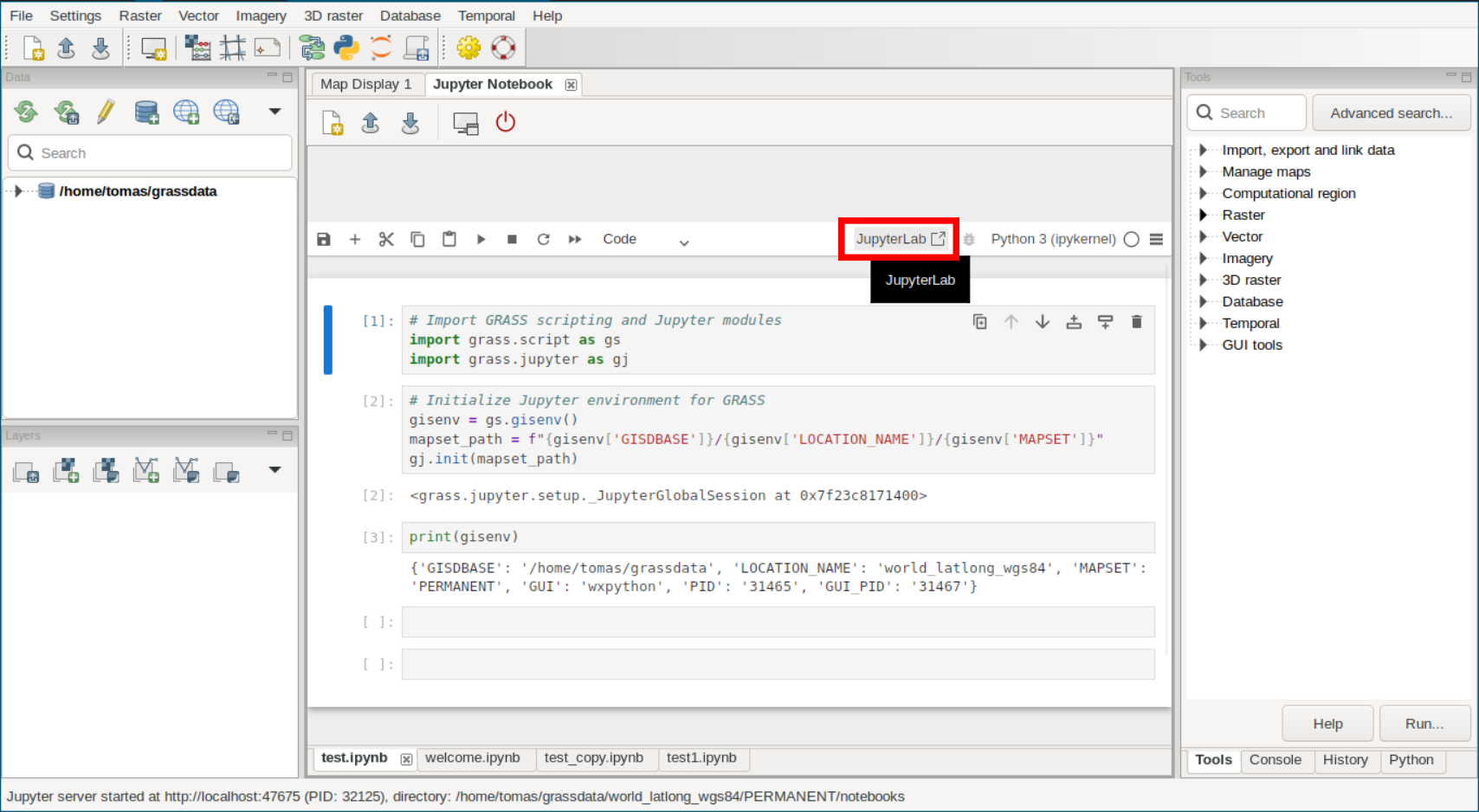
Jupyter Interactive Notebook version =dev-python/notebook-7.4.7 |
2c2788d to
36fa2c4
Compare
To keep things consistent with the Windows behavior, in 2d7b550 I added a check for wx.html2 as well. When it’s not available, the Jupyter button is disabled and shows a message explaining why. |
|
@tmszi thanks very much for the review! and sorry for the later response. @petrasovaa could you also make the review please so that we can merge it and incorporate this feature to the 8.5 version? |



Co-authored-by: Anna Petrasova <kratochanna@gmail.com>
Co-authored-by: Anna Petrasova <kratochanna@gmail.com>
Co-authored-by: Anna Petrasova <kratochanna@gmail.com>
Co-authored-by: Anna Petrasova <kratochanna@gmail.com>

Co-authored-by: Vaclav Petras <wenzeslaus@gmail.com>
…ith GRASS section in jupyter_intro.md
…THON variable together with sys.executable used for all platforms
… integration to GUI means
…r.py (replaced by Path writability check)
…tall from pip (to make integrated mode available)
… Start Jupyter section
…larifying Microsoft Edge WebView2 runtime support in docs + small refinements in docs
Co-authored-by: Anna Petrasova <kratochanna@gmail.com>
ecd4533 to
d9f8a73
Compare

 petrasovaa
left a comment
petrasovaa
left a comment
There was a problem hiding this comment.
As for me, this is good to go, so that it can get more testing!


This pull request introduces the support for running Jupyter notebooks directly within the GUI.
How it works
There is a new Launch Jupyter Notebook Environment button added to the top menu, right next to the Launch Python Editor button (In this PR, these workflow-related buttons are now grouped together, since all of them serve a similar purpose — working with scripts or automation workflows.)
When you click the Launch Jupyter Notebook button, a new dialog appears — Start Jupyter.
In this dialog, you can:
The working directory is very important because in this directory the Jupyter server will be launched which means that each running Jupyter server is tied to a single directory — meaning that your entire Jupyter session is associated with that directory. If you want to work in a different directory, you simply start another Jupyter session from the GUI.
Besides the selection of a working directory, there’s also an option to create a preconfigured “welcome” notebook (a template). This lets you start working immediately with GRASS and Jupyter already initialized — including automatic imports of GRASS scripting and Jupyter modules, and initialization of the session to match your current GRASS environment.
Once you confirm the dialog:
• A local Jupyter server is started.
• The status bar (bottom left corner) shows information such as the running port and the server PID.
• If you selected the template option, a welcome.ipynb file is created in the chosen working directory, already set up with an initialized GRASS Jupyter session.
Why the Working Directory Matters
A Jupyter server always requires a working directory.
By default, GRASS uses <MAPSET_PATH>/notebooks, since it’s always available and writable. In the first version of this PR, the directory was created automatically inside the mapset.
During the PSC meeting in August 2025 ( https://grasswiki.osgeo.org/wiki/PSC_Meeting_2025-08-08), we decided it would be better to:
That’s why the new Start Jupyter dialog exists — it provides both of these options.
What if Jupyter Isn’t Available?
Two cases are handled:
In both cases, the Launch Jupyter Notebook button will be disabled.
If the user clicks it anyway, an explanatory message will be shown describing the issue.
Windows Support
In version 8.5, the “Launch Jupyter” button will be active only on UNIX systems.
To make it work on Windows (both OSGeo4W and the standalone installer), Jupyter needs to be included in the build process.
That’s not too difficult — Jupyter itself is already included in the standalone installer — but its dependencies (folium and ipyleaflet) are missing from OSGeo4W packages.
I’ve submitted a PR to add them (jef-n/OSGeo4W#36 ) but it’s still awaiting feedback.
Until this is resolved, Jupyter integration won’t be available on Windows in version 8.5.
Implementation Overview
python/grass/workflows/
- directory.py
Contains the JupyterDirectoryManager class, which manages Jupyter notebooks linked to the given working directory.
Responsibilities include mainly: Import/export of .ipynb files and managing notebook templates (welcome.ipynb, new.ipynb).
- server.py
Provides two key classes: JupyterServerInstance which handles the lifecycle of an individual Jupyter server instance—installation check, port management, startup, shutdown, URL generation, etc. Also handles cleanup using atexit and signal handling to ensure servers are terminated when GRASS exits via GUI, exit, CTRL+C, or kill PID. Further, JupyterServerRegistry—a singleton that registers all active Jupyter server instances. It allows the global shutdown of all running servers when GRASS is closed from the GUI.
- enviroment.py
High-level orchestrator JupyterEnvironment integrates a working directory manager (template creation and file discovery), a Jupyter server instance and a registration of running servers in a global server registry
- template_notebooks/
- welcome.ipynb: A welcome notebook created on demand if checked in the Start Jupyter dialog (created only if the working directory is empty – no .ipynb files present)
- new.ipynb: A template used when the user creates a new notebook via GUI
gui/wxpython/jupyter_notebook/
- panel.py - defines the JupyterPanel class, which creates the interactive panel inside the GUI. It includes: A toolbar and an AuiNotebook widget that lists and displays .ipynb files from the working directory
- notebook.py
Class JupyterAuiNotebook—Handles logic for adding AUI notebook tabs with JavaScript injection for hiding the Jupyter File menu and header.
- dialogs.py
Class StartJupyterDialog with Jupyter startup settings.
- toolbars.py
Class JupyterToolbar—Implements the toolbar controls for notebook actions: Create new notebook, Import notebook, Export notebook, Dock/Undock, Quit
Additional Notes
Following steps
For example:
These could become part of a grass.jupyter library.