







 |
 |
 |
 |
 |
 |
 |
 |
 |
 |
 |
 |
 |
 |
 |
 |
 |
 |
 |
 |
 |
 |
 |
 |
 |
 |
 |
- Introduction
- Key Features
- Installation
- Initial Configuration
- Using the Plugin
- Custom Skins
- Authenticated API Configuration (Optional)
- Troubleshooting
- Changelog
- Credits
- License
Foreca One Weather Forecast is a comprehensive Enigma2 plugin that provides detailed weather forecasts for up to 10 days using public data from Foreca. With an intuitive interface and extensive customization options, you can always keep an eye on the weather directly from your receiver. The plugin also includes a complete lunar calendar with precise astronomical calculations, a live radar viewer based on RainViewer data, and a temperature overlay that stays on top of the TV picture.
- Free mode – uses public Foreca endpoints and scraping for most features. No credentials required.
- API mode – unlocks live maps, observation stations, and more with a free 30-day trial.
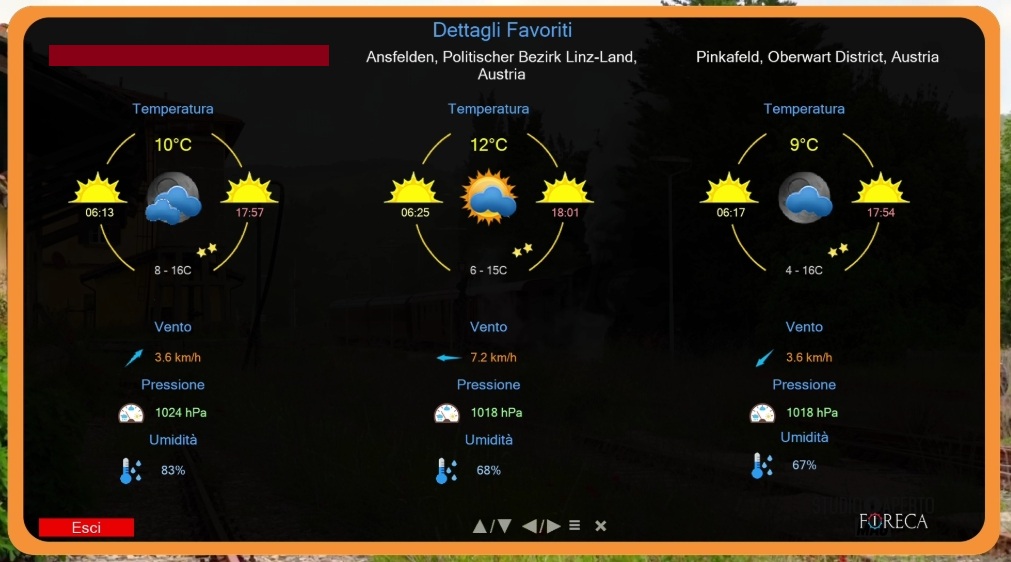
- Current conditions with extended details:
- Temperature, feels like, dew point
- Wind (speed, gusts, direction)
- Humidity, pressure, UV index, AQI
- Rain/snow probability and amount
- Last update time
- 10-day daily forecast (min/max temp, wind, precipitation, weather symbol)
- Hourly forecast for the selected day (scrollable list with icons)
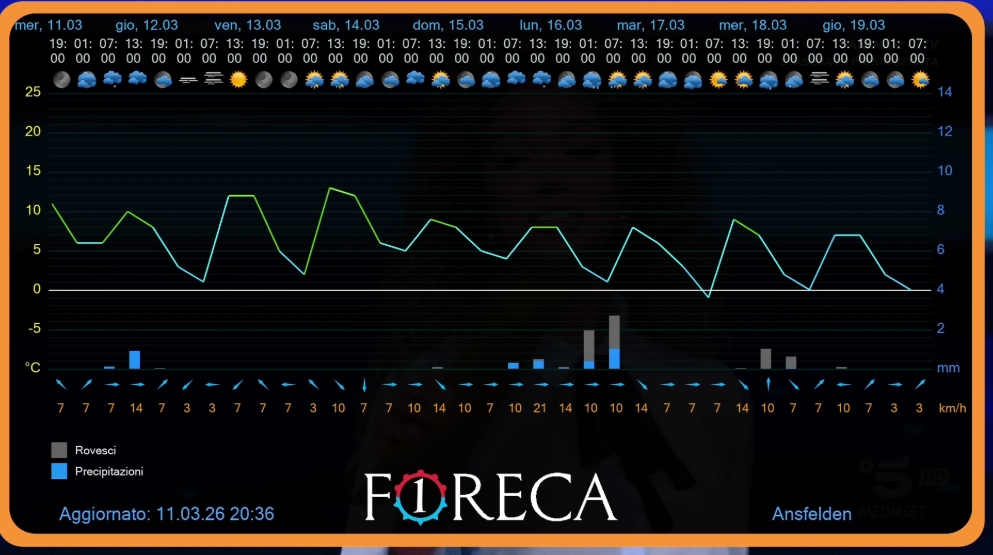
- 7-day meteogram – temperature curve, rain bars, icons and wind
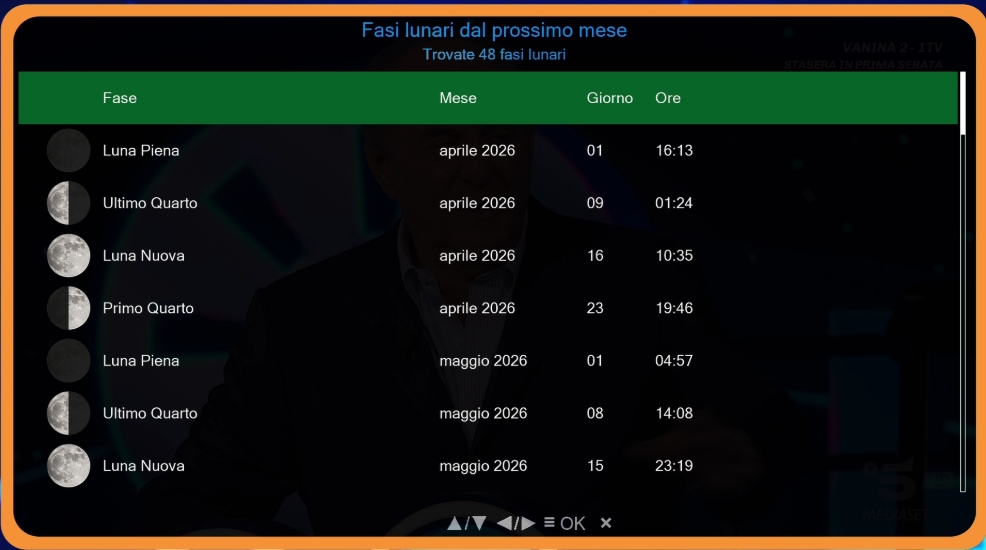
- Lunar Calendar – all lunar phases for the next 12 months, using the full 101-icon set
- For each phase: date, time, phase name, illumination, Earth-Moon distance, and the corresponding icon
- Accurate calculations based on Meeus algorithms, fallback to USNO API
- Moon phase with icon on the main screen (32-icon set)
- Moonrise and moonset times (from USNO API, async) – shown when coordinates are available
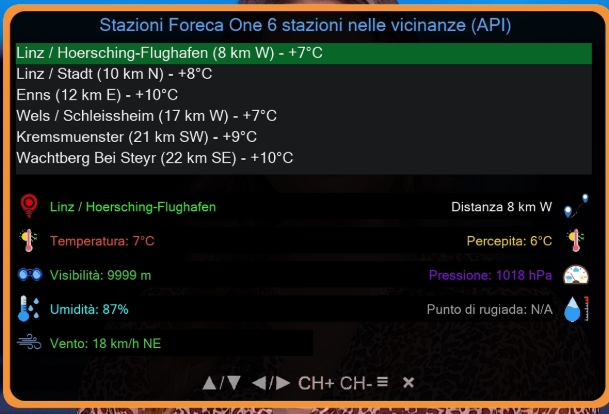
- Nearby stations (from authenticated API or scraping)
- Temperature, feels like, humidity, pressure, wind, visibility
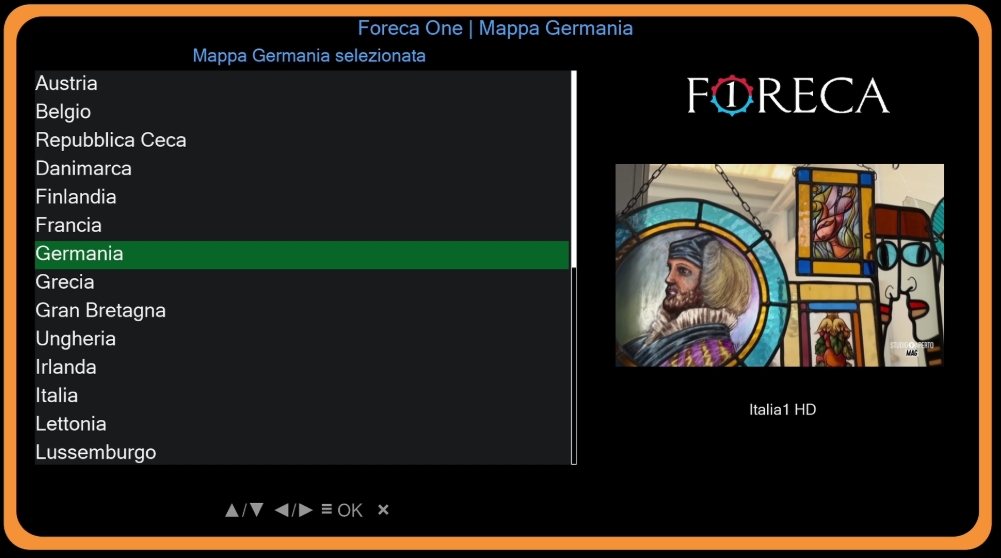
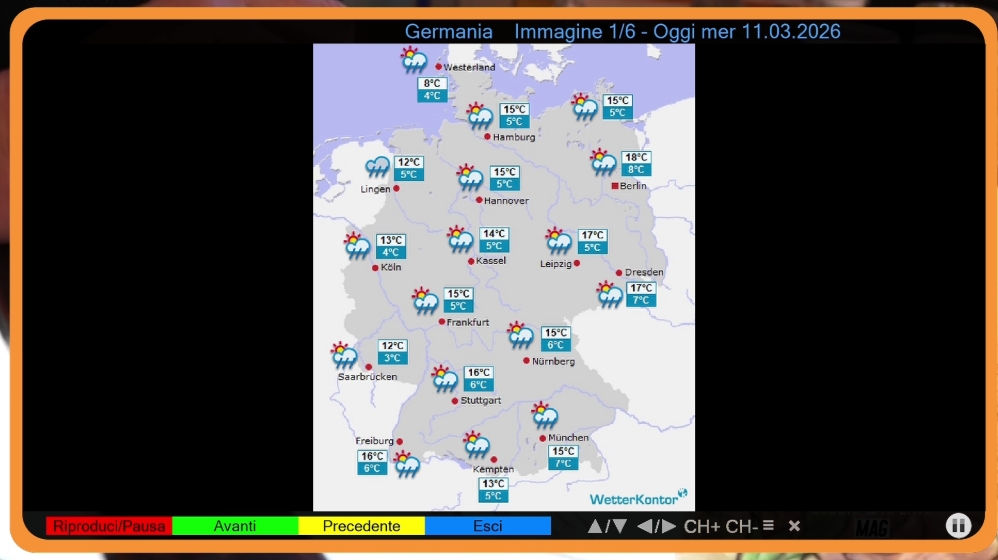
- Wetterkontor – slideshow of regional maps (Europe, Germany, continents)
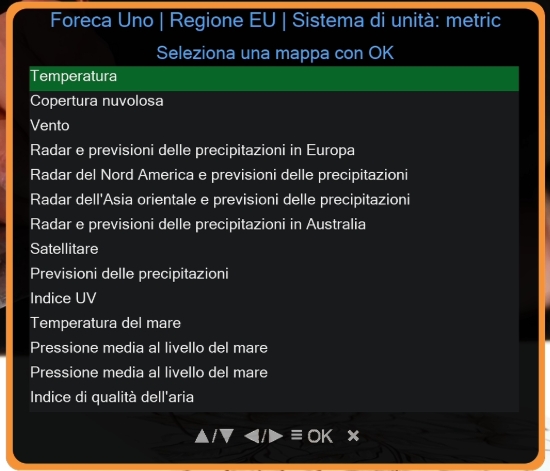
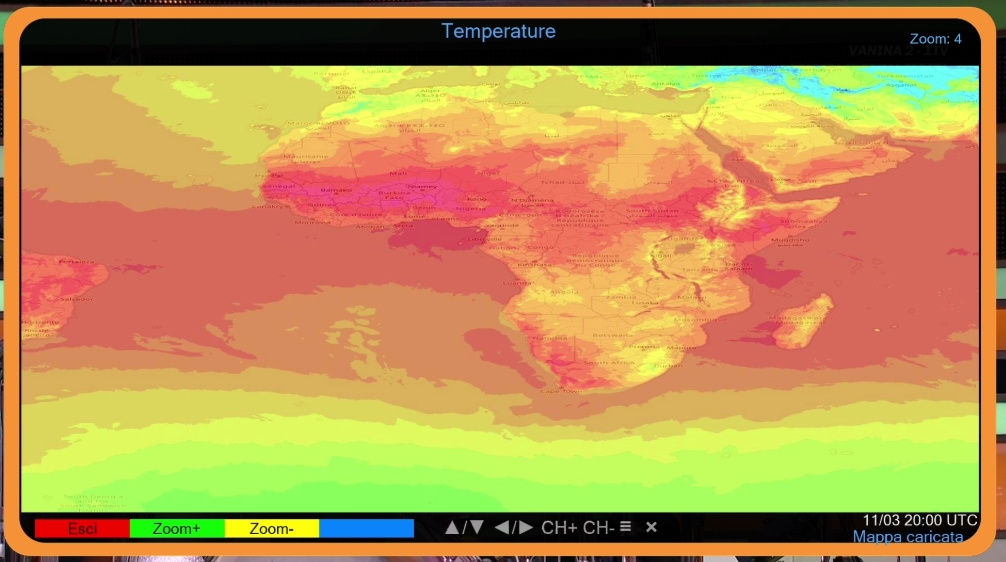
- Foreca Live Maps (API) – temperature, wind, precipitation, clouds, radar
- 3×3 tile grid with zoom in/out and pan (move with arrow keys)
- Multiple forecast times
- Overlay on geographic backgrounds (North America, South America, Asia, Australia, Africa, world fallback)
- Local tile cache to respect API limits
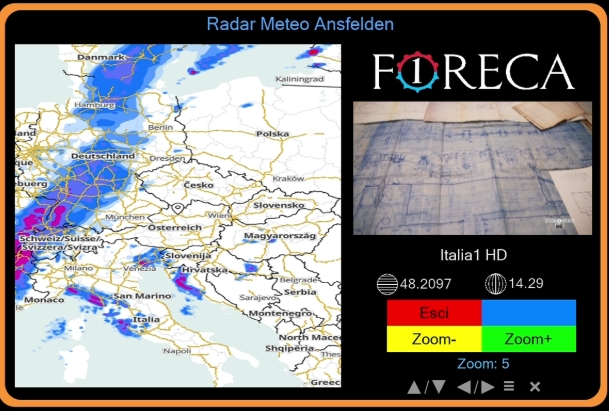
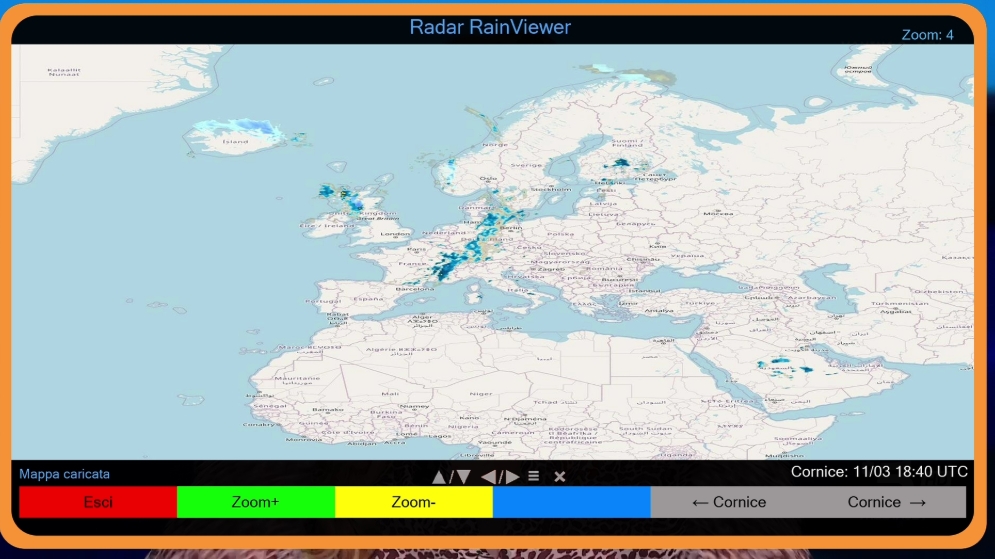
- RainViewer Radar – free, no API key required
- Real-time weather radar for the last 2 hours (10-minute steps)
- Zoom and pan with arrow keys
- Geographic background from OpenStreetMap tiles
- Ideal for tracking precipitation worldwide
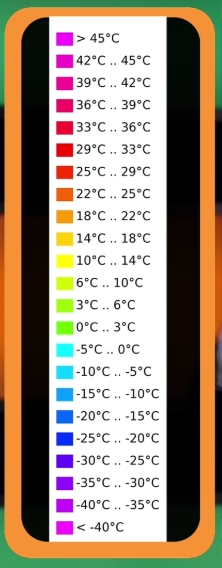
- All three viewers feature a dedicated color legend overlay, togglable via the INFO button.
- Small always-on-top widget showing the current temperature
- Perfect while watching TV: no need to open the plugin to check the weather
- Toggle ON/OFF from the plugin menu (persistent across reboots)
- Updates automatically once per minute
- Uses the same units configured for the plugin (°C / °F)
- Choose between metric and imperial systems
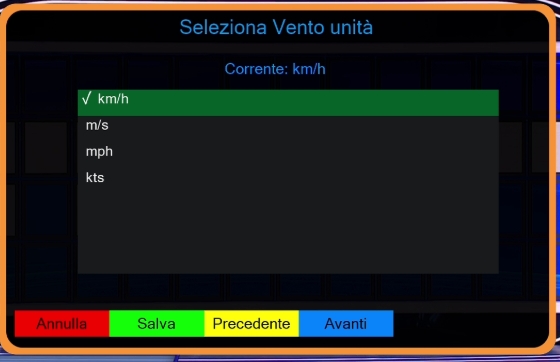
- Customize individual units:
- Wind: km/h, m/s, mph, kts
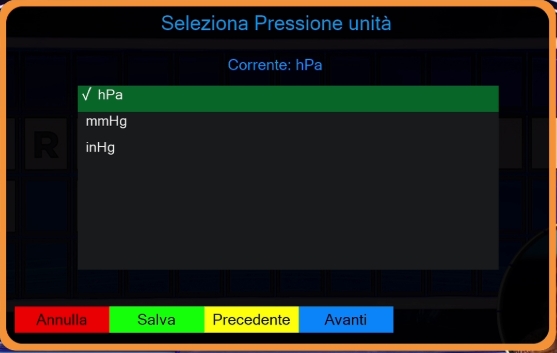
- Pressure: hPa, mmHg, inHg
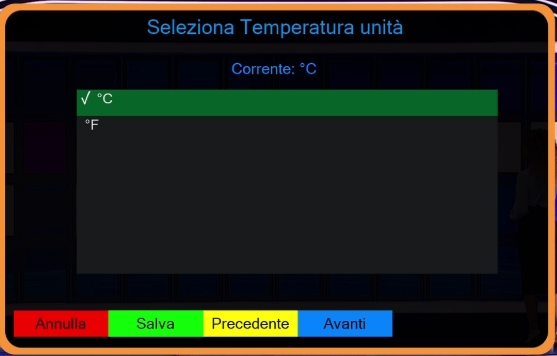
- Temperature: °C, °F
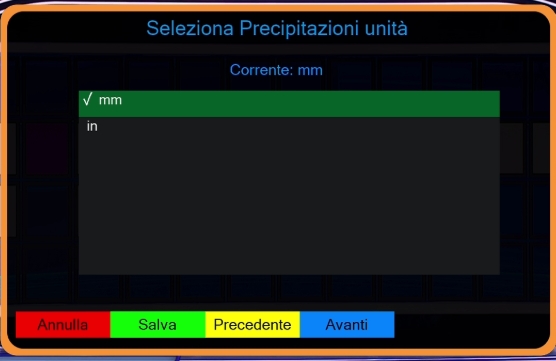
- Precipitation: mm, in
- Changes apply immediately, no restart needed
- Global theme – set a background color once, applied to all screens
- Adjustable transparency for overlays
- Multilingual – built-in GetText support with Google Translate fallback
- Full remote control navigation – all screens accessible via keys
- Skins for FHD, HD, WQHD – perfect on any screen
- Centralized icon fallback – missing icons show
na.pngto avoid blank spaces - Custom Skins – create your own skins without modifying the built-in ones. Place custom XML files in
skins_user/<resolution>/inside the plugin folder, naming them after the screen class (e.g.MoonCalendar.xml,MoonDetailsScreen.xml); the plugin will load them instead of the default skins.
- Optional animated icons for weather conditions (e.g., clouds moving, sun pulsing)
- Automatic detection: if a folder
animated_icons/<code>/exists, the plugin will cycle through all.pngframes - Customizable frame rate – currently set to 200 ms
- Fallback to static icons if no animation folder is found
- Python 3 only (enforced by the installer)
- Asynchronous downloads (moon, maps, stations)
- Bounded on-disk cache for map tiles (Foreca, RainViewer, OSM)
- Update installer is syntax-checked with
bash -nbefore execution - Debug mode with detailed logs
Download and run installer.sh directly on your Enigma2 box. It detects your image/OS, installs the required dependencies (requests, Pillow, etc.), and copies the plugin files for you:
wget --no-check-certificate 'https://github.com/Belfagor2005/ForecaOne/raw/main/installer.sh' -O installer.sh
chmod +x installer.sh
./installer.sh
- Copy the
Foreca1folder to your Enigma2 plugins directory:/usr/lib/enigma2/python/Plugins/Extensions/ - Set correct permissions:
chmod -R 755 /usr/lib/enigma2/python/Plugins/Extensions/Foreca1 - Install the required dependencies yourself (
requests,Pillow) using your image's package manager (opkg/apt-get). - Restart Enigma2 or the plugin menu to make the plugin visible.
The plugin uses a new_city.cfg file containing the list of supported cities (format: ID/City_Name per line). If the file does not exist, online search is used. You can generate it manually or let the plugin create it automatically during a search.
To enable live maps and API stations, you need a Foreca account (free 30-day trial, 1000 requests/day).
- Register at https://developer.foreca.com
- Create the file
api_config.txtin the plugin configuration folder:/etc/enigma2/foreca/api_config.txt - Insert your credentials:
(change the servers if needed, e.g.
API_USER=your_username
API_PASSWORD=your_password
TOKEN_EXPIRE_HOURS=720
MAP_SERVER=map-eu.foreca.com
AUTH_SERVER=pfa.foreca.com
map-us.foreca.comfor US maps)
An example file api_config.txt.example is created automatically if the main file does not exist.
Note: without these credentials, the plugin still works perfectly using public data. You can add or change credentials at any time from Menu → API Settings without reinstalling the plugin.
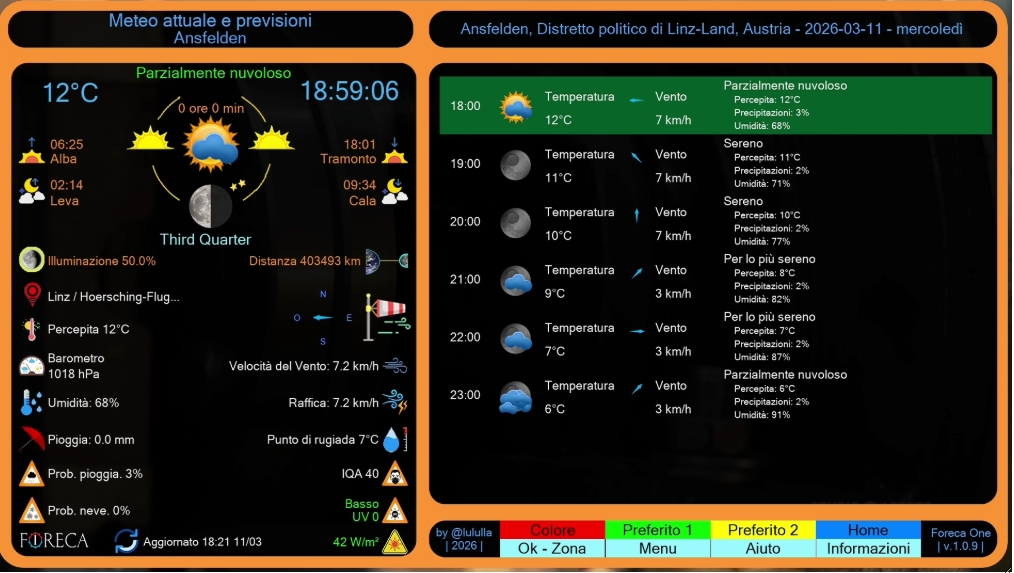
Upon startup, the main screen displays:
- City, date and day name
- Current weather (icon, temperature, description)
- Extended details (feels like, dew point, wind, gusts, rain, humidity, pressure, UV, AQI, probability, update time)
- Sun information (sunrise, sunset, day length)
- Moon phase (icon, name, illumination, distance, rise/set times)
- Nearest observation station (if available)
- Hourly list for the selected day (scrollable with UP/DOWN)
Function keys:
- 0-9 – jump directly to the corresponding day (0 = today, 1 = tomorrow, … 9 = today+9)
- ←/→ – previous/next day
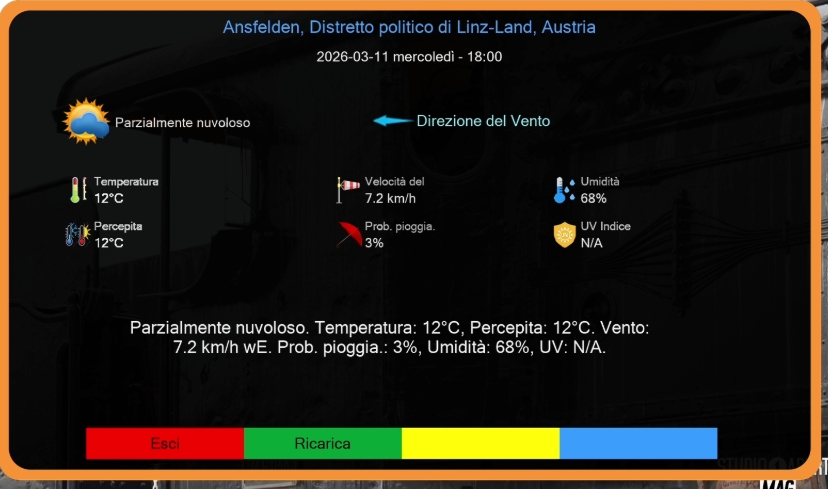
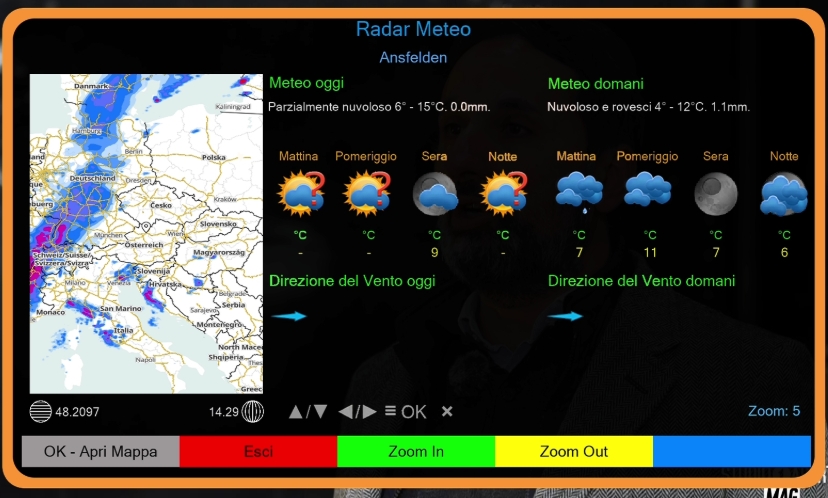
- OK – open today/tomorrow detail screen (with periods and radar map)
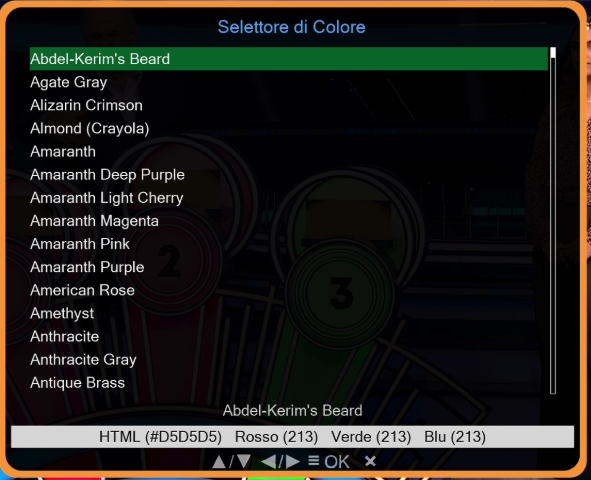
- RED – open color selector
- GREEN – load favorite 1 (
fav1.cfg) - YELLOW – load favorite 2 (
fav2.cfg) - BLUE – load home city (
home.cfg) - MENU – open main menu
- INFO – plugin information
- EXIT – exit plugin (return to TV or plugin menu)
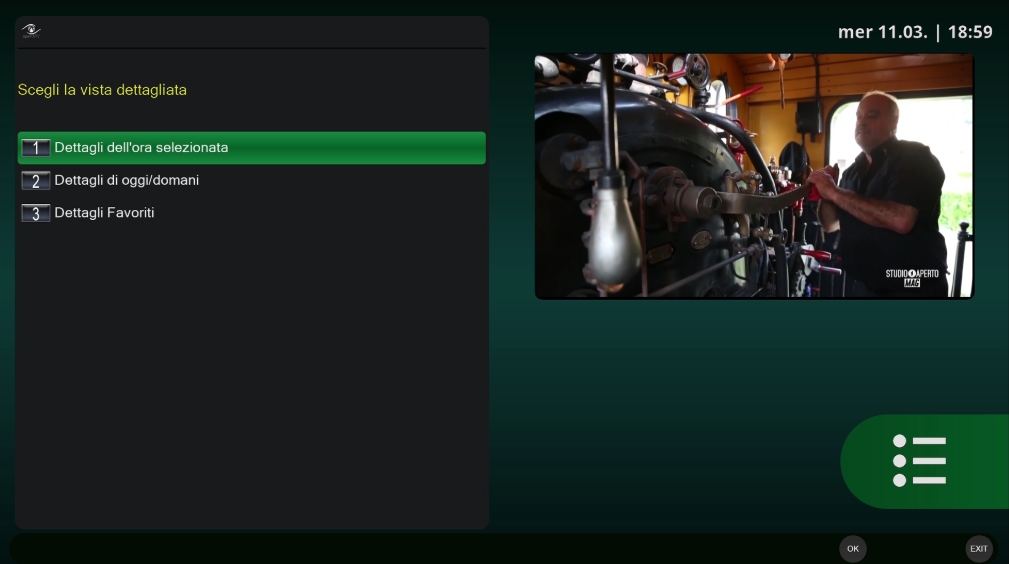
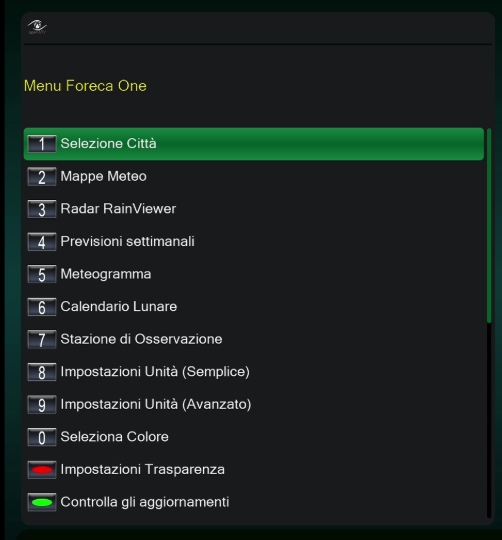
Pressing MENU opens the following options:
- City Selection – search and assign cities to favorites
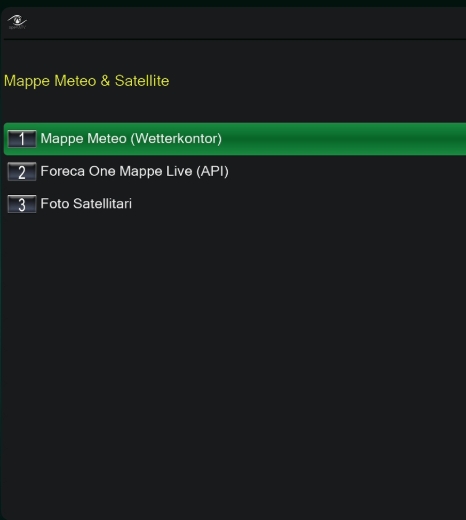
- Weather Maps – submenu to choose between Wetterkontor, Foreca Live Maps, and RainViewer Radar
- RainViewer Radar – direct access to the free radar viewer
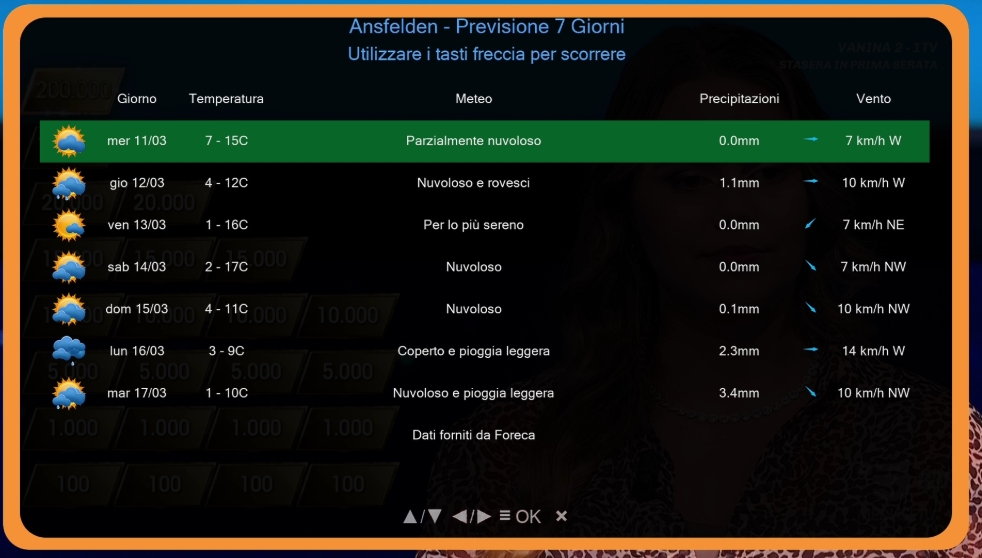
- Weekly Forecast – 7-day detailed forecast screen
- Meteogram – graphical weather trend
- Lunar Calendar – view all lunar phases for the next 12 months
- Station Observations – list of nearby stations
- Unit Settings (Simple) – quick choice between metric and imperial
- Unit Settings (Advanced) – customize wind, pressure, temperature, precipitation
- Color Selector – change global background color
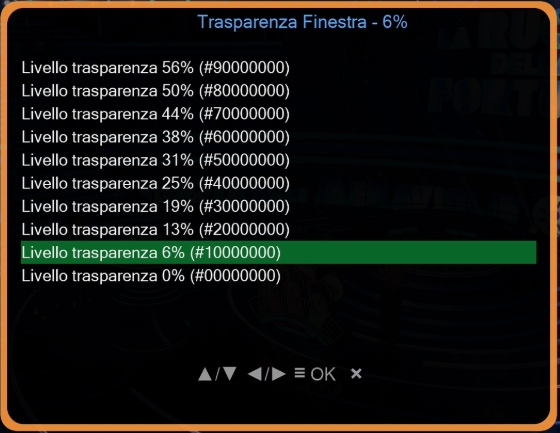
- Transparency Settings – adjust overlay transparency
- Temperature Overlay – toggle the always-on-top temperature widget
- API Settings – configure or update Foreca API credentials at any time
- Check for updates – version update from GitHub
- Cleanup temp files – remove cached tiles, images, and debug logs
- Translation Settings – choose translation engine and target language
- Info – version and credits
- Exit – close menu (return to main screen)
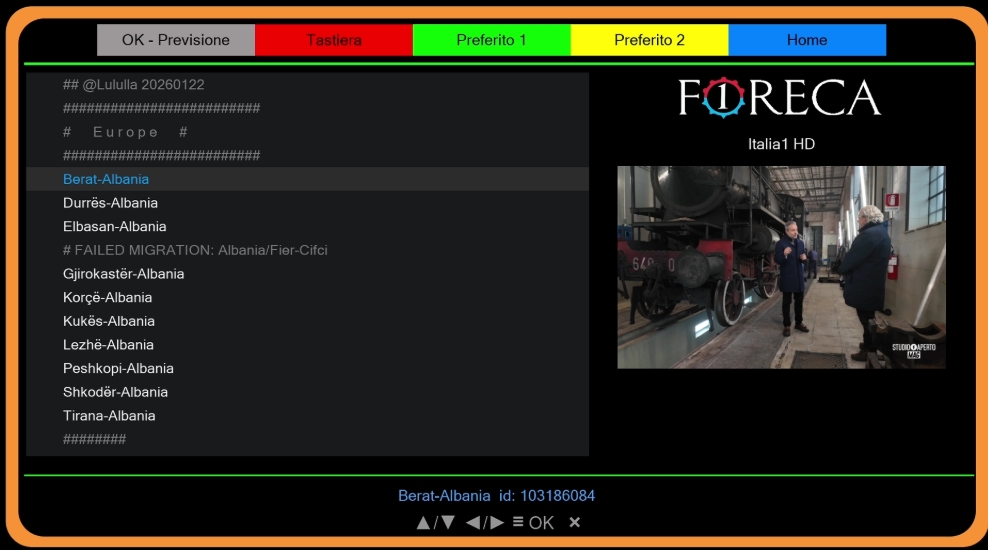
- RED – open virtual keyboard to enter city name
- Search is performed first online (Foreca API), then offline on
new_city.cfgif no results - GREEN – assign selected city to favorite 1
- YELLOW – assign to favorite 2
- BLUE – assign as home
- OK – load city into main screen and close panel
- EXIT – return to menu without changes
Cities are saved with format ID/City_Name and are displayed instantly at startup without requiring the API.
Each row contains:
- Abbreviated day name and date
- Min/max temperatures (converted according to chosen units)
- Abbreviated weather description
- Precipitation probability
- Wind speed and direction
Navigation:
- UP/DOWN – move selection
- PAGE UP/PAGE DOWN – jump one page
- OK – open a window with complete details of the selected day
- EXIT – return to main menu
Shows temperature trend (coloured curve), precipitation bars, weather icons and wind for 3-hour intervals over the next 7 days.
Keys:
- OK/EXIT – close meteogram
Data comes from:
- Authenticated API (if configured)
- Fallback: scraping of Foreca website
For each station: name, distance, temperature, feels like, dew point, humidity, pressure, visibility, update time.
- UP/DOWN – navigate through stations
- OK – show details of selected station
Displays a table of all lunar phases for the next 12 months, starting from the next month. For each phase:
- Month and year
- Icon of the moon phase (101-icon set)
- Phase name
- Day of the month
- Time (local time)
Navigation:
- UP/DOWN – scroll through phases
- PAGE UP/PAGE DOWN – jump one page
- OK – show detailed information: exact date/time, illumination, distance, age, magnitude, angular diameter
The calculations are performed offline using precise astronomical algorithms (Meeus). No internet connection is required.
The Weather Maps submenu offers three options:
- RED – play/pause
- GREEN – next image
- YELLOW – previous image
- BLUE – exit
- UP/DOWN – increase/decrease slideshow speed
Requires valid credentials. Shows list of available layers. After selection:
- ←/→ – pan left/right
- ↑/↓ – pan up/down
- PAGE UP/PAGE DOWN – change forecast time
- GREEN – zoom in
- YELLOW – zoom out
- INFO – toggle color legend overlay
- RED/EXIT – close
Note: without credentials, this menu item is hidden.
Free, no API key required. Shows the last 2 hours of weather radar data with 10-minute steps.
- ←/→ – pan left/right
- ↑/↓ – pan up/down
- PAGE UP/PAGE DOWN – change time frame
- GREEN – zoom in
- YELLOW – zoom out
- INFO – toggle color legend overlay
- RED/EXIT – close
Choose between metric (Celsius, km/h, hPa, mm) and imperial (Fahrenheit, mph, inHg, in) with UP/DOWN and confirm with GREEN.
Customize individual categories:
- Wind: km/h, m/s, mph, kts
- Pressure: hPa, mmHg, inHg
- Temperature: °C, °F
- Precipitation: mm, in
Navigate categories with YELLOW (next) and BLUE (prev). Inside a category, select the unit with OK. Save with GREEN.
- Color Selector – lists predefined colors (from
color_database.txt). UP/DOWN to move, OK to confirm. Applied to all screens. - Transparency Settings – lists levels from 0% to 56%. OK confirms, change is visible immediately.
The temperature overlay is a small always-on-top widget that shows the current temperature in the top-right corner of the screen while you watch TV. It is handy if you want to keep an eye on the weather without opening the plugin.
How to enable / disable:
- Open the plugin (MENU key from the main weather screen is not needed — just open the plugin as usual).
- Press MENU on the remote control.
- Select Temperature Overlay from the list.
- A confirmation message appears ("Temperature overlay enabled" / "disabled").
- Return to TV. The overlay appears (or disappears) within a few seconds.
Behavior:
- When enabled, the widget stays visible on top of any channel, including when you change channels, open the EPG, or navigate other plugins.
- It updates automatically once per minute using the last known temperature for the currently active city.
- It follows the plugin's unit configuration: it shows °C in metric mode and °F in imperial mode.
- The state is persistent: it survives Enigma2 restarts. If you turned it on, it will come back on after reboot.
Position and appearance:
- The widget is fixed in the top-right corner with a small margin.
- Semi-transparent dark background with a yellow temperature value, sized to remain readable but not intrusive.
- The exact appearance is defined in
overlay.py(embedded skin), so advanced users can tweak it if desired.
Notes:
- The overlay is created at Enigma2 session start via
WHERE_SESSIONSTART. It does not block the remote control, does not steal focus, and does not interfere with the InfoBar. - If you change the active city in the plugin, the overlay updates at the next automatic refresh (within 60 seconds).
- If the plugin has never been opened since boot, the overlay shows
--until the first temperature is available.
Files used:
/etc/enigma2/foreca/overlay_enabled.cfg– stores1(enabled) or0(disabled)/etc/enigma2/foreca/overlay_temp.txt– stores the last temperature string shown
Choose the translation engine:
- gettext (local
.pofiles) – works offline - Google Translate – fetches translations online, supports 100+ languages
Select the target language (auto follows the system language). Changes are applied immediately.
Opens the Foreca API setup screen. Use it to:
- Enter or update
API_USERandAPI_PASSWORD - Change
TOKEN_EXPIRE_HOURS,MAP_SERVER,AUTH_SERVER - Restore default server values with the YELLOW button
Saving writes credentials to /etc/enigma2/foreca/api_config.txt with restricted permissions. The change takes effect after reopening the plugin.
Removes cached OSM tiles, Foreca map tiles, meteogram SVG files, weather-detail radar images, and translation cache. Useful to free space on flash memory.
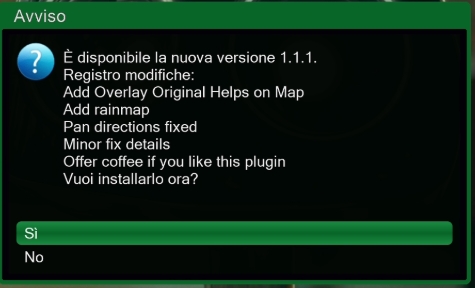
Checks if an update has been released online and runs it. For safety, the downloaded installer is checked with bash -n before execution; if the script contains a syntax error or the server returns an HTML error page, the update is aborted with a clear message.
Shows version, authors and credits.
Place your custom XML files in:
/usr/lib/enigma2/python/Plugins/Extensions/Foreca1/skins_user/<resolution>/
where <resolution> is one of hd, fhd, or wqhd. The file name must match the screen class name, for example:
skins_user/fhd/MoonCalendar.xml
skins_user/fhd/MoonDetailsScreen.xml
If a matching file exists, the plugin loads it instead of the built-in skin. Your changes survive plugin updates.
- Obtain username and password from Foreca Developer (free trial).
- Create the file
/etc/enigma2/foreca/api_config.txt:API_USER=your_username API_PASSWORD=your_password TOKEN_EXPIRE_HOURS=720 MAP_SERVER=map-eu.foreca.com AUTH_SERVER=pfa.foreca.com
- (Optional) Adjust parameters as needed (e.g.
MAP_SERVER=map-us.foreca.comfor US maps).
The same file can also be created and edited from Menu → API Settings.
An example file api_config.txt.example is created automatically in /etc/enigma2/foreca/ on first launch.
- Check internet connection.
- Verify that the selected city is valid.
- Look at debug files in the plugin's
debug/folder.
- Online search might be temporarily unavailable. Make sure
api.foreca.netis reachable. - Ensure
new_city.cfgexists and contains at least a few cities. - Try a more generic term (e.g. "Rome" instead of "Rome, Italy").
- This was a known bug fixed in v1.3.5. The favorites files stored only the location ID without the city name.
- After updating to v1.3.5, re-save each favorite once from Menu → City Selection (search the city, then press BLUE / GREEN / YELLOW).
- Alternatively, edit the files manually:
(format:
echo "103178846/Your_City_Name" > /etc/enigma2/foreca/home.cfgID/City_Name_with_underscores)
- Check that
/etc/enigma2/foreca/api_config.txtexists and contains correct credentials. - Verify that your Foreca account has access to map APIs.
- Enable debug (
DEBUG = Truein__init__.py) and examine logs.
- Make sure you are pressing UP/DOWN, not numeric keys.
- Verify that the skin has a
listwidget with adequate dimensions.
- Check that the unit screens return
Trueupon saving.
- The function
apply_global_thememust be called in every secondary screen. If a custom screen lacks thebackground_plateandselection_overlaywidgets, the theme will not be applied.
- The plugin uses high-precision algorithms (Meeus). Enable debug and check the calculated Julian Day vs. official sources.
- The tiles are transparent when no precipitation is detected. Try moving the map.
- If the background map does not appear, check that the OpenStreetMap tile URL is reachable.
- This is expected when no API credentials are configured. Add credentials from Menu → API Settings to unlock live maps and API stations.
- Make sure you enabled it from Menu → Temperature Overlay and that a confirmation message appeared.
- Check that
/etc/enigma2/foreca/overlay_enabled.cfgcontains1. - If the plugin has never been opened since boot, the overlay shows
--until the first temperature is available. Open the plugin once and let it load a city. - If the overlay is still not visible, restart Enigma2 once so the widget is recreated at session start.
- The lunar calendar computes phases for 12 months. On older boxes this can take 2-3 seconds. The computation runs in a background thread so the UI remains responsive.
- Fixed favorites (Home / Fav1 / Fav2) saved without the city name
- Favorites now load instantly at startup, no API call needed
- Removed redundant file overwrite in the save path
- API credentials truly optional at launch
- Added API Settings entry to the main menu
- Cleaner city name display in the main screen title
- HD and WQHD skin fixes on lunar calendar and moon details
- Bounded LRU cache for map tiles (Foreca, RainViewer, OSM) to prevent unbounded growth
- Update installer is now downloaded and syntax-checked with
bash -nbefore execution - New Temperature Overlay: small always-on-top widget showing the current temperature during TV viewing (toggle from Menu)
- Reduced accelerated-surface exhaustion on RainViewer radar animation
- Faster lunar rise/set/transit calculations
- Fixed thread-safety issues in weather detail screen
- Removed global socket timeout leak
- Improved internet connectivity check
- Replaced
wgetwithrequestsfor radar pre-cache - Removed hardcoded font path
- Removed Indonesian day names from Julian Day conversion
- Idempotent translation config init
- Escape protection in translation placeholders
DEBUGdisabled by default- Removed dead files from the source tree
- Original design and idea: @Bauernbub
- Modifications and further development: @Lululla
- Contributions: Assistant (API refactoring, meteogram, new data integration, extensive debugging, menu navigation, station scraping, lunar calendar, advanced units, global theme, DailyForecast fixes, map improvements, RainViewer integration, pan in live maps, centralized icon fallback, custom skins support, lunar calculation performance, thread-safety fixes, optional-API refactor, favorites persistence fix, cache LRU, update validation, temperature overlay)
Thanks to @Orlandox and all friends who provided suggestions and tested the plugin.
This project is licensed under the GNU General Public License v3.0. See the LICENSE file for details.
Enjoy the weather, rain or shine! ☀️🌧️
© Lululla 2026