
Allows you to edit Roblox scripts outside of Roblox studio.
- Explore your roblox game within VS code and select items you wish to edit.
- Allows the editing of Scripts through the new Open Cloud Engine Instance feature.
WARNING The Engine Instance feature is in beta and so has restrictions currently.
- You can only read and update Script, LocalScript, and ModuleScript objects.
- You can't update scripts that are currently open in Roblox Studio.
- You can't update scripts that are part of a package.
- You can only use API key authentication. Create an API key with Engine (Beta) added as an API system.
To open a place run the command Open Place
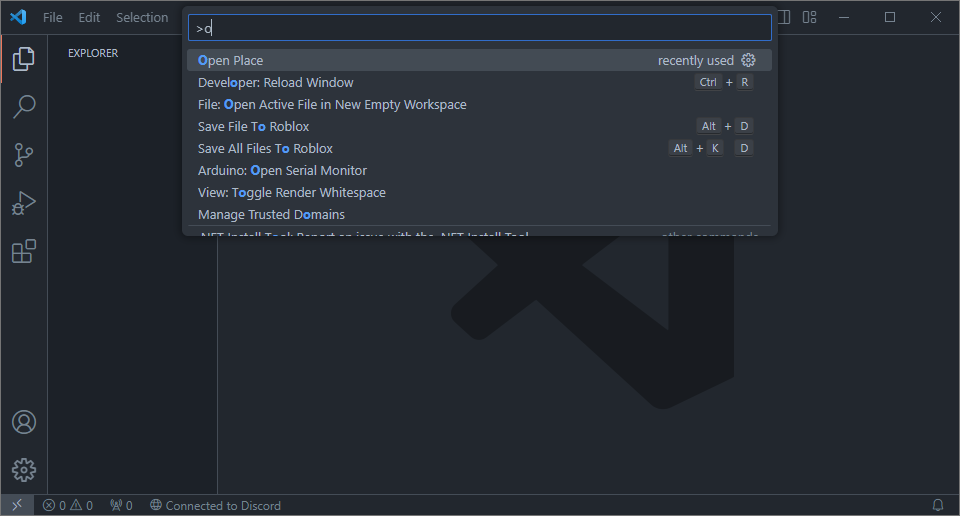
This will bring up a menu where you can select from any of your perviously opened places or add a new place.
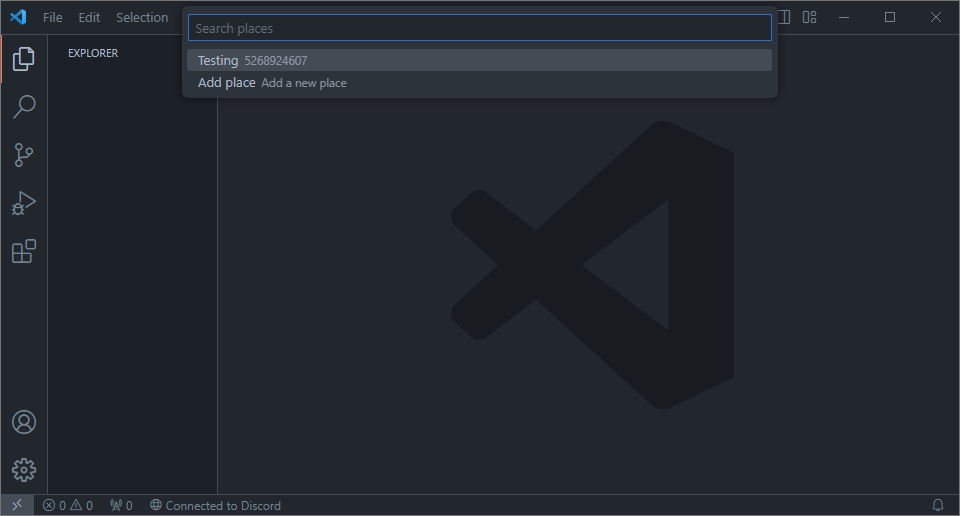
Adding a new place requires both a placeId and an API key see here on how to create one.
You can then browse through your game in the Explorer view.
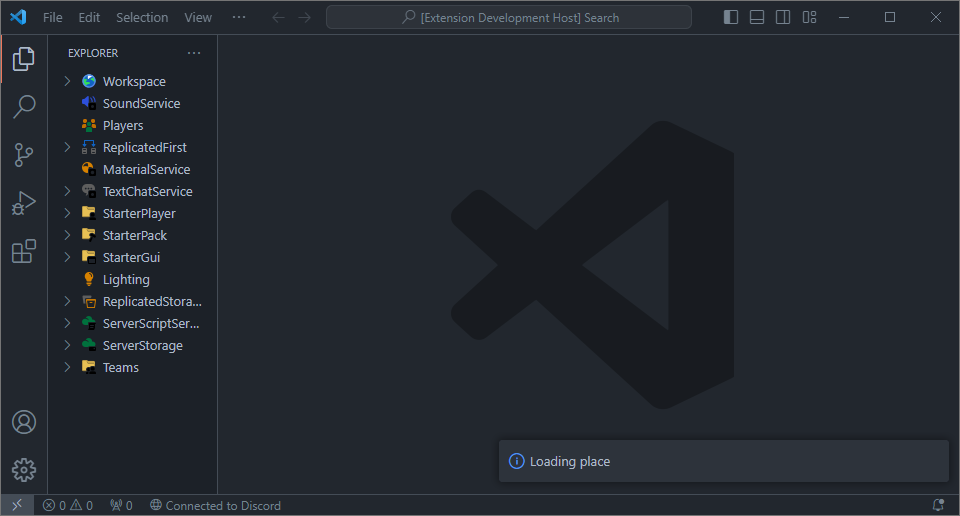
To edit a script simply click on it this will open up a new code editor with the script in it.
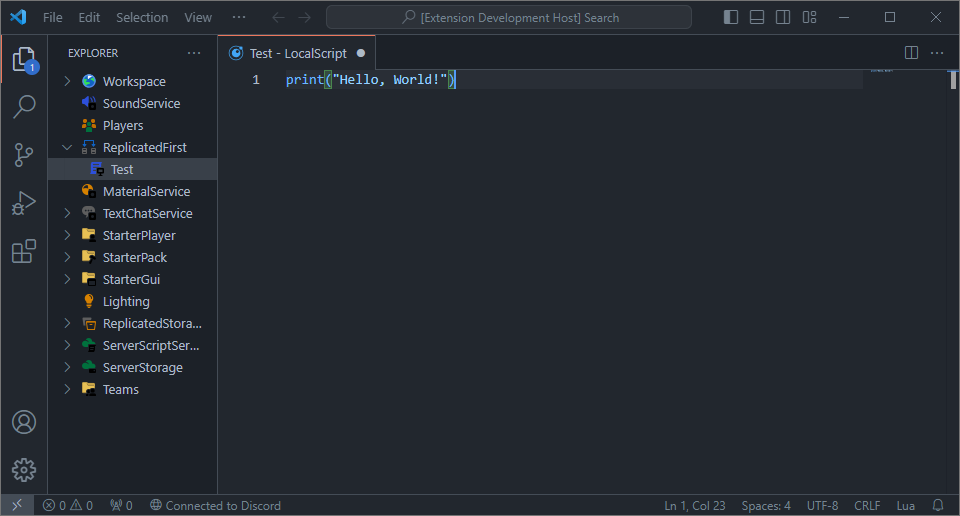
To save your changes use either alt+d or Save File To Roblox to save the current script alternatively alt+k d or Save all Files To Roblox to save all open scripts.
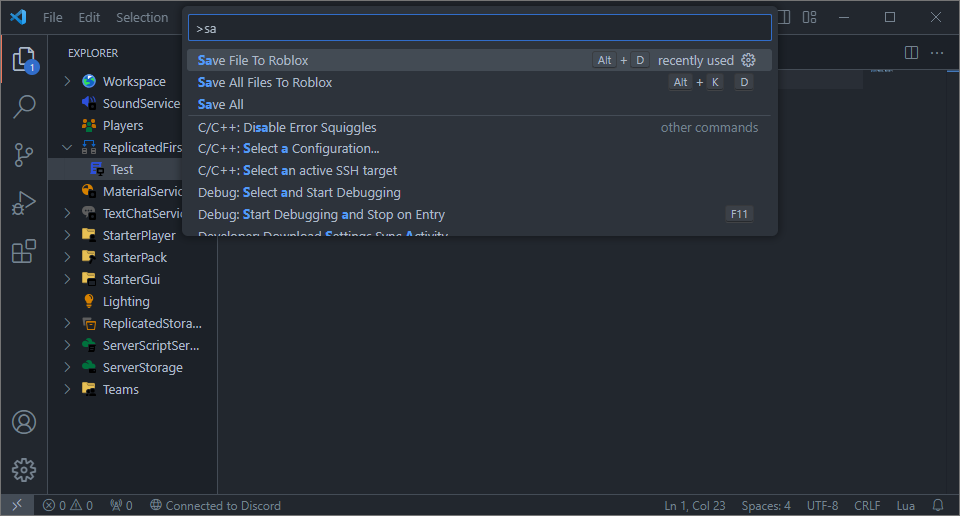
Currently you need to re-open the game inorder to view your changes in scripts. However this is going to be fixed!
NOTE! Scripts can only be updated if there is no current live editing session.
- Save palces
- Edit saved palces
- Instance icons
- Unload game
- Reload game
- LUA Language Server (requires plugin)
- QL Improvements
- Requests can fail often (Roblox Issue)
- Instance Icons
- Code Improvements
NOTE! It is currently not possible to see exactly what an Instance is other than scripts so Icons are based on the name.
- None
Navigate to https://create.roblox.com/dashboard/credentials?activeTab=ApiKeysTab
Click Create API key
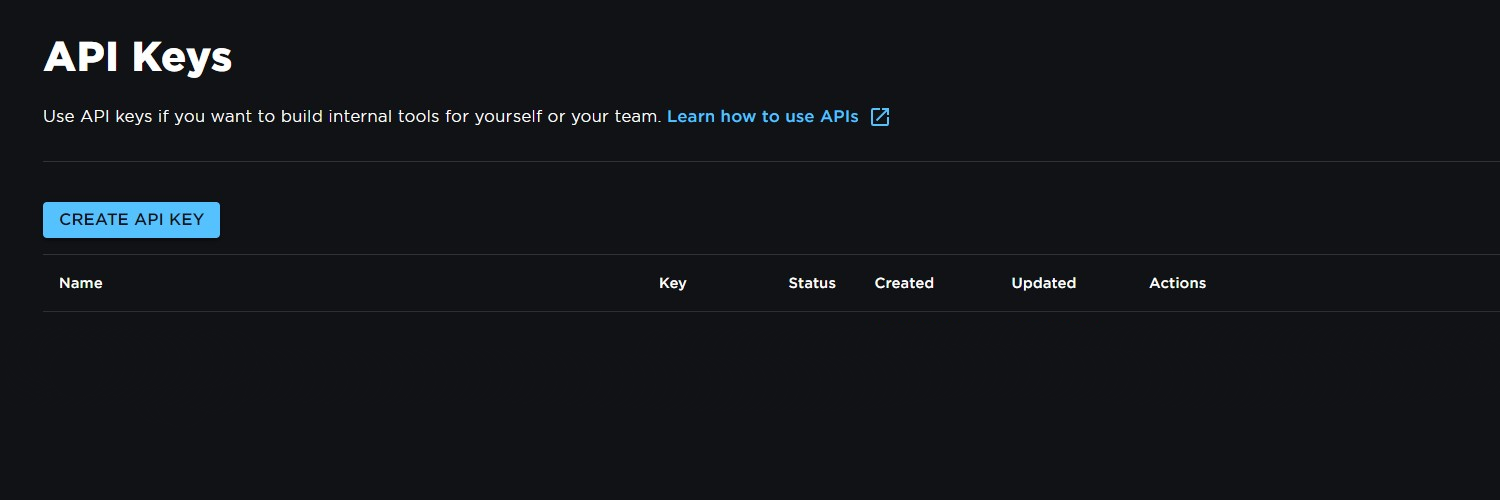
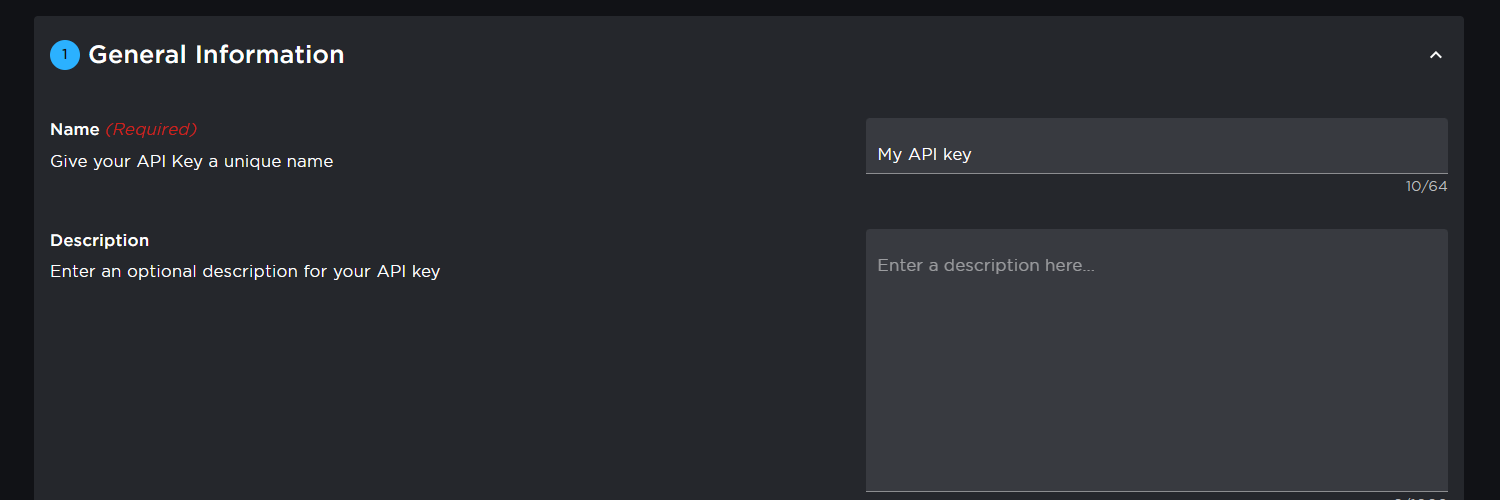
Give it a Name
Click Select API System and select Engine (Beta)
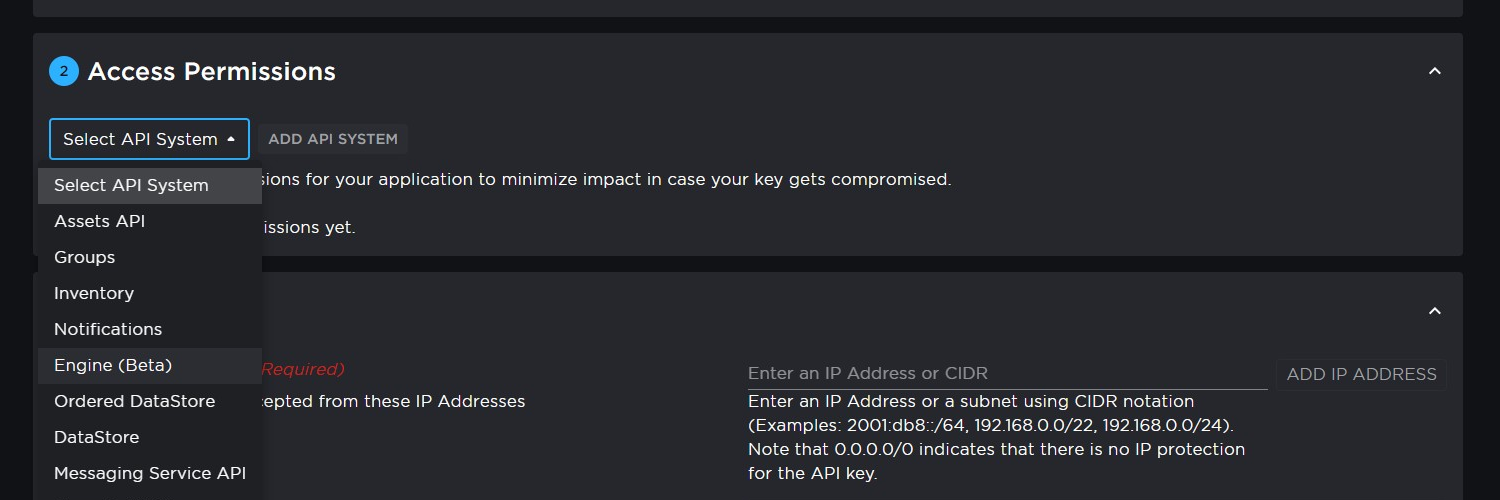
Click ADD API SYSTEM
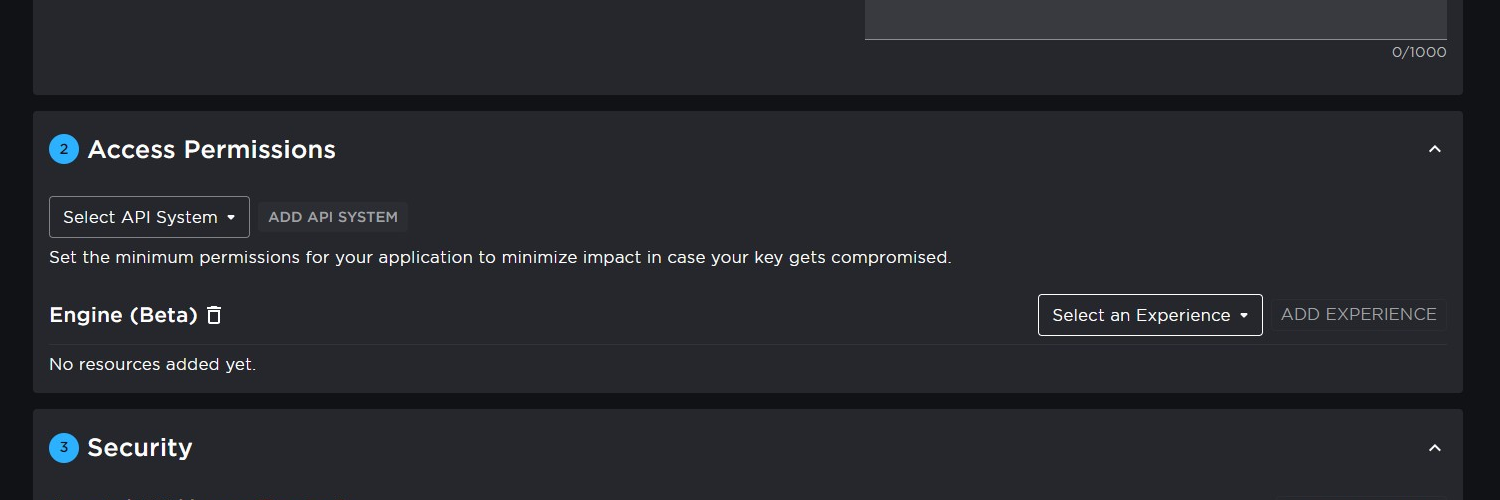
Click Select an Experience and select the game you wan't to add
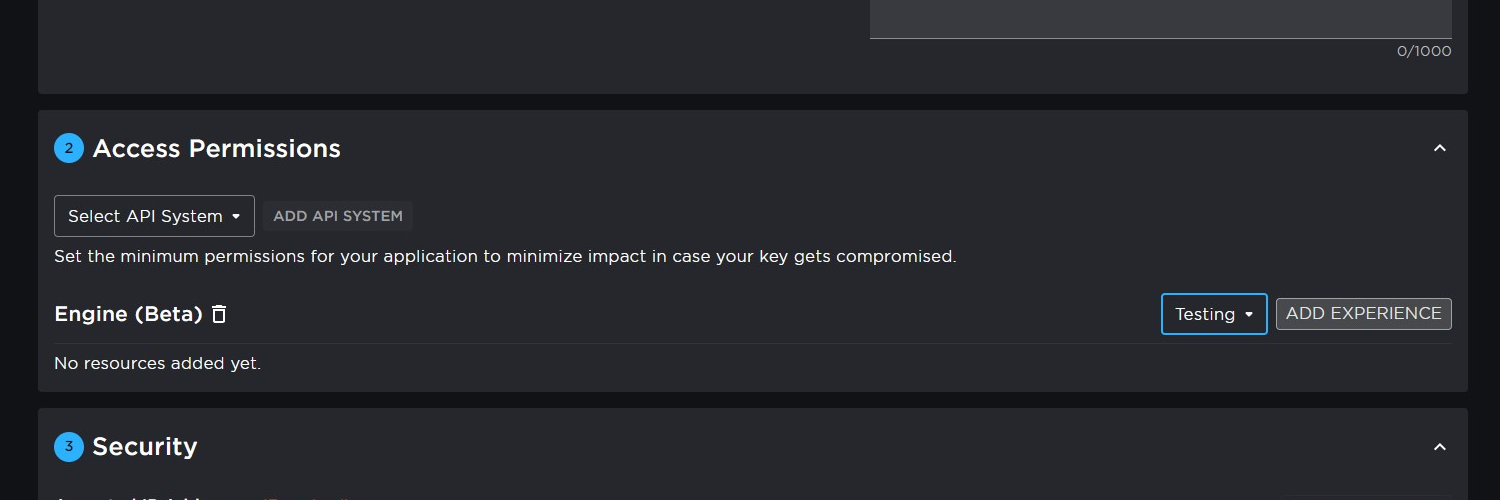
Click ADD EXPERIENCE
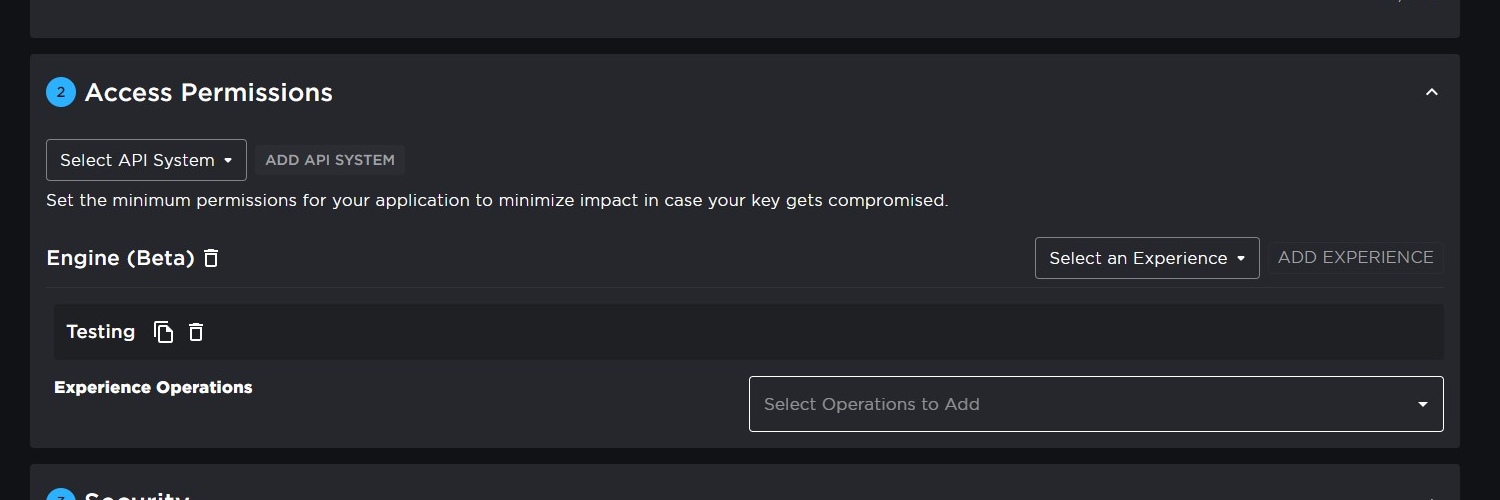
Click Select Operations to Add
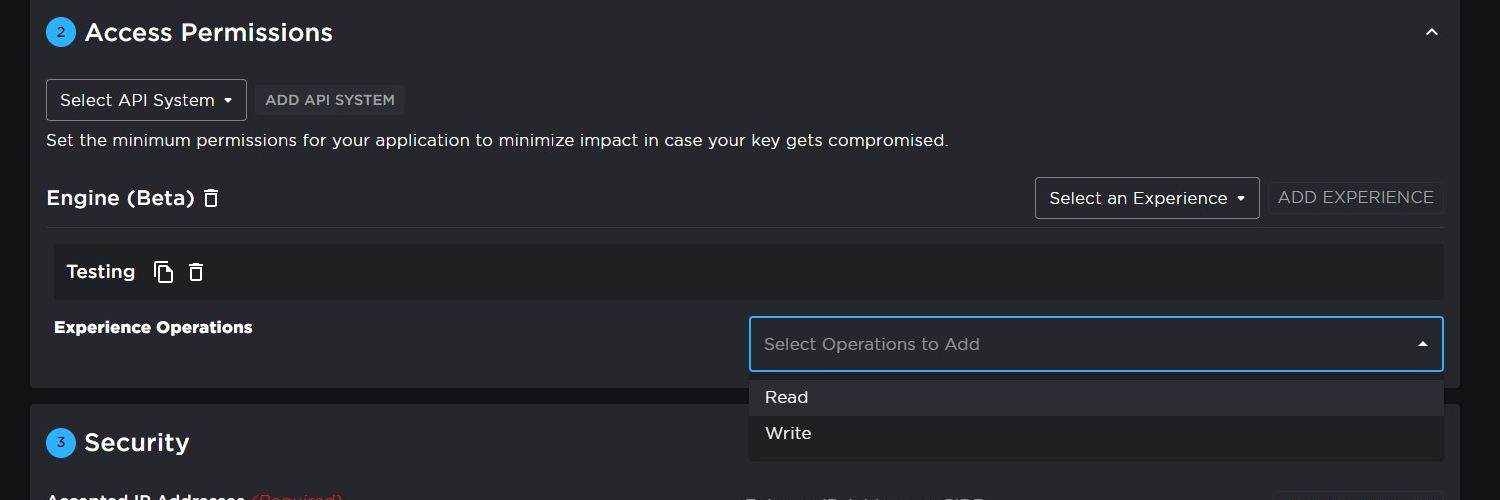
Select both Read and Write
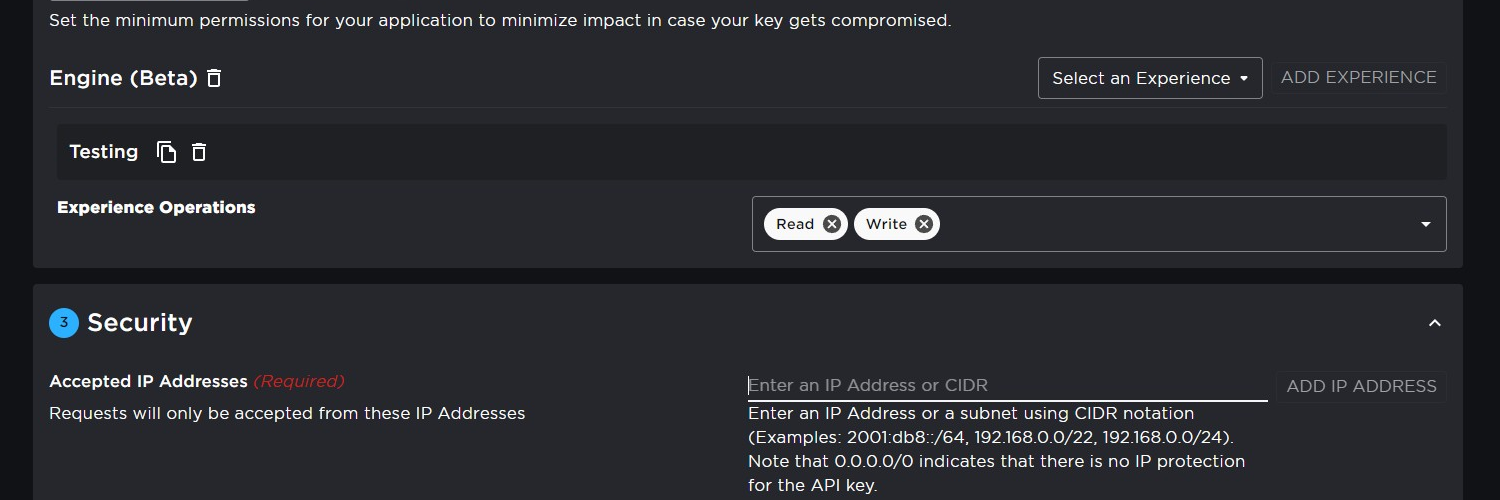
Enter an IP address and port you wish to use or 0.0.0.0/0
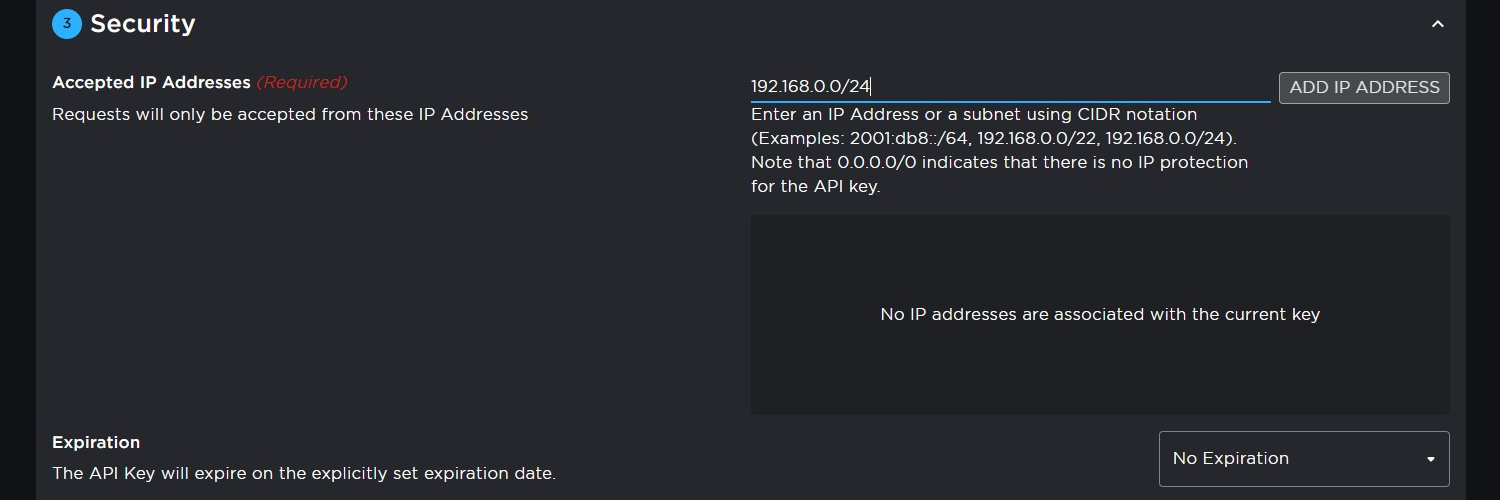
Click ADD IP ADDRESS
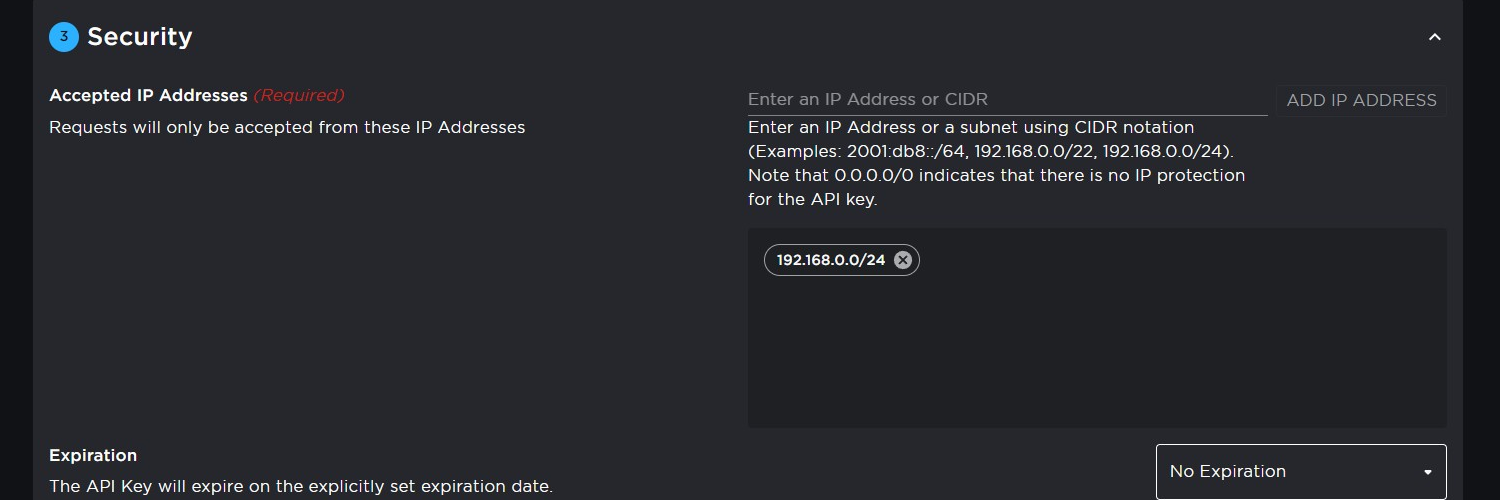
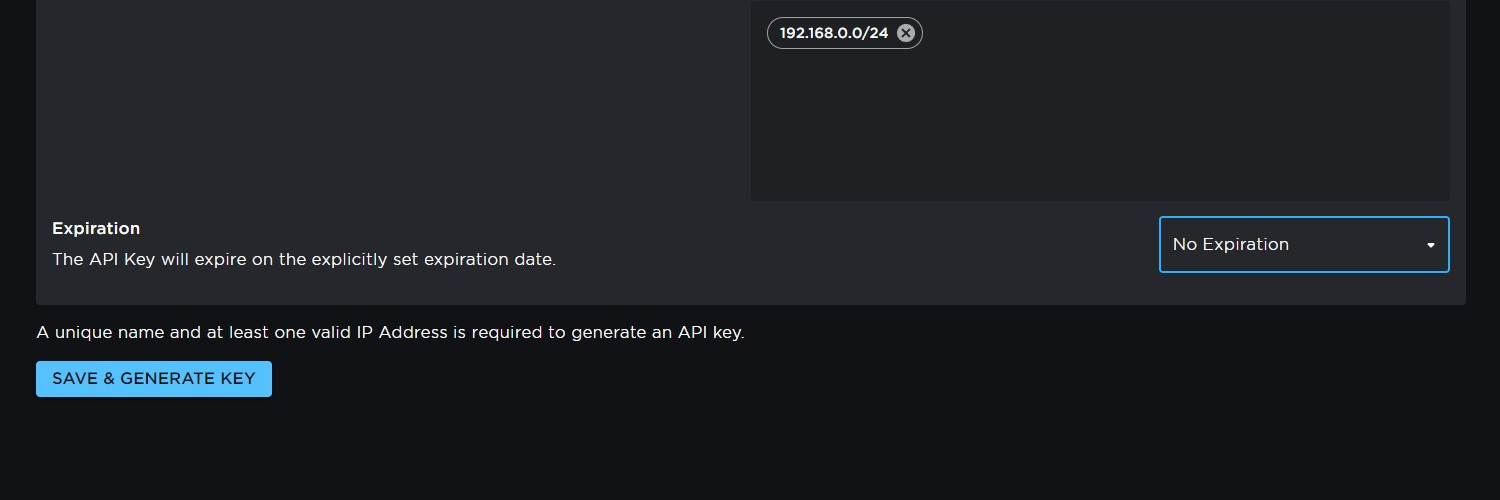
Select and Expiration time if you wish.
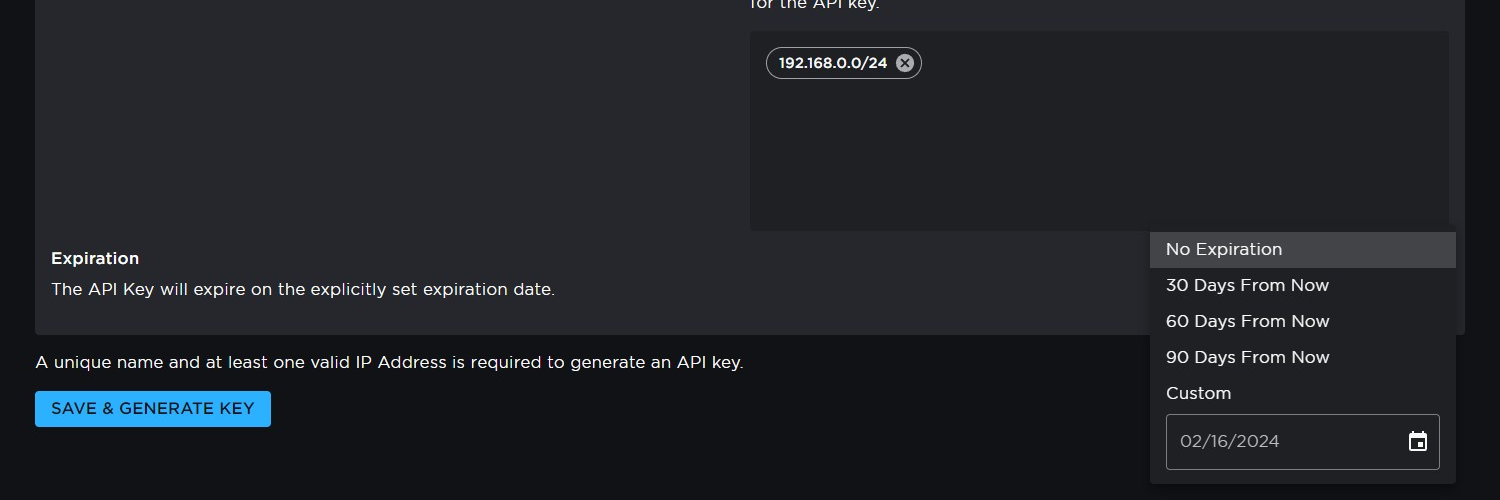
Click SAVE & GENERATE KEY
Ensure you click COPY KEY TO CLIPBOARD and store this somewhere so you don't loose it.