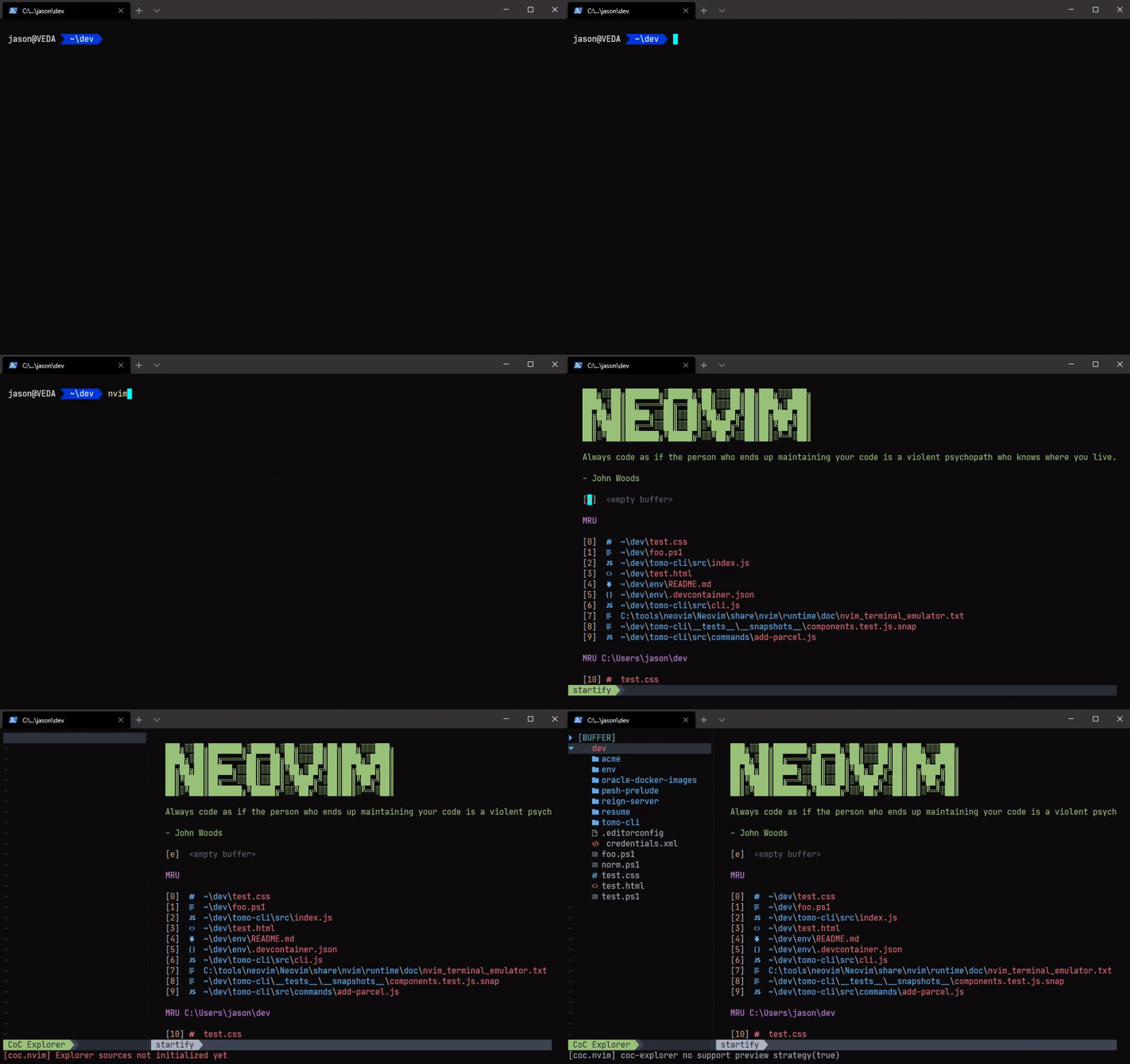
This project codifies how I configure my development environment across Windows, Linux, and OSX, using Windows Terminal1, Powerlevel10k2, Neovim3, and more.
Run this in a Linux or macOS terminal:
curl -fsSL https://shell.jasonwohlgemuth.me/install.sh | bashTip
Install only selected packages by passing their names after bash -s --:
curl -fsSL https://shell.jasonwohlgemuth.me/install.sh | bash -s -- git neovim agentsSeparate arguments are recommended. A comma-separated list also works:
curl -fsSL https://shell.jasonwohlgemuth.me/install.sh | bash -s -- git,neovim,agentsPackage names must match directories listed under Install packages. With no names, the installer uses its default package set.
The repository's shell installer defaults to gold git neovim ohmyposh powershell powerlevel10k. It uses $GOLD_DOTFILES or ~/.dotfiles for the checkout, installs Gold commands into /usr/local/bin, and installs other selected packages into $HOME.
On Windows, run this in PowerShell:
irm https://shell.jasonwohlgemuth.me/install.ps1 | iexTo install only selected Windows packages, invoke the downloaded script with -Packages:
& ([scriptblock]::Create((irm https://shell.jasonwohlgemuth.me/install.ps1))) -Packages nushell,starshipThe Windows installer supports nushell, neovim, starship, and agents; with no package names, it installs all four. The agents package copies skill runtime files to $HOME\.agents\skills without evaluation fixtures. Package names can be separate array values, comma-separated strings, or space-separated strings. The installer requires Git and clones the repository to $HOME\.dotfiles (or updates an existing clone). Set $env:GOLD_DOTFILES before running the command to use a different clone location.
The repository's Windows bootstrap updates the checkout and invokes the file-backed package copier. To run exactly the source in this repository from a clone, use bash ./install.sh on Linux or macOS, or & ./install.ps1 -Packages agents in PowerShell. Hosted publication is verified separately.
For safe reruns, both bootstraps require an existing checkout to use this repository as its Git origin and to be on main. The Windows bootstrap also refuses to run a locally modified package copier.
The PowerShell profile does not change PSGallery's installation policy during startup. If you want to trust PSGallery for module installation, run Set-PSRepository -Name PSGallery -InstallationPolicy Trusted explicitly.
Tip
For a given application configuration to be useful, the associated software must be installed
git clone https://github.com/jhwohlgemuth/my-shell-setup "${HOME}/.dotfiles"stow --dir "${HOME}/.dotfiles" --target "${HOME}" --stow git neovim ohmyposh powerlevel10k powershell| Package | Configuration |
|---|---|
 agents |
Personal AI agent skills installed into ~/.agents — skills/Waza development and test workflow — README.md |
 clojure |
Leiningen user profile, aliases, dependencies, and plugins — profiles.clj |
 elixir |
IEx configuration — .iex.exs |
 git |
Configures Delta and adds some useful aliases — .gitconfig |
 gold |
Collection of utility functions and installation scripts. See the Gold project for motivation and example usage. |
 hunk |
Review configuration — config.toml |
 neovim |
Usage and plugin guide — README.md Themes — themes/Editor configuration — init.vim and general/Plugin configuration — plug-config/ |
 nushell |
Shell configuration — config.nu and env.nuSetup and reusable modules — setup.nu and modules/ |
 ocaml |
utop configuration — init.ml and .utoprc |
  ohmyposh |
Theme — .theme.omp.json |
 powerlevel10k |
Configuration — .p10k.zsh |
 powershell |
Profile — Microsoft.PowerShell_profile.ps1Settings — settings.json |
 starship |
Prompt configuration and default theme — starship.toml and default.toml |
The root mise.toml selects the Python, Rust, jq, shell formatting, and Waza versions used for development. It also declares Stow and dos2unix as system packages for macOS and Debian-based Linux. After reviewing the config, install the tools with mise:
mise trust mise.toml
mise bootstrap packages apply
mise install
make check
make -C agents ci
Make remains the task runner. Its recipes call mise exec for the selected tools, so shell activation is optional. make check is a read-only local gate for shell scripts, Nushell, PowerShell, and Stow; it needs Nushell and PowerShell installed alongside the mise-selected tools. Use make help and make -C agents help to list tasks.
Install the agent skills into the home directory target used by the other packages. The package's .agents/ directory maps to ~/.agents:
stow --no-folding --dir "${HOME}/.dotfiles" --target "${HOME}" --stow agentsFrom the repository root, verify the Stow layout without changing your home directory, then use Waza for static checks, a credential-free mock test, or interactive development:
make help
make -C agents help
make -C agents stow-check
make -C agents check
make -C agents test
make -C agents dev
The included blank-test skill is a canary for skill discovery. Ask an agent to run the blank test skill after installation; a successful invocation returns BLANK_TEST_SKILL_OK.
Pass AGENT_SKILL=<name> to the Waza Make targets to develop another skill. See the agent skills guide for Waza installation and scaffolding.
To improve a skill, capture a real-agent assessment, inspect failures, make one focused change, and assess again. Repeat the same command for every revision; it saves numbered runs and compares each one with the previous completed run. Keep the imported Acorn instructions as the starting point:
make -C agents ci
make -C agents assess AGENT_SKILL=guidelines-rust AGENT_TRIALS=5
# Review the saved results, then edit the skill.
make -C agents assess AGENT_SKILL=guidelines-rust AGENT_TRIALS=5
The default history lives under /tmp/my-shell-setup-waza-iterations; set AGENT_ITERATIONS_DIR for durable storage. Each assessment also measures the skill against a no-skill control; set AGENT_EFFECT=0 to skip that extra run. Real-agent runs require authenticated Copilot access and can incur model usage. See the agent skills guide for result paths and review steps.
stow --delete <package names> --target <target>The gold/install_docker script now supports configuring Docker rootless mode for a non-root user.
ROOTLESS_USER: Target Linux user for rootless Docker setup. Defaults tononrootwhen omitted.ROOTLESS_ONLY: Defaults to1(rootless/client components only). Set to0to also install and start rootful Docker (docker.service).
Examples:
# Install rootless/client components only (default behavior)
ROOTLESS_USER=jason ./gold/install_docker

# Install rootful Docker and also configure rootless mode for user jason
ROOTLESS_USER=jason ROOTLESS_ONLY=0 ./gold/install_docker
After setup, use the rootless socket for that user session:
export DOCKER_HOST=unix:///run/user/$(id -u)/docker.sockcd "${HOME}/.dotfiles"
git pull origin main
stow --target <target> --restow <package>Add or improve some packages and/or try developing with containers!
Windows Terminal is an open source terminal for the modern developer. Combined with Powershell, anyone can easily enjoy a comfortable and truly robust developer experience on Windows.
#cantBelieveItsNotLinux
powerlevel10k is a theme for Zsh
Example Neovim configuration