
Model-generated brand illustration, not a device screenshot or an interoperability test.




English · 简体中文
Download APK · Get started · Cropping explained · Build · Contribute
An Android sender and TV receiver in one app, with practical controls for the black bars that make a big screen feel small.
A video can already have black bars inside the phone's captured screen. Fitting that entire capture onto a TV adds another layer of empty space. MoonCast helps you reclaim that space: detect stable black borders, keep the useful picture in proportion, and adjust the framing when automatic detection is uncertain.
0.5.1 preview limitations: Builds, signing and a synthetic same-certificate emulator upgrade passed, but the overall CI failed: Android 15 hit a startup ANR in a later locale process, and Android 11 lost its package-manager service during installation. CPU saturation was recorded; the ANR root cause is unknown. Full UI regression, actual screenshots/GIFs and physical-device casting remain unverified. Full validation · Previous 0.5.0 download
Use unified/community for the current implementation and builds. This page presents the current project; main retains historical source. Technical links below explicitly target the unified branch.
- Less wasted screen space. TV Auto framing looks for stable, paired black borders and fits the detected region to the display. It avoids stretching faces or making circles oval.
- A steadier picture. The TV detector waits for repeated evidence before locking a crop. After locking, its safety check can reveal more content when visible pixels appear outside the crop, rather than continually zooming in and out.
- Fine-tune with your TV remote. Keep the full image, remove detected borders, fill with a deliberate crop, or adjust four edges, zoom and position. A translucent settings panel lets you see the picture while adjusting it. Rescan when content changes.
- One app on both devices. Phones default to Send; Android TV/Leanback devices default to Receive. Switch and remember the role in settings. Switching stops the previous role; simultaneous sending and receiving is not supported.
- Cast and transfer from one device picker. My TV shows relevant casting and APK-receiving capabilities. Installing a transferred APK still requires approval on the TV.
MoonCast 0.5 is an experimental preview. Device reports and compatibility feedback are welcome.
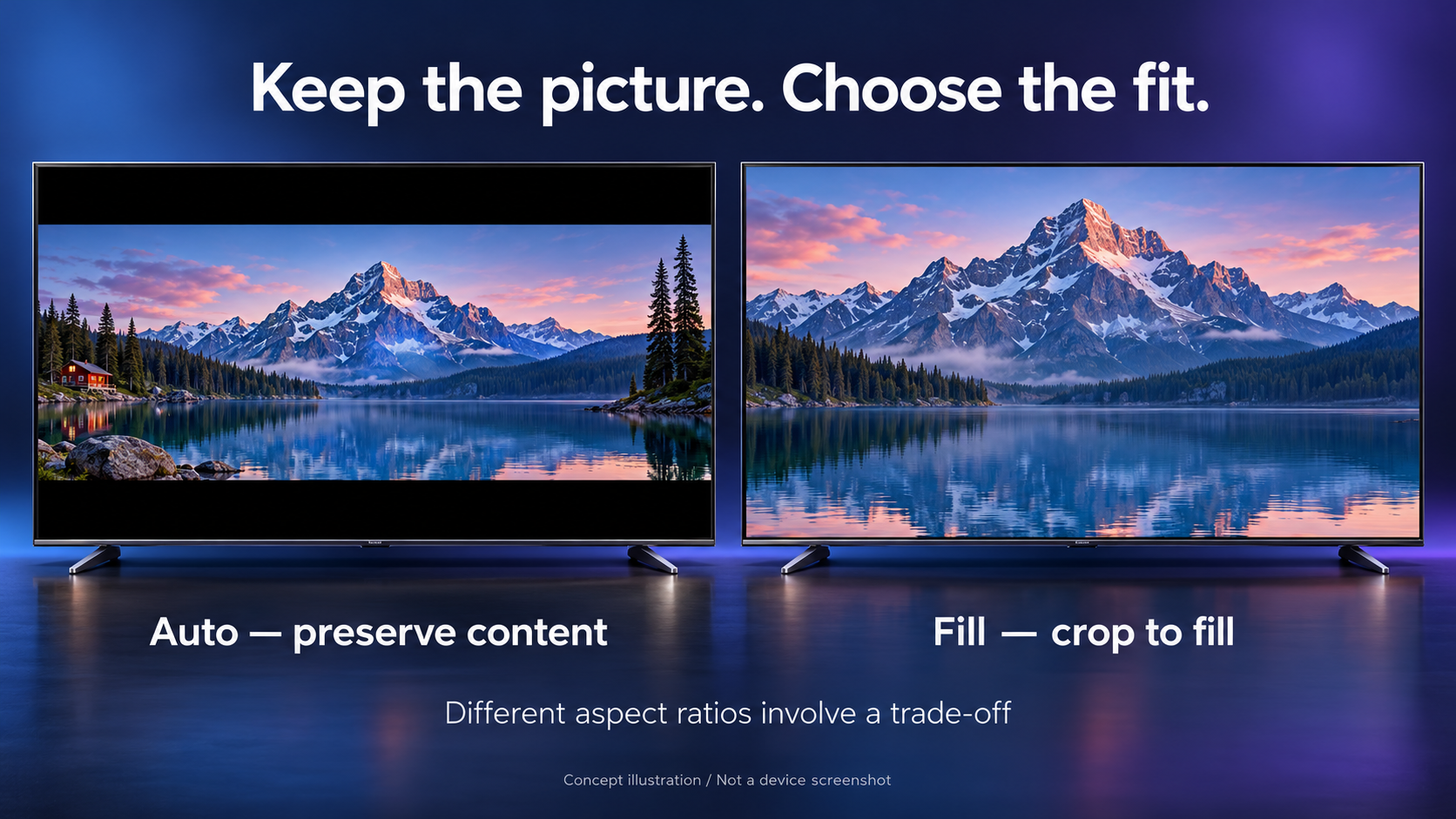
Model-generated illustration: the left view retains the wider picture and necessary bars; the right fills the display by cropping the house and edge trees. Not a device test or exact geometric simulation.
| TV framing | What it does | Trade-off |
|---|---|---|
| Auto · remove black bars | Detects stable near-black borders, then fits the retained region proportionally | Detection can remain undecided; aspect-ratio differences can still leave bars |
| Fit / full image | Fits the complete source frame proportionally | Preserves source edges, including any embedded bars |
| Fill | Scales the full source until the display is covered | Content outside the display is cropped |
| Manual | Lets you set each edge, zoom and position | You decide which source content may be hidden |
Auto cannot reconstruct pixels, identify a subject, or distinguish every dark scene from a border. Subtitles, controls and unusually dark or asymmetric images can prevent detection. Select Fit to recover the complete frame; use Rescan after a content change. Removing redundant black pixels does not guarantee edge-to-edge playback without losing picture content.
After installation and network setup:
- Open MoonCast on the TV in Receive mode. Keep both devices on the same trusted LAN, with device-to-device access enabled.
- On an Android phone, choose AirPlay → My TV, select the receiver, start sharing and approve Android's screen-capture prompt. On iPhone/iPad, select MoonCast through system AirPlay screen mirroring or the media route picker.
- Play your video. TV Auto is the fresh-install default; allow several seconds of stable, visible content. Open framing controls to choose Fit, Fill, Manual or Rescan.
GameStream and DLNA use the connection flows listed below.
The TV samples a small preview, scans for paired near-black edges, checks that the interior contains distributed visible content, and waits for consistent borders before applying a proportional transform. Ordinary borders require 8 accepted samples; wide borders require 12. A post-lock safety check can widen the crop after two consecutive observations of visible content outside it.
This is a deterministic pixel-threshold and geometry algorithm, not AI scene recognition. The phone's sender-side crop pipeline uses separate rules and does not inherit every TV safeguard. Read the implementation, thresholds and limitations →
Movie night on a TV: use MoonCast's receiver, start with Auto, and keep Fit one click away for subtitles or unusual framing. The receiver also accepts supported media URLs from compatible DLNA controllers.
A phone on an iPad, TV or computer with Moonlight: start the Android GameStream host and pair from the existing Moonlight client. No PC intermediary is needed. Pairing, client settings and hardware decoding remain part of the Moonlight workflow.
Share the original file: the sender's original-file cinema serves a selected photo, video or audio file through a tokenized LAN browser link without transcoding its bytes. Browser codec/container support still determines playback. This is separate from screen mirroring, DLNA receiving and Moonlight.
| Area | Implemented capability | Scope / limit |
|---|---|---|
| Phone → Moonlight | H.264 / HEVC SDR screen encoding; existing Moonlight clients | Lossy encoding; no HDR, AV1 or latency benchmark claimed |
| Phone → AirPlay | Android screen sharing to a compatible AirPlay receiver | AirPlay variants and hardware compatibility vary |
| TV receiving | AirPlay mirroring/media, supported DLNA URLs, GameStream client | Separate protocol paths; not Android's universal system Cast receiver |
| Phone framing | Whole screen, auto fit/fill, centered 16:9 region, stable Cinema | Sender auto detection is landscape-only; centered 16:9 assumes centered content |
| TV framing | Auto, Fit, Fill, four-edge Manual, zoom/pan and rescan | Rule-based detection; dark content and overlays can defeat it |
| Playback sound | Optional eligible playback-audio forwarding and local mute/recovery | Android 10+ capture requires source-app permission; Root capture is video-only |
| Profiles and presets | Receiver preferences; Movie/Game/Power saver presets | Do not replace Moonlight's resolution/FPS/bitrate settings or grant permissions |
| Runtime information | Capture submissions, app UID traffic and thermal information | Not end-to-end latency, receiver FPS, or measured power savings |
| Optional control | Accessibility gestures; Root/Shizuku continuous touch and basic keys | Off by default; explicit authorization; backend and ROM limitations |
| App capture | Android 14+ system app picker; Shizuku independent display | Picker capture has no reliable input mapping; independent display is video-only |
| Watch party | Experimental fan-out to up to three Moonlight receivers | Hardware encoding/network limits; common framing/audio packet duration; input off |
| Local panel power | Optional Root/Shizuku panel-off request with recovery lease | Experimental, ROM-dependent; physical panel behavior and savings need device tests |
| TV experience | Remote-friendly settings, four standby themes, translucent playback panel | Theme art is a standby background, not a playback overlay |
| APK transfer | User-enabled TV session, package review and Android installer | Ordinary .apk only; no silent install, .apks or .xapk handling |
Advanced sender features retain their per-feature implementation and historical test notes. That historical evidence does not certify the current unified APK. Use the unified validation matrix for the current scope.
Release notes and all assets · ARM64 APK · ARMv7 APK · Complete corresponding source · SHA256SUMS
Minimum Android 8.0 (API 26). Use ARM64 for a device with a 64-bit ARM Android system; use ARMv7 for a 32-bit ARM system. Check the device's supported ABI rather than its marketing CPU name. Both APKs contain the same phone and TV roles; install only one variant per device. These are signed experimental preview APKs. CI's unsigned verification APK is not an installable release download. No x86 APK is published in this release.
The corresponding-source ZIP matches these 0.5.1 APKs: application source commit 27967d778c55042bb2adc926074bc3b1d94e19b9, tag community-v0.5.1. Ongoing development is on unified/community. The dependency-restoration script still verifies pinned native inputs from the old 0.5.0 source asset; it does not replace this version’s application source. Before building a Git checkout, run python3 scripts/restore_release_inputs.py; see build instructions. The complete source ZIP includes these pinned dependencies but excludes the MoonCast app-signing PKCS12 fixture. It supports an explicit unsigned verification build with a separate package. Signed community builds use the full Git checkout and the fixed test identity initialized once by the owner.
| Sending device | Receiving device | Workflow |
|---|---|---|
| Android MoonCast, AirPlay tab | MoonCast in TV mode or a compatible third-party AirPlay receiver | Open My TV, choose the receiver, start sharing and approve Android screen capture |
| Android MoonCast, Moonlight tab | MoonCast TV mode / official Moonlight client | Start the phone host, connect from the receiver, complete GameStream's PIN pairing |
| iPhone/iPad system AirPlay | MoonCast TV mode | Select MoonCast in Apple's screen-mirroring/media route picker |
| Compatible DLNA controller | MoonCast TV mode | Send a supported media URL to the receiver |
The single My TV picker combines casting and APK capabilities. An ordinary AirPlay TV is not assumed to accept APKs. APK transfer uses a user-enabled receiving session on MoonCast TV, fixed TCP port 48152, with no separate transfer pairing code. GameStream's protocol pairing remains required.
On TV enable Install phone APK. On the phone select an .apk, choose a capable TV in My TV and upload. The TV shows the parsed package and requires confirmation before opening Android's installer. If Android asks to allow installations from MoonCast, grant that yourself and return; the reviewed file remains available. There is no silent installation and no bypass for Android signing, version, compatibility or split-package requirements.
- For trusted LAN use. APK HTTP transport is unencrypted, bounded by size, concurrency, rate and session timeouts. Paths, content hashes, package parsing and private FileProvider access are checked. Do not expose the service to the Internet.
- Third-party receivers can have incompatible AirPlay variants. Miracast, Google Cast/Chromecast, Lelink, other OEM system-casting protocols and AirPlay 2 multiroom are not implemented. GameStream does not appear in Android's system Cast picker.
- DRM/protected content and apps that disallow playback capture may give black video or no forwarded audio. Mirroring is lossy; original-file serving is a different path.
- Advanced Root/Shizuku/Accessibility input remains optional and disabled until explicitly enabled. This preview does not change router or Android security settings.
- Builds and synthetic tests are not proof of physical TV/iPhone interoperability. See the validation report for passed and untested cases.
The older 0.5.0 uses com.mooncast.unified.preview and a disposable test signature. Its original signing identity is no longer available, so later builds cannot promise an in-place update of that package.
Community 0.5.1 uses the fixed package com.mooncast.community and a fixed public test-signing identity in the repository. Increasing versionCode will allow subsequent community builds to update in place. Moving from 0.5.0 requires a one-time migration, not a new package for every update. Private pairing state, settings and permissions do not automatically move across packages.
A public test key cannot establish maintainer authenticity: anyone can sign with it. Download from a trusted release source and check its published hashes. A future store edition will use a separate package and private production identity.
See the community signing policy for the fixed identity and fail-closed build checks.
0.5.1 includes the in-app language picker; old 0.5.0 does not. Only part of the system-language resource checks completed in this run; full locale and UI regression did not pass.
Choose Follow system, English or 简体中文 in phone settings or TV advanced settings. Cancel and choosing the current language keep the session running; accepting another language stops the old session before reopening the selected role. Android 13+ also supports the system app-language selector. See the language guide for the active-notification refresh limitation when changing language outside MoonCast.
Use JDK 17, Android SDK 35, Build Tools 35.0.0 and Gradle 8.9 / AGP 8.7.3. The current implementation is on unified/community.
git clone --branch unified/community https://github.com/meta-tabchen/MoonCast.git
cd MoonCast
python3 scripts/restore_release_inputs.py
python3 scripts/prepare_airplay.py --verify-sources
python3 scripts/prepare_airplay.py --verify-aar app/libs/airplaylib.aar
python3 scripts/prepare_unified_native.py
gradle :unified:assembleRelease :unified:lintRelease -PmooncastAbi=arm64-v8a
A full Git checkout builds the community release with the fixed public test identity initialized once by the owner. Verify it with python3 scripts/verify_community_identity.py unified/build/outputs/apk/release/unified-release.apk; add --previous /path/to/previous-community.apk to check update identity and increasing versionCode. Missing or changed signing inputs fail the build; no temporary identity is generated. Production builds are deliberately disabled until an independent private identity is implemented. Release source ZIPs exclude the MoonCast app-signing PKCS12 fixture; use -PmooncastUnsignedVerification=true for an unsigned com.mooncast.community.verification build, which cannot update the community app. Native rebuilding, inputs and packaging are in the build guide.
A useful device report includes the sender and receiver models, Android/iOS and app versions, protocol, codec/resolution/FPS/bitrate, framing mode and reproduction steps. Separate “connects,” “video works,” “audio works” and “crop behaves correctly”; redact private logs and pairing information. Report an issue · Contribute · Security.
Historical 0.3.1 sender README remains available as a separate archive, not a hidden part of the current introduction. It describes that historical version only.
Phone GameStream hosting derives from Mirror/Sunshine; AirPlay sending uses the pinned Go sender; receiving uses patched AndroidAirPlay/UxPlay plus Media3/DLNA and Moonlight core. The two OpenSSL builds are packaged with distinct names and processes, not arbitrarily merged. Matching source bundles contain pinned native sources, local patches, binary hashes and build recipes. Third-party notices and theme licensing apply. MoonCast is an independent GPLv3 project, not an official Apple, Moonlight or Sunshine release.
Historical standalone behavior and test evidence remain in docs/; old results must not be read as acceptance of new unified builds. GitHub releases should publish APK variants, the matching complete source archive and SHA256SUMS together.